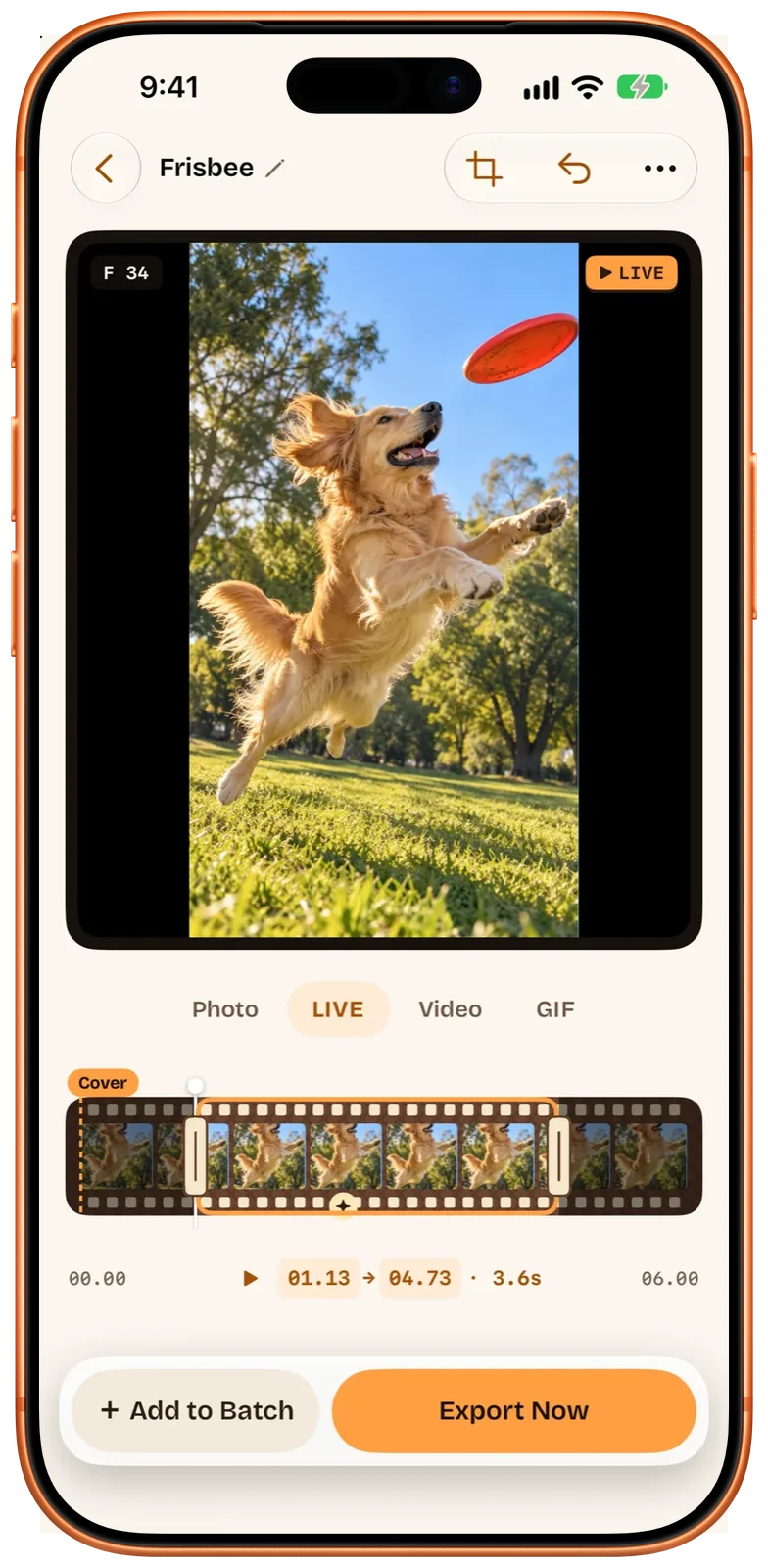
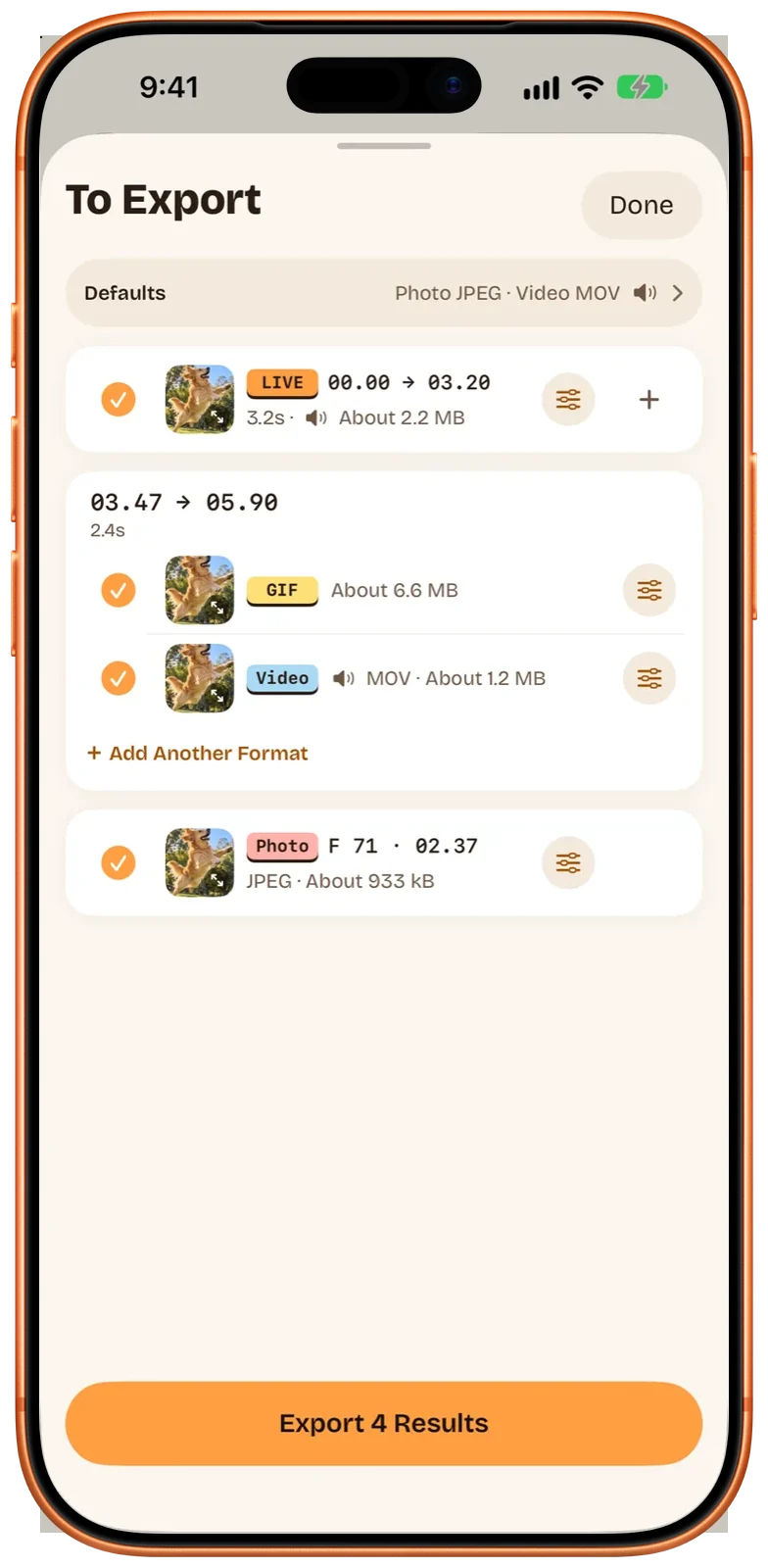
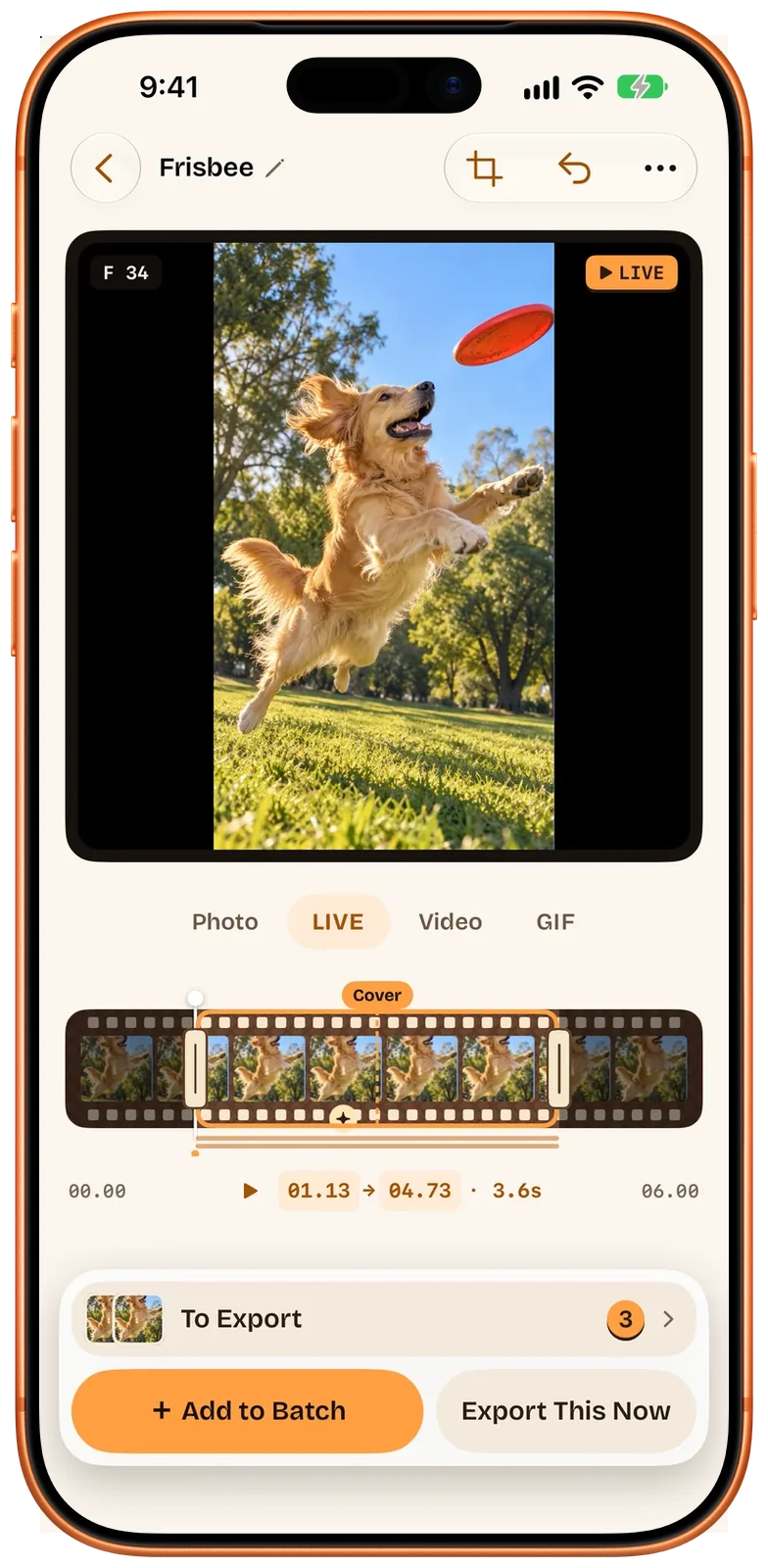
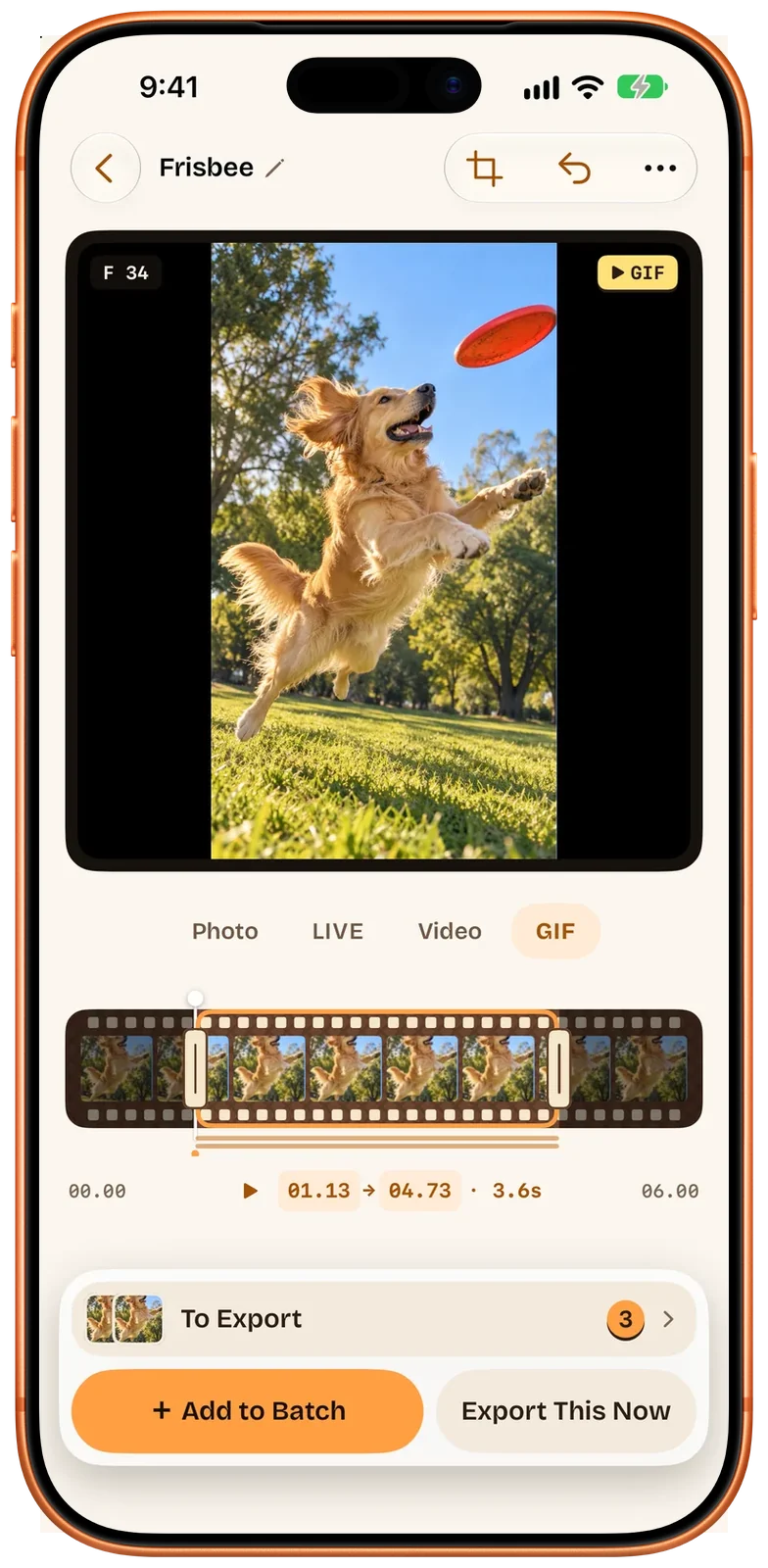
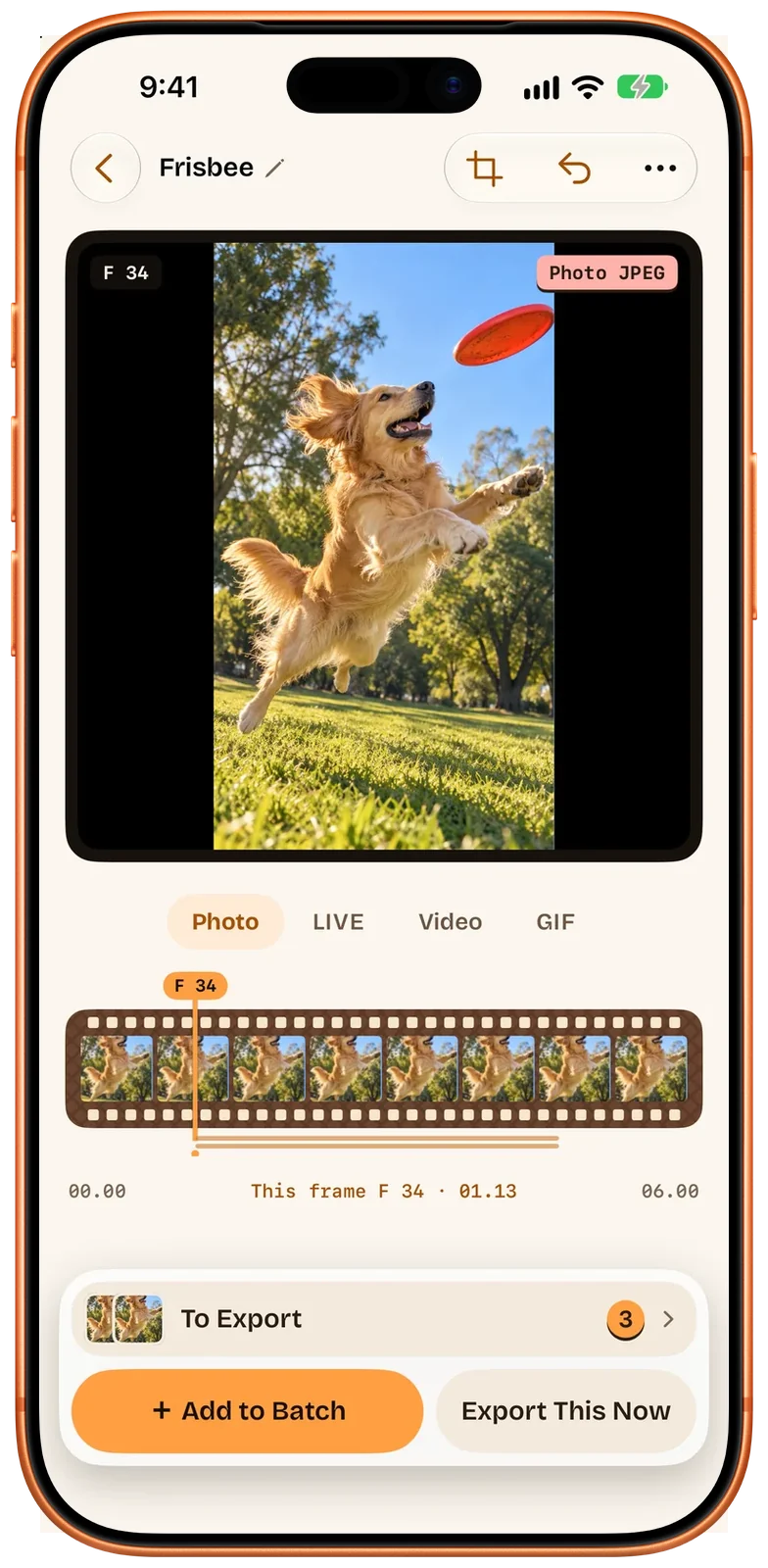
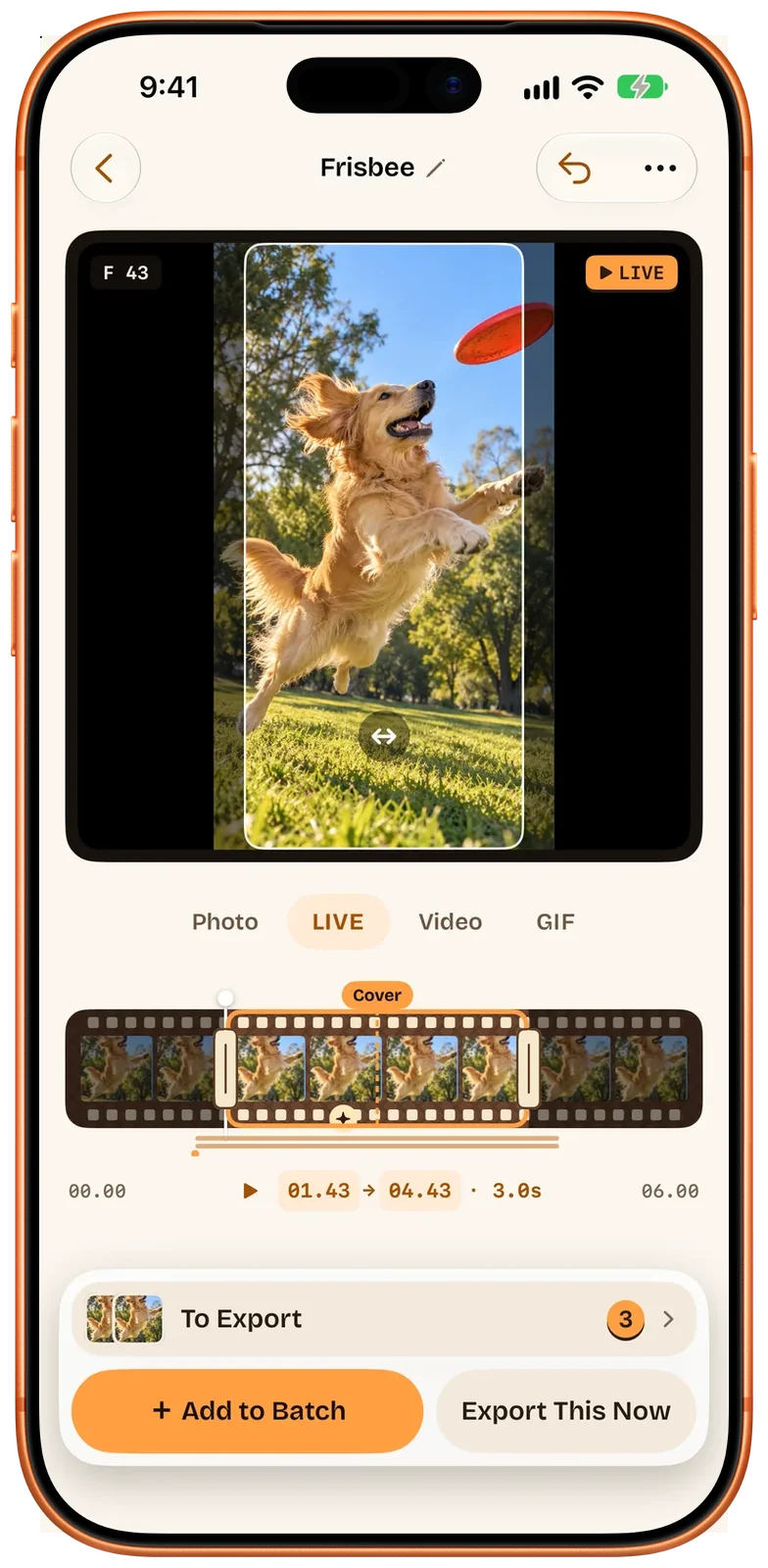
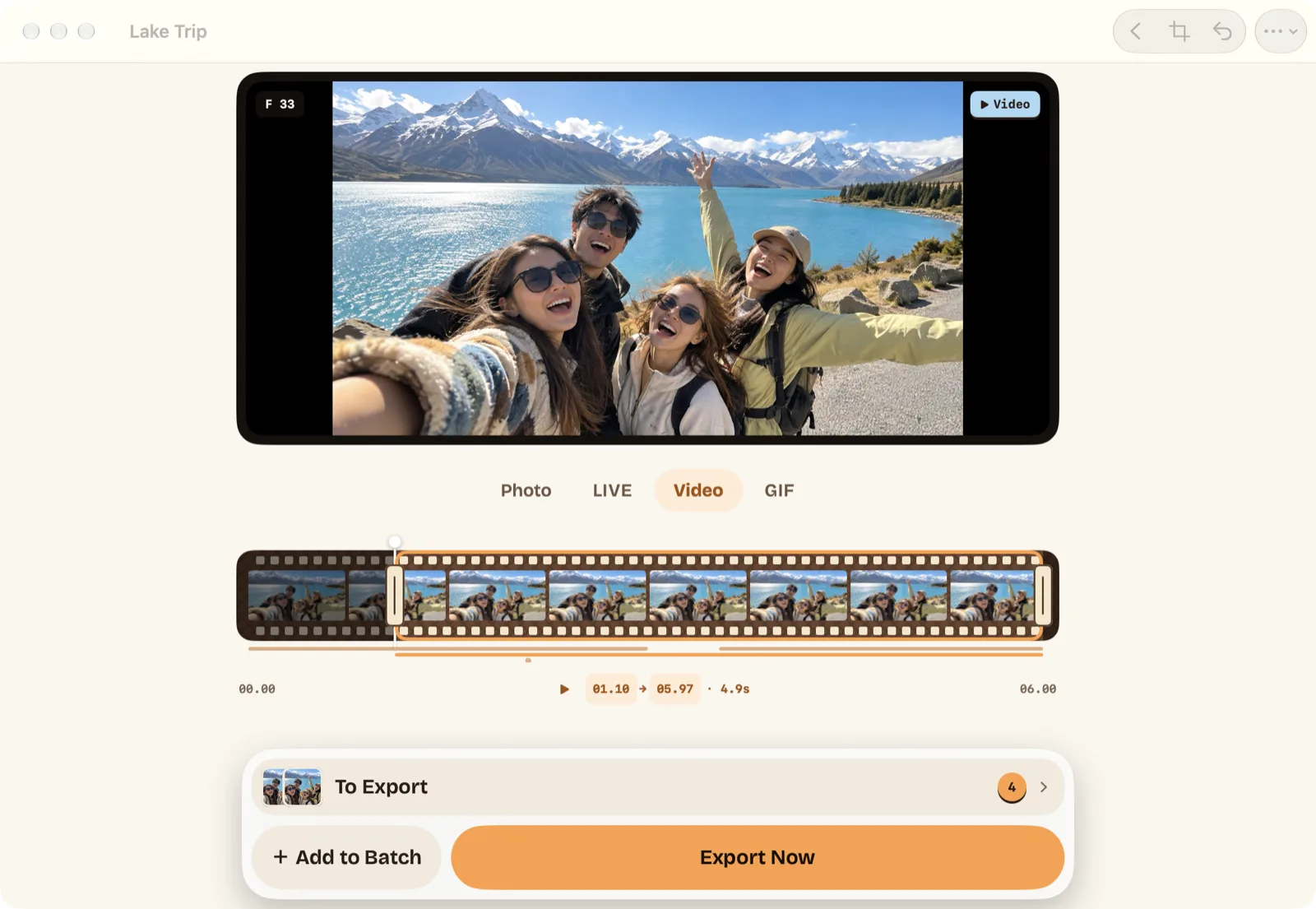
Slow down and the timeline steps frame by frame. Add each moment to the To Export list as a Live Photo, GIF, video or photo. Export them one at a time for free; with Pro, export the whole list in one go. Your first batch export is free.
1Every result waits in one list, each with its own format.
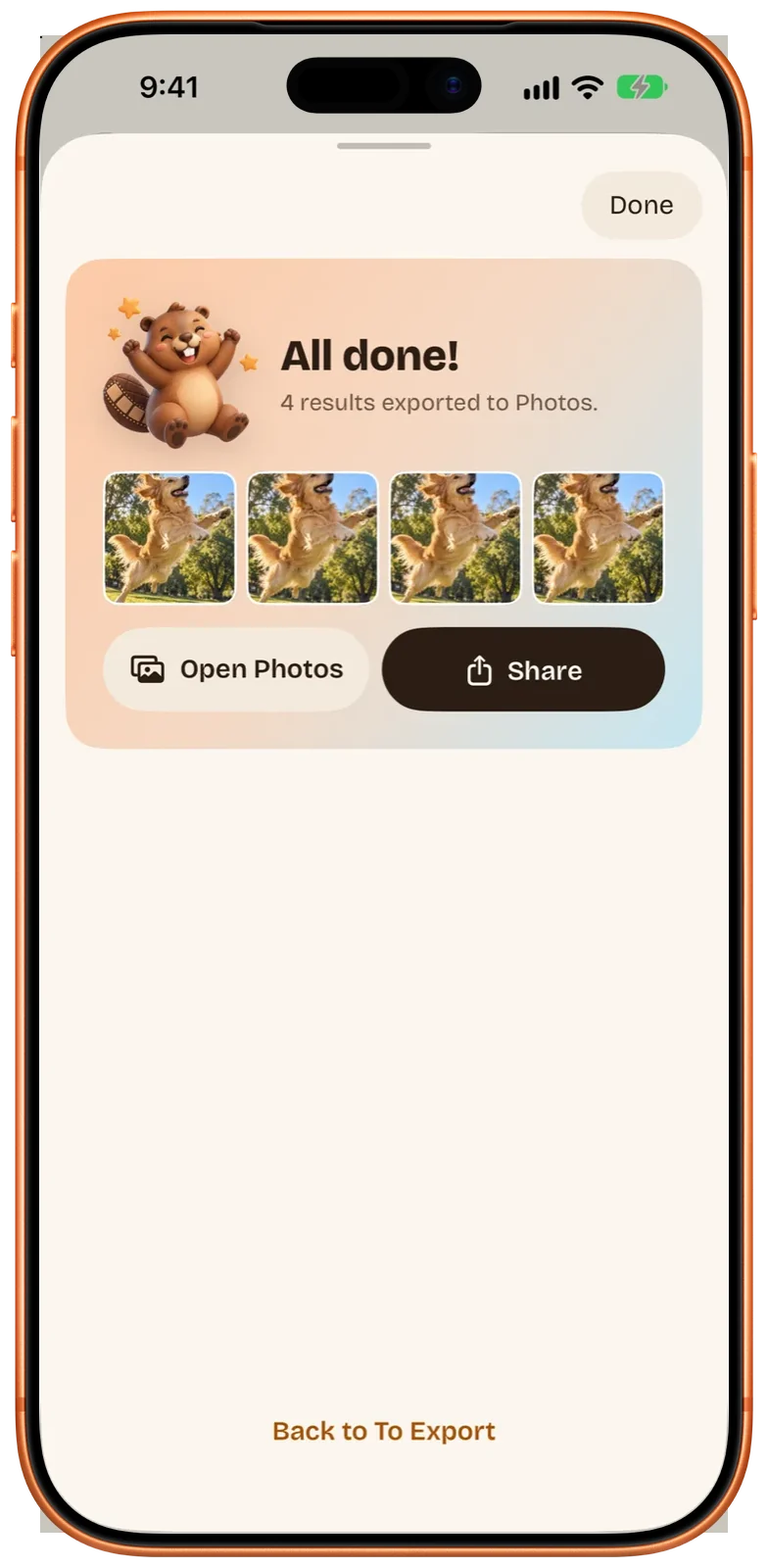
2With Pro, one export saves all four to Photos.
Three kinds of result
One video becomes Live Photos, GIFs and photos.
LIVEVideo to Live PhotoPick a stretch and it becomes a Live Photo, with any frame of the video as its cover.
GIFVideo to GIFPick a stretch of up to 20 seconds and it becomes a GIF that moves at the same speed as the clip.
PHOTOA full-quality photoSave any frame of the video as a full-resolution photo.
Nothing lost
HDR, sound, capture date and place. Kept by default.
Live Photos and videos keep the video’s HDR and sound. Every result keeps the date, time and place the video was shot, and you can remove the place or use the export time for any single export.
Beavery Pro
Moving Lock Screen wallpapers.
Tap Make a Moving Wallpaper, frame the picture to the shape of your screen in the wallpaper frame, and export a moving Lock Screen wallpaper.
Also on your Mac
There is no built-in way to make a Live Photo on a Mac. Now there is an app for it.
Open a video, pick the moments on the big screen and export to Photos or a folder.
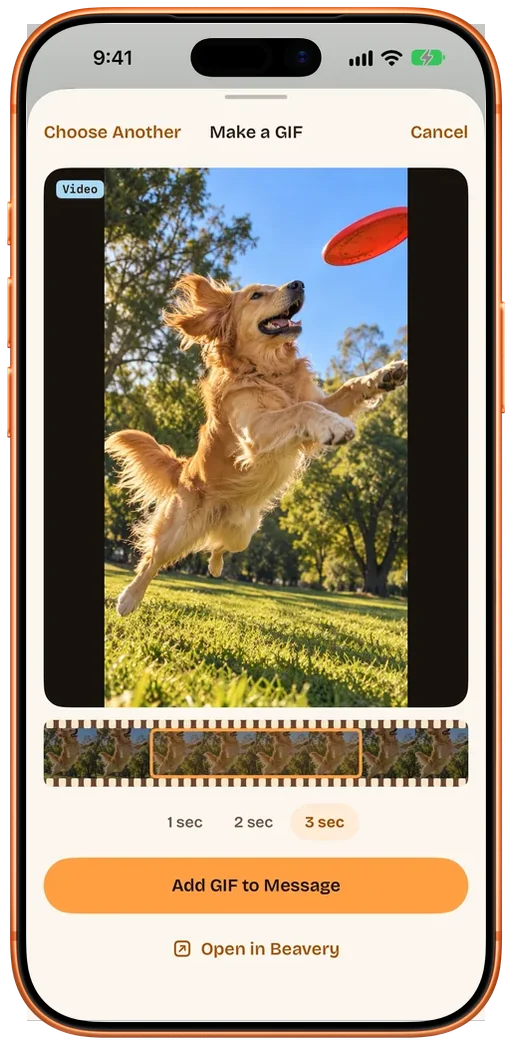
GIFs in MessagesTurn a video, Live Photo or photo into a GIF right in Messages.
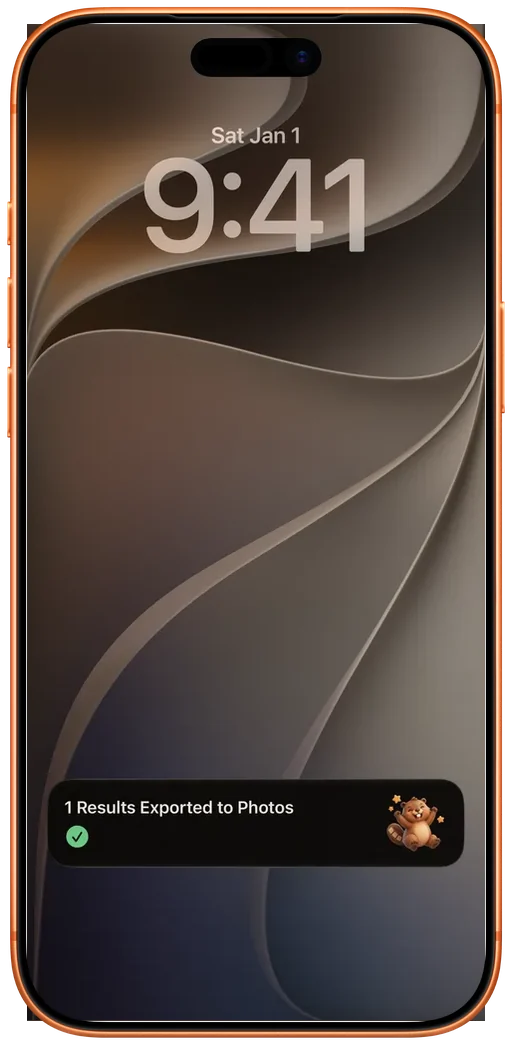
Progress on the Lock ScreenWhile you export on iPhone, progress shows in the Dynamic Island and on the Lock Screen.
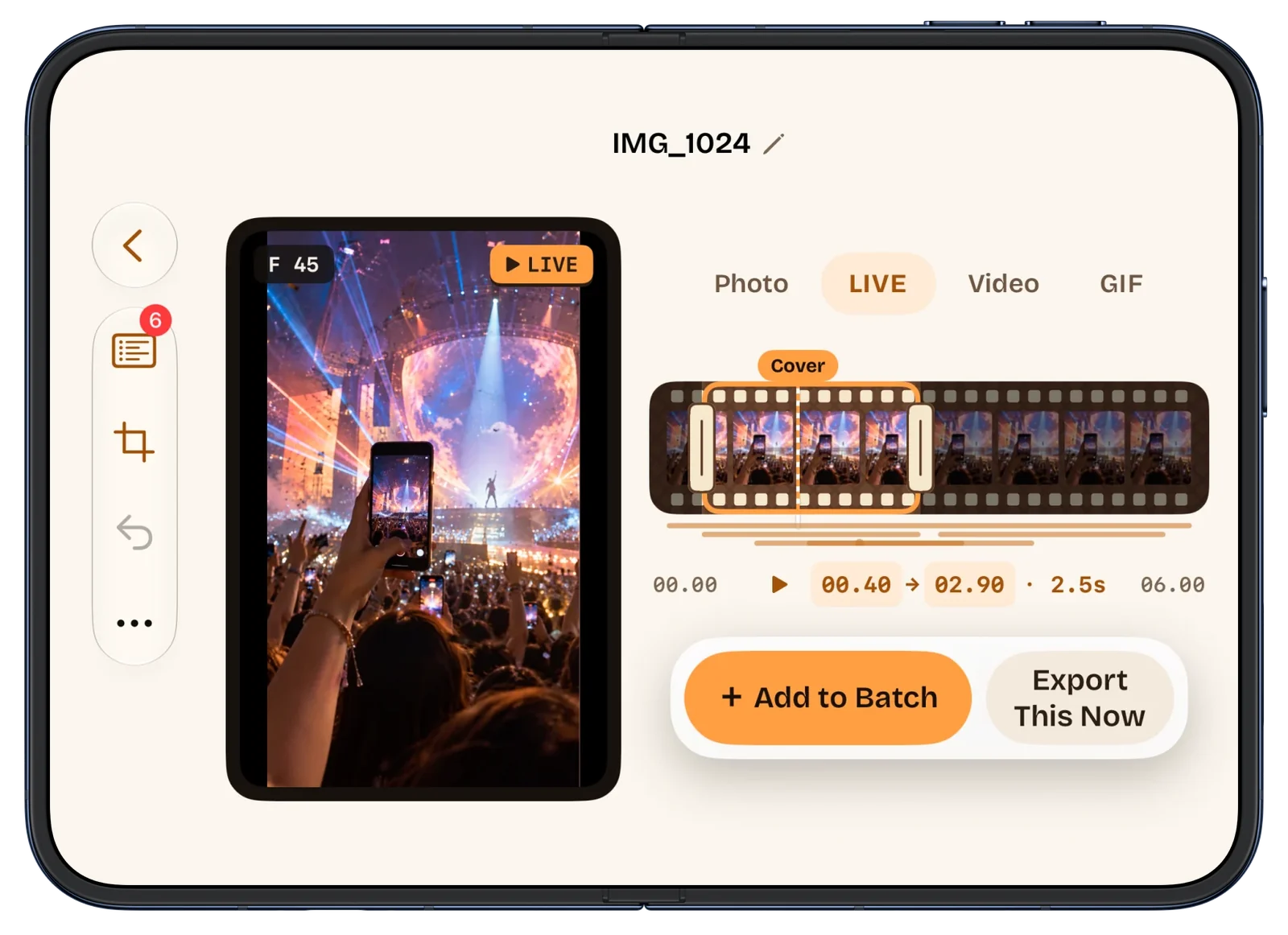
Made for iPhone DuoThe layout follows how you hold it: unfolded sideways, preview on the left and controls on the right; upright, one above the other; stood half-open, the bottom screen becomes a scrub pad.
Your videos are processed on your device and never uploaded.
Compared
Beavery next to Photos and other converter apps
Task
Photos (iPhone and Mac)
Most converter apps
Beavery
Make a Live Photo from a video
No
Yes, on iPhone
Yes, on iPhone, iPad and Mac
Make one on a Mac
No, Photos on Mac only plays them
No Mac app
Native Mac app, the same App Store app
Several results from one video
—
One result per export
As many as you want: one per export for free, all in one go with Pro
HDR, sound, capture date and place
—
Varies by app
Kept by default
Where your media is processed
—
Varies by app
On your device, not uploaded
Photos: Apple's own app, checked 2026-11-04. Most converter apps: what their App Store pages describe, 2026-11-04; individual apps differ.
And also
A few more things.
Live Photos, back againTurn a Live Photo into a GIF, a video or a photo. A GIF works as a source too.
Photo to Live PhotoA photo becomes a Live Photo that holds still, or zooms in or out a little.
Video clipsExport any stretch as a video.
Frame by frame, any coverSlow down and the timeline steps frame by frame. The cover can be any frame, and Beavery points out a sharper one nearby.
CropFree, Original, 3:4, 1:1, 4:5, 16:9 or Screen. A Live Photo’s still and video are cropped together.
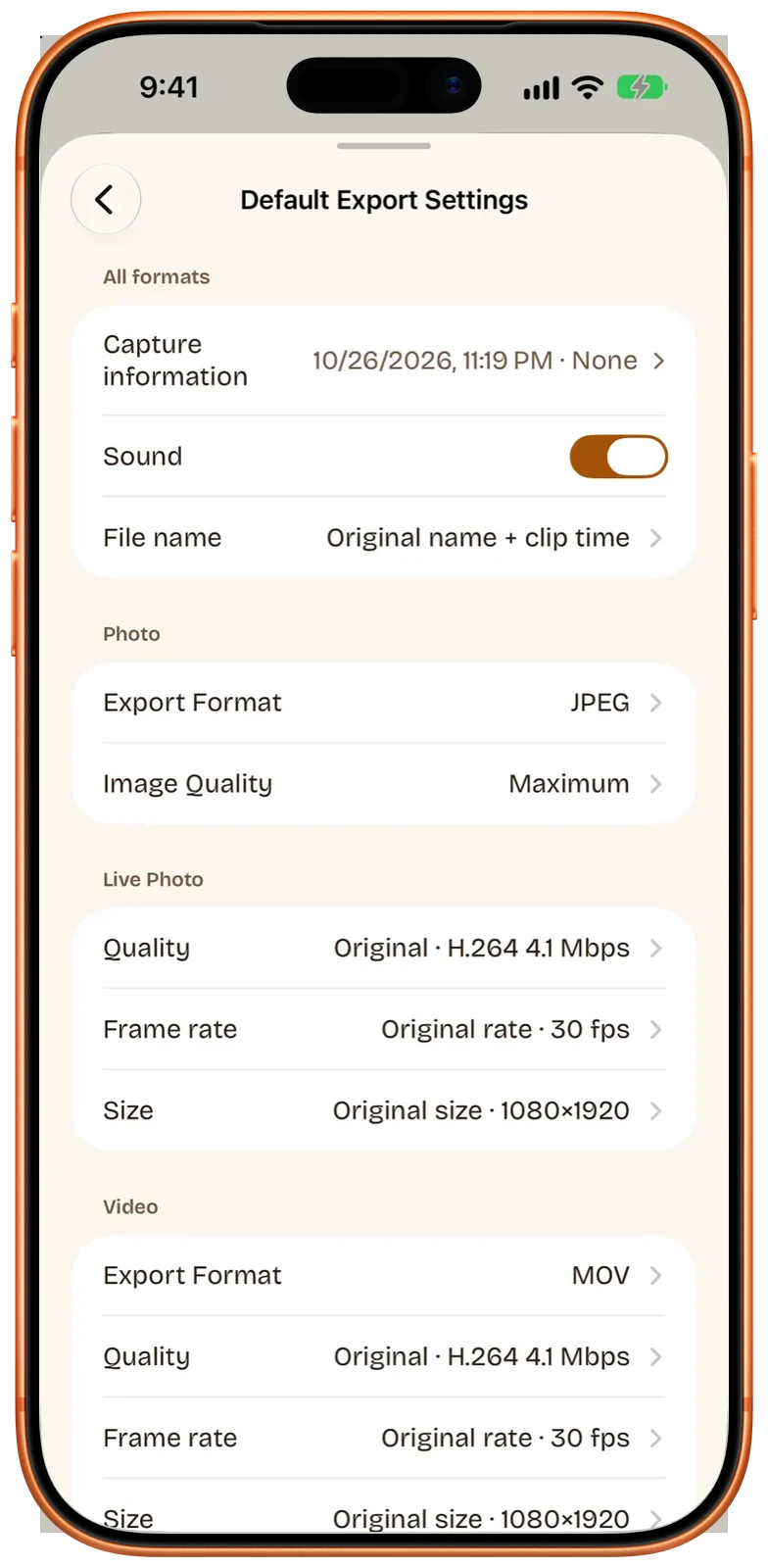
Defaults, with exceptionsSet the defaults once. Change any single result.
Where it lands in PhotosResults show up as newest in Photos by default, and GIFs land in the Animated album.
Keeps going when you leaveSwitch to another app and the export carries on. iOS 26 and later.
Windows and shortcutsSeveral windows on iPad and Mac, layouts that fit the big screen, and keyboard shortcuts on the Mac.
Share and drag inOn iPhone and iPad, share videos and photos from another app into Beavery. On iPad and Mac, drag one straight into the window.
Siri, Shortcuts and SpotlightOpen Beavery from Siri, build GIFs and Live Photos into your shortcuts, or find a project in Spotlight.
One app, three devicesiPhone, iPad and Mac. Free to use, one result per export; Pro exports several at once, with offer codes and Restore Purchases.
Works with VoiceOver, Dynamic Type and Reduce Motion, in 11 languages, with Liquid Glass on iOS 26 and macOS 26.
Price
Beavery Pro vs the free version
Making results is free. Pro is for exporting many at once.
I sent a Live Photo and it doesn't move for the other person. Why?
A Live Photo is a still and a short video kept together. Beavery saves both to Photos as one Live Photo; whether it still moves after sending depends on the app it goes through and the app that opens it. That is why Beavery doesn't offer Send to a friend for Live Photos: save to Photos and share from there, or export the same moment as a video or GIF for people who can't play Live Photos.
How long can a Live Photo be?
From a video, any length you choose: drag either end of the selection to take exactly the part you want. A Live Photo made from a still photo is 3 seconds. If Photos won’t take a very long one, Beavery offers to save it as a video instead.
Does it keep HDR and sound?
Yes. Live Photos and videos keep the video's HDR and sound by default. Turn sound off for any single result. GIFs and photos have no sound.
Do results keep the capture date and place?
Yes. Each result keeps the video's capture date, time and place by default. For any export you can remove or replace the place, use the export time instead, or remove camera settings. Show as Newest in Photos is on by default: Photos then dates the result at the export time, so it appears at the top; turn it off and the result sits next to the original video. The date inside the file is the same either way.
Can I make Live Photos on a Mac?
Yes. Beavery is the same App Store app on Mac, with macOS 15 or later. Drop a video on the window, pick the moments, and export to Photos or a folder.
What does Pro include, and what is free?
Downloading and making results are free, and so is exporting one result at a time. Pro lets you export two or more results in one go and export moving Lock Screen wallpapers. Your first batch export is free. Pro is $6.99 once or $3.99 a year.
Are my videos uploaded?
No. Videos, photos and results are processed on your device and are not uploaded.
Next time, just press record.
Beavery is waiting on your iPhone, iPad and Mac when you get home.