
Short answer
Open the video in Beavery and switch to LIVE. Drag the two ends of the selection around the moment you want, then drag the Cover marker to the frame you want as the still. Tap Add to Batch, then Export and Save to Photos: it arrives in Photos as one Live Photo with the LIVE badge. The selection can be any length.
To turn a video into a Live Photo on iPhone, open the video in an app that makes Live Photos, choose the stretch that should move and the frame that should be the still, and save the result to Photos. The app saves a still and a short movie as one item, so Photos shows the LIVE badge.
Apple’s Photos app can trim, mute or change the key photo of a Live Photo you already have, but its guides describe no way to make one from a video. Below are the five steps in Beavery, as they look in the app, using a 6-second clip of a dog jumping for a frisbee. On iPad the screens and steps are the same.
Step 1: Open the video
On the Beavery home screen, tap a video in Library, or tap Pick Media to choose one. Once it has read the video, the editor opens.
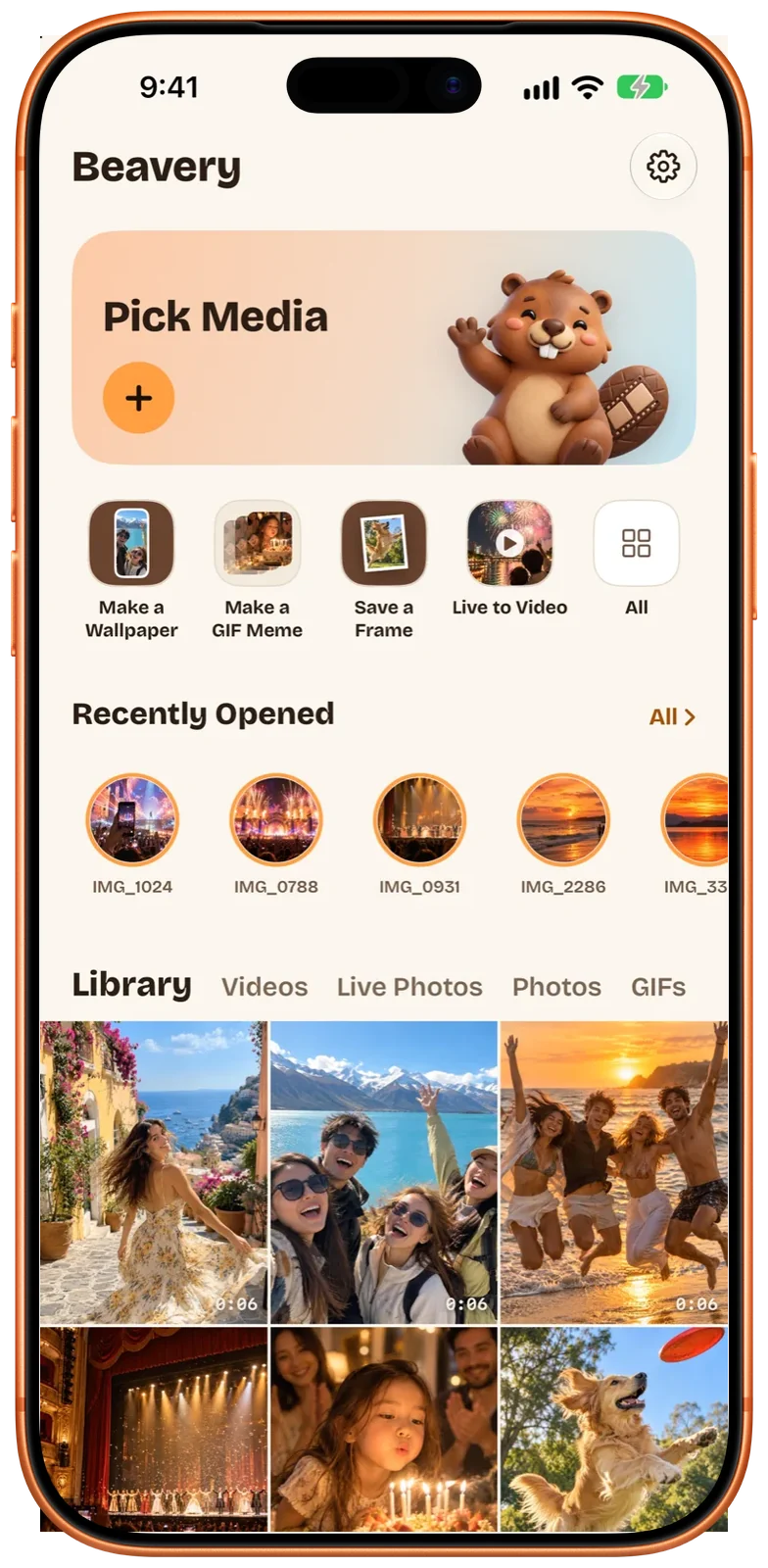
Step 2: Switch to LIVE and pick the stretch that moves
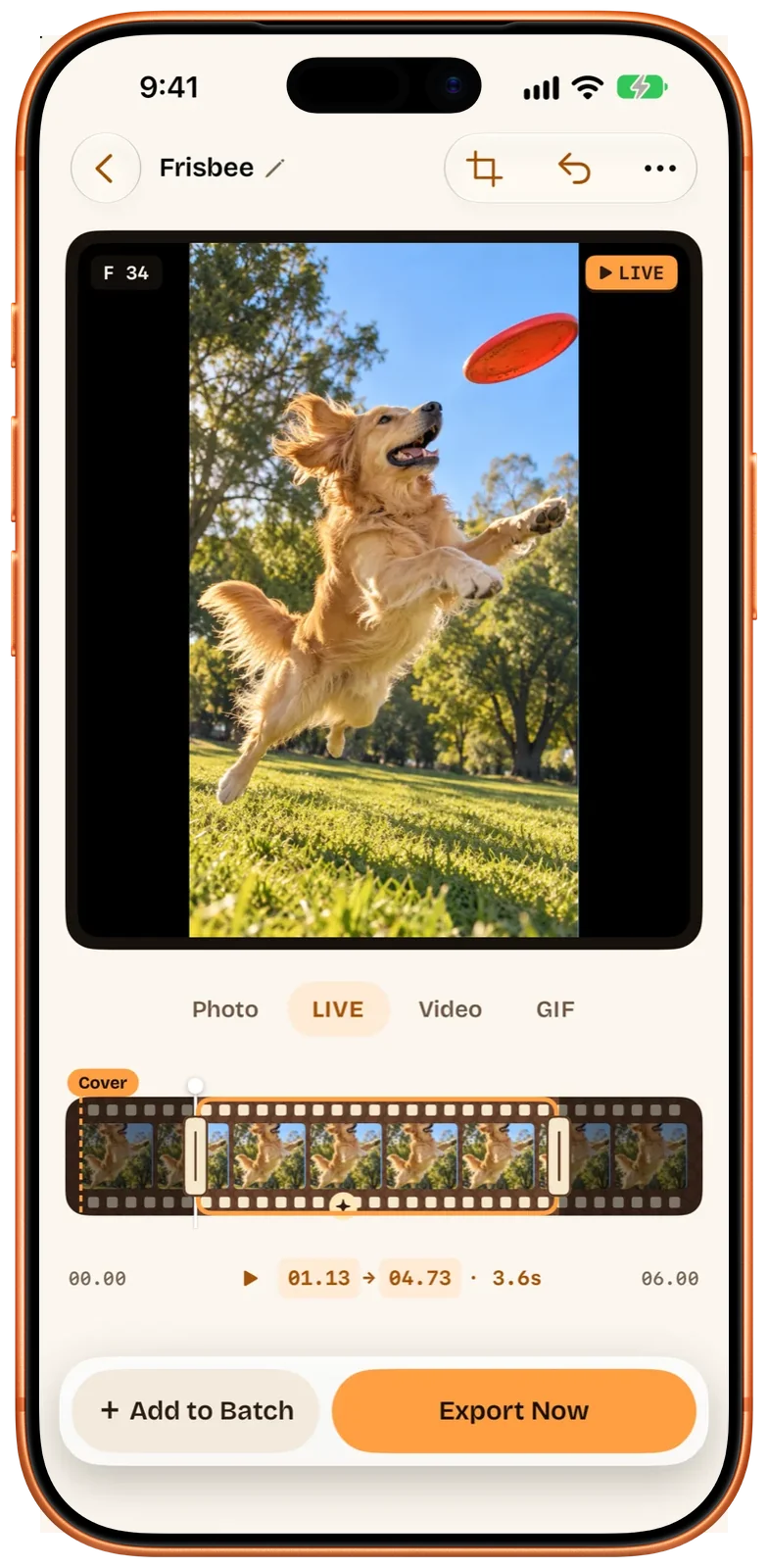
Tap LIVE above the film strip. The orange frame on the strip is the part that will move. Drag its left handle to where the motion should start and its right handle to where it should end. The readout below shows the start, the end and the length; here it is 01.13 → 04.73, 3.6 seconds.
Drag quickly to cover the whole clip. Slow down, or hold for a moment, and the strip spreads out under your finger to one frame at a time, so you can stop on the exact frame. There is no fixed length: the Live Photo is whatever range you drag. A Live Photo from the camera is a short clip around the shutter; one made from a video is only as long as the stretch you select.
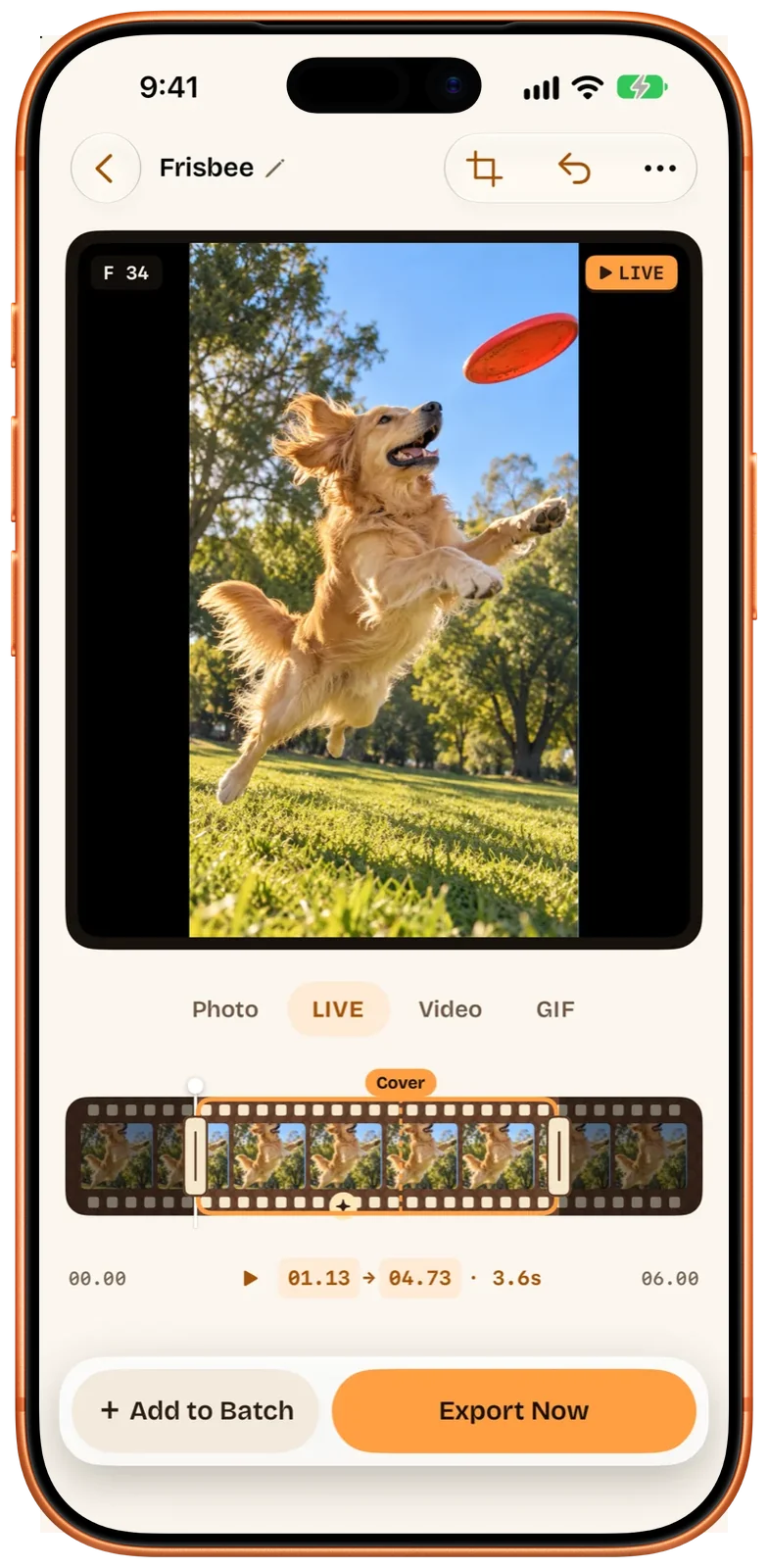
Step 3: Choose the cover frame
The Cover marker above the strip sets the still that Photos shows before the Live Photo plays. It does not have to sit at the start of the selection, or inside it at all. Drag it to the frame you want; in this example it moves to the moment the dog reaches for the frisbee.
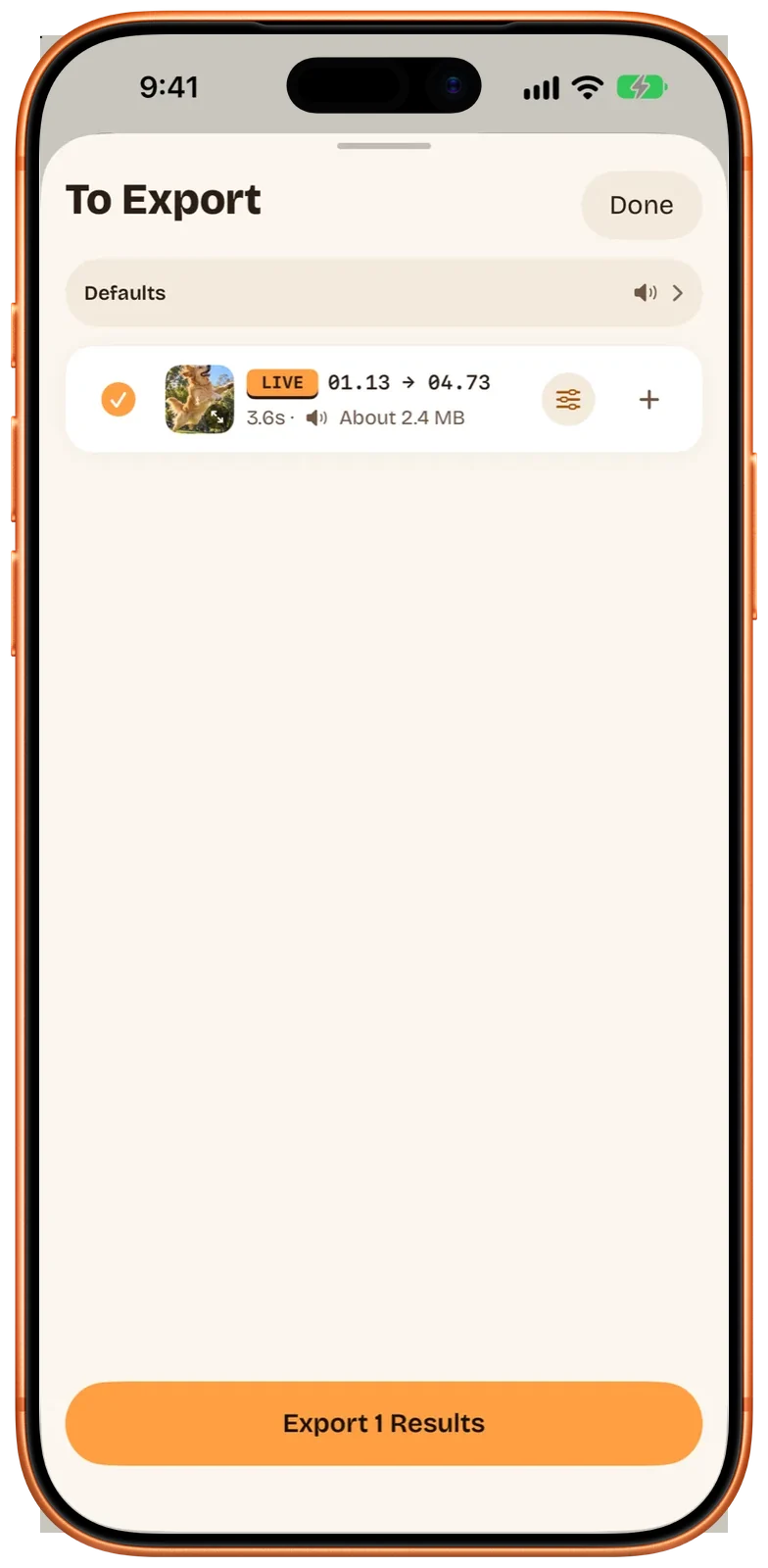
Step 4: Add it to To Export
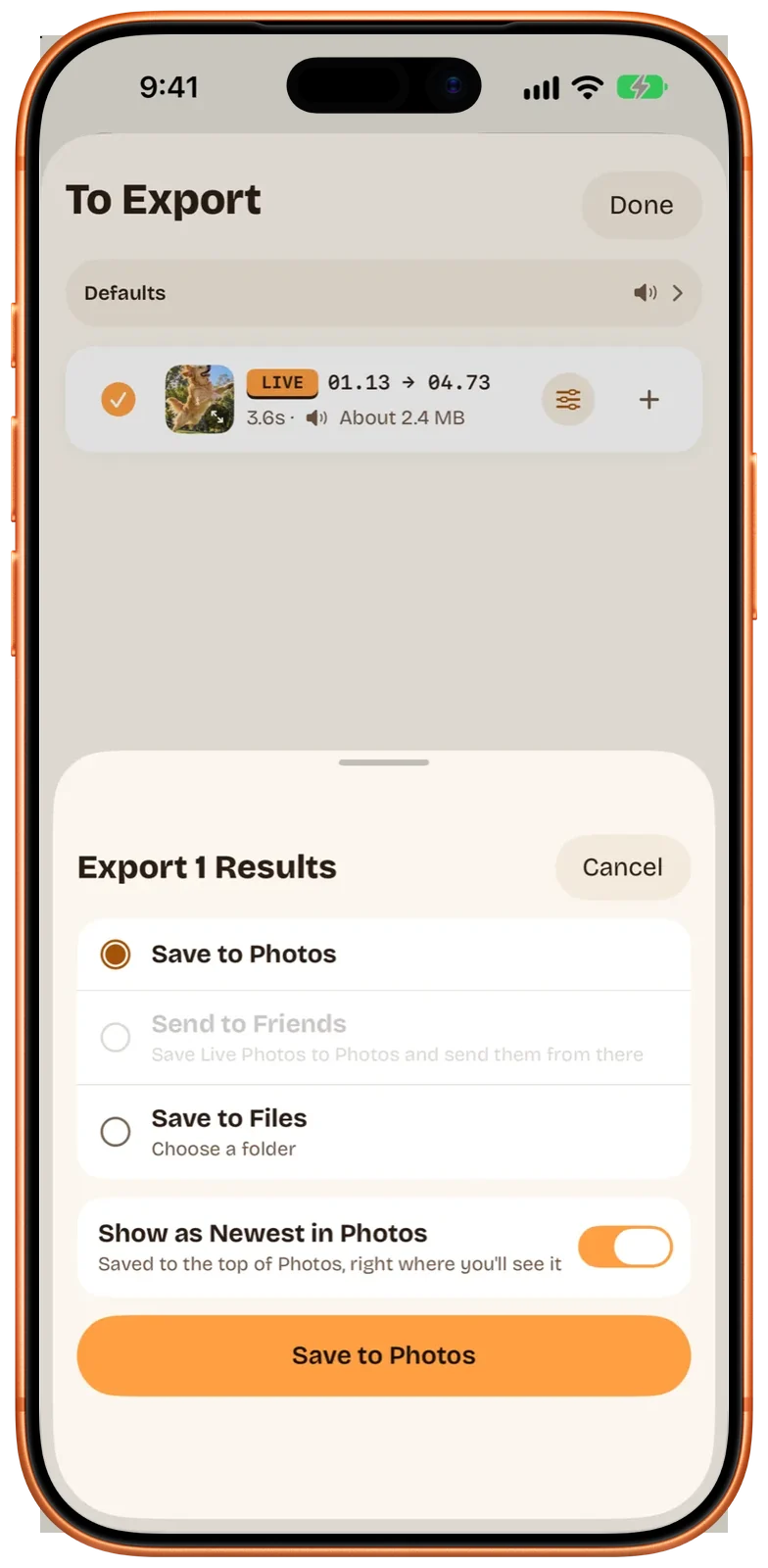
Tap + Add to Batch. The To Export bar above the button counts what you have added; tap it to check the result before exporting. Each row shows the LIVE label, start and end, length, whether sound is on, and the approximate size. You can keep picking more stretches from the same video and export them together (batch export needs Pro; your first one is free).
If you only want this one, Export Now skips the list and goes straight to the next step.
Step 5: Save it to Photos
Tap Export, keep Save to Photos selected and tap the button at the bottom. Show as Newest in Photos is on by default and puts the result at the top of your library; turn it off to file it next to the original video’s date instead. Send to Friends is greyed out while a Live Photo is selected, because iOS gives apps no public way to hand a Live Photo to the share sheet as one item: save it first and send it from Photos.
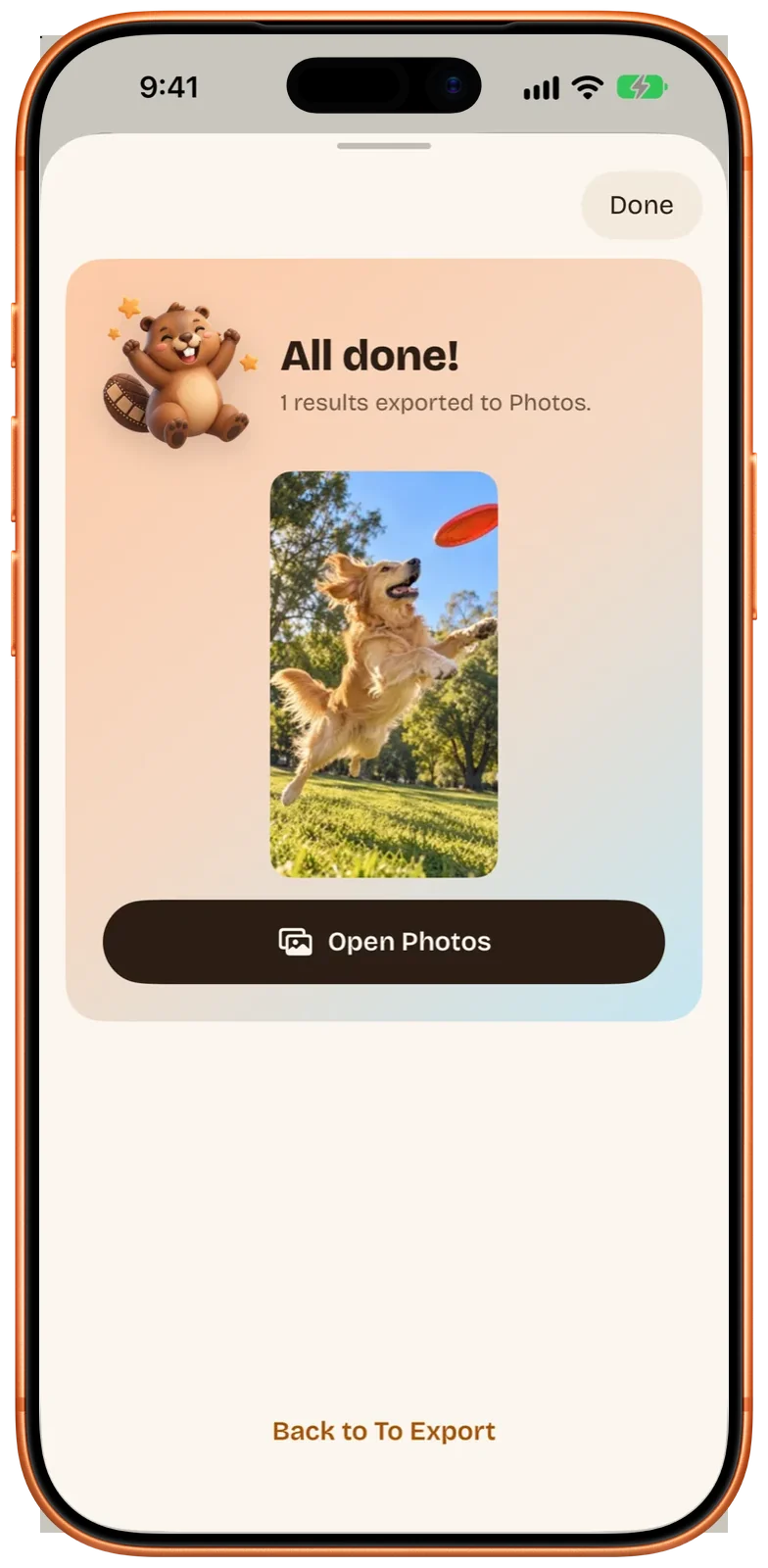
What you get in Photos
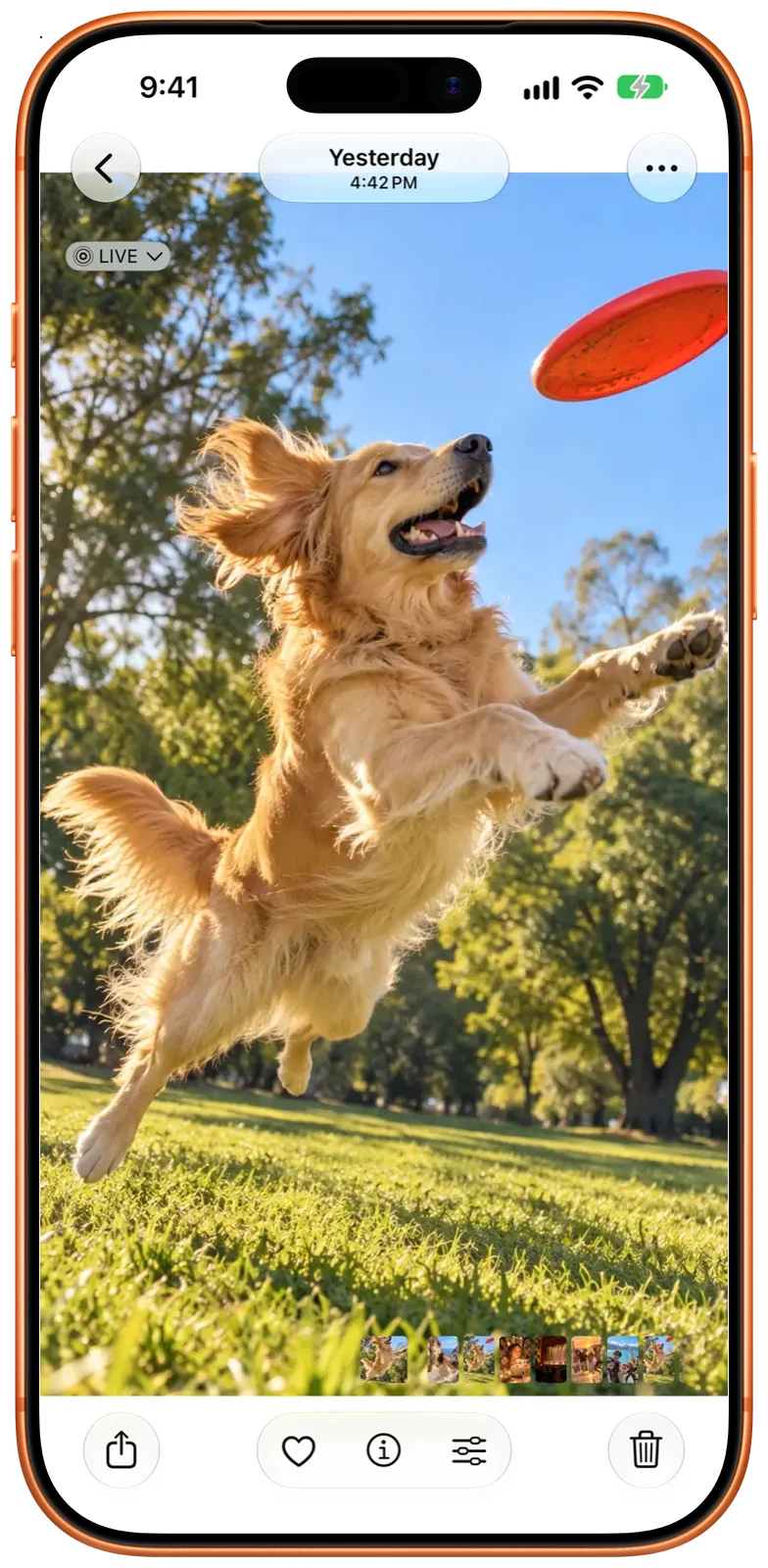
Photos shows the result with the LIVE badge; press and hold it to play. In the simulator run for this guide it was saved as a 1080 × 1920 HEIC still and a 3.6-second movie with sound, which Photos keeps together as one item. By default the movie part is copied from the video without re-encoding, so its resolution, frame rate, sound and HDR stay as they were. Photos keeps the still and the movie as one item.
When it does not work
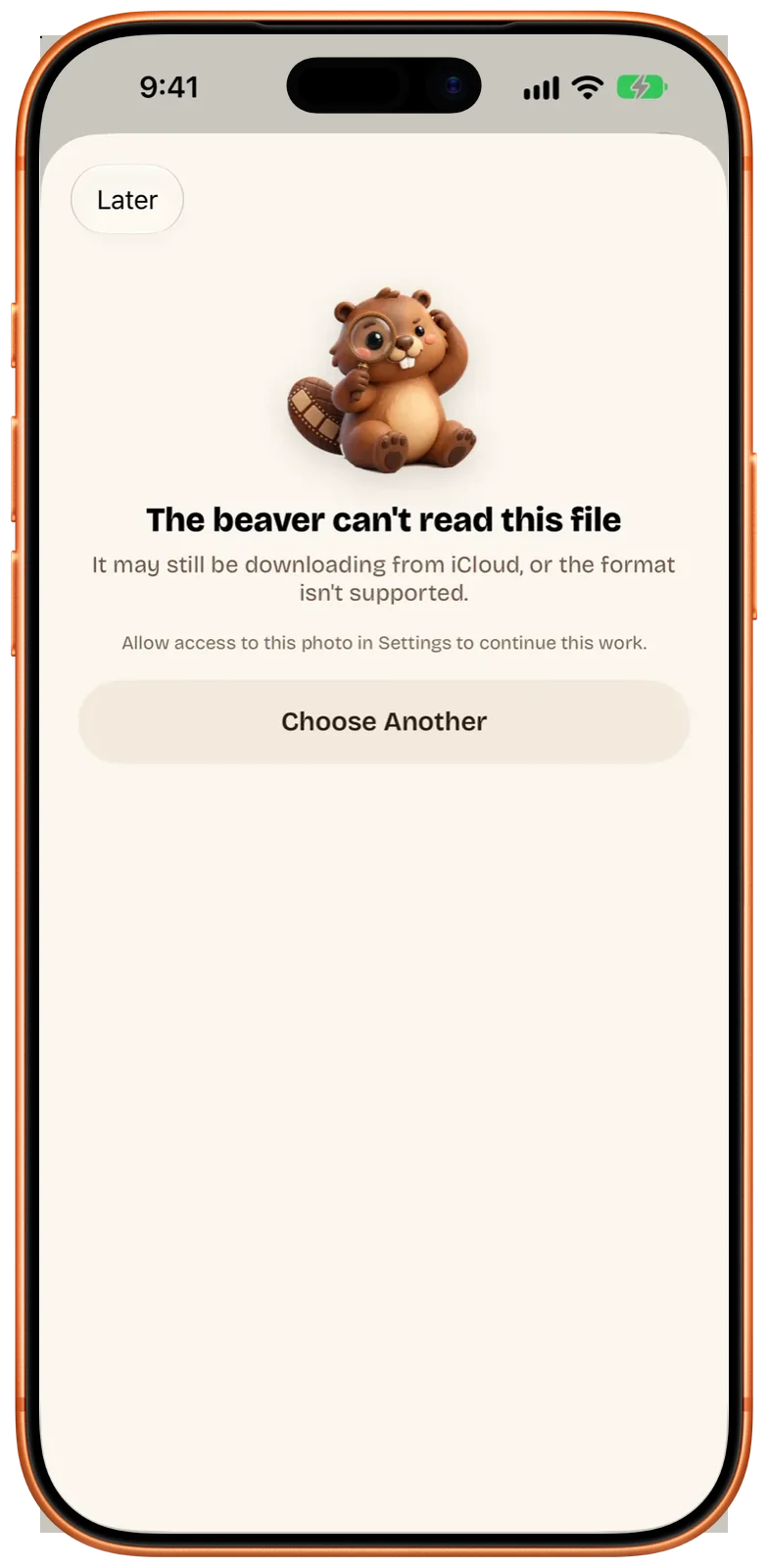
Photos access is off. Beavery opens videos from your library by reference, so it needs to read the library. With access turned off, a video you opened before shows “The beaver can’t read this file” with the line “Allow access to this photo in Settings to continue this work”. Turn Photos access for Beavery back on in Settings and open it again.
Saving to Photos needs at least “Add Photos Only” access. Without it, export stops on “Can’t reach Photos yet”, with Open Settings and Export to Files This Time. This screen was read in the app’s code; it was not captured in the simulator run.
The original video has moved. If the video was moved, renamed or deleted after you started, Beavery marks it “Original missing” on the home screen and shows “The original seems to have moved” with Find the Original. The results you added stay in To Export while you relink it. This case was not reproduced in the simulator.
Photos rejects the pair. Beavery checks each Live Photo with Photos before saving. If Photos refuses the still and movie as one Live Photo, the failed row says so and offers Save as Video Instead.
Your friend sees only a still. That happens on the way or on the receiving side. Send it from Photos rather than as two loose files; why a Live Photo stops moving after you send it goes through each route.
Making Live Photos on a Mac
The Mac version has the same editor and export choices, with keyboard shortcuts for moving the selection frame by frame. It is the same App Store app, not a separate download. See how to make a Live Photo on a Mac or the Beavery for Mac page.
Questions
Can an iPhone turn a video into a Live Photo without an app?
Apple's Photos guides cover editing Live Photos you already have (trim, key photo, sound, Loop, Bounce) but describe no command that makes a Live Photo from a video. You need an app that writes the still and the movie and saves them to Photos as one item.
How long can a Live Photo made from a video be?
Beavery doesn't cap the length: you drag both ends of the selection wherever you like, and the readout under the film strip shows the start, end and length. The one in this guide is 3.6 seconds. Beavery checks each Live Photo with Photos before saving; if Photos refuses one, it offers to save it as a video instead.
Can the still be a frame outside the moving part?
Yes. The Cover marker is separate from the selection, so the still can be any frame of the video, inside or outside the stretch that moves.
Does it work on iPad?
Yes. Beavery is one App Store app for iPhone, iPad and Mac, with the same editor and export choices on each.
Is my video uploaded anywhere?
No. Beavery processes your videos on the device; they are not uploaded.
How this guide was checked
- Checked against
- Beavery 1.0 (debug build da0d377) run in the iPhone 17 Pro Max simulator, iOS 27.0 · Apple Support documentation
- Device test
- The steps in this guide have not yet been run one by one on a device.
- Checked
Sources. Apple Support: Take and edit Live Photos; Apple Support: Edit Live Photos on iPhone; Apple Developer: Capturing and saving Live Photos
Written by the maker of Beavery. We sell the app described here; the limits above are the same ones you will hit.