
Short answer
Photos on the Mac plays, trims and edits Live Photos you already have, and can export them as a GIF or as their two original files; Apple's Photos guide describes no way to make one from a video. Beavery on the Mac does that: drag a video onto its window, switch to LIVE, set the stretch and cover with the mouse or the keyboard, add it to To Export and save it to Photos.
To make a Live Photo from a video on a Mac, open the video in a Mac app that writes Live Photos, choose the stretch that moves and the frame for the still, and save it to Photos. Photos on the Mac edits existing Live Photos, but Apple’s guide describes no way to create one from a video.
If the clip is already on your Mac, from a camera, a screen recording or a download, you don’t need to move it to your phone first. Photos on the Mac gets you part of the way; this guide shows where it stops and how Beavery for Mac covers the rest.
What Photos on the Mac can and cannot do
Apple’s Photos guide for the Mac lists what you can do with a Live Photo you already have. Click Live Photos under Media Types in the sidebar, double-click one and click Edit. There you can:
- trim where the movie starts and ends by dragging the ends of the slider;
- turn its sound on or off with the Speaker button;
- drag the playhead and click Make Key Photo to pick a different still;
- choose Loop, Bounce or Long Exposure from the pop-up menu, or Off to make it a still.
Revert to Original undoes all of it. You can also export a Live Photo: as an animated GIF (after choosing Bounce, File › Export › Export GIF), as a still, or with Export Unmodified Original as its two original files, a still image and a video. From an ordinary video, Photos can export a single frame as a still with File › Export › Export Frame to Pictures. Saving a video frame as a photo covers that command and the iPhone equivalent.
What the guide does not describe is the other direction: picking a stretch of a video and saving it as a new Live Photo. For that you need an app that writes both parts and saves them to Photos as one item.
Step 1: Bring in the video
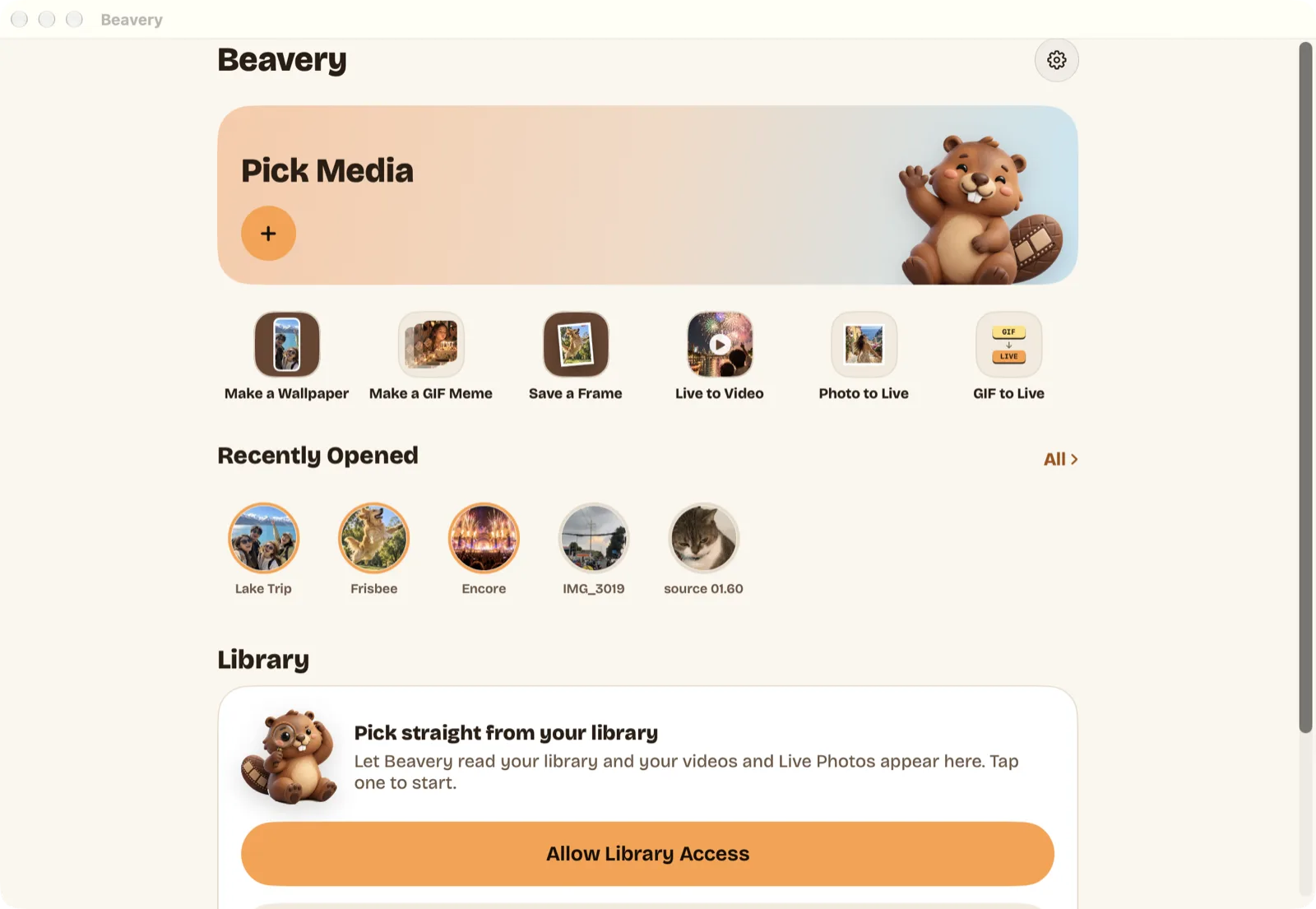
Drag a video from Finder onto the Beavery window, click Pick Media on the home screen, or choose File › Import File… (⌘O). It opens in the editor.
You can also start from Finder: select one or more videos and choose Create Live Photos in Beavery from the Services menu. Beavery makes a Live Photo from each file in a queue, one after another. Open a video in the editor instead when you want to choose the stretch and the cover yourself.
Step 2: Pick the stretch and the cover
Click LIVE above the film strip, then drag the two ends of the selection with the mouse, exactly as on iPhone. The orange Cover marker sets the still and can sit on any frame, inside or outside the selection. The length is up to you: the Live Photo is whatever range you select.
The keyboard is faster for the last few frames:
| Keys | What they do |
|---|---|
| ← / → | Step back or forward one frame |
| Space | Play or pause from the playhead |
| Option-← / Option-→ | Move the start of the selection by one frame |
| Option-Shift-← / Option-Shift-→ | Move the end by one frame |
| Shift-← / Shift-→ | Move the whole selection by one frame |
| ⌘= / ⌘- / ⌘0 | Zoom the preview in, out, or fit it to the window |
| ⌘-Return | Add the selection to To Export |
| ⌘E | Open To Export |
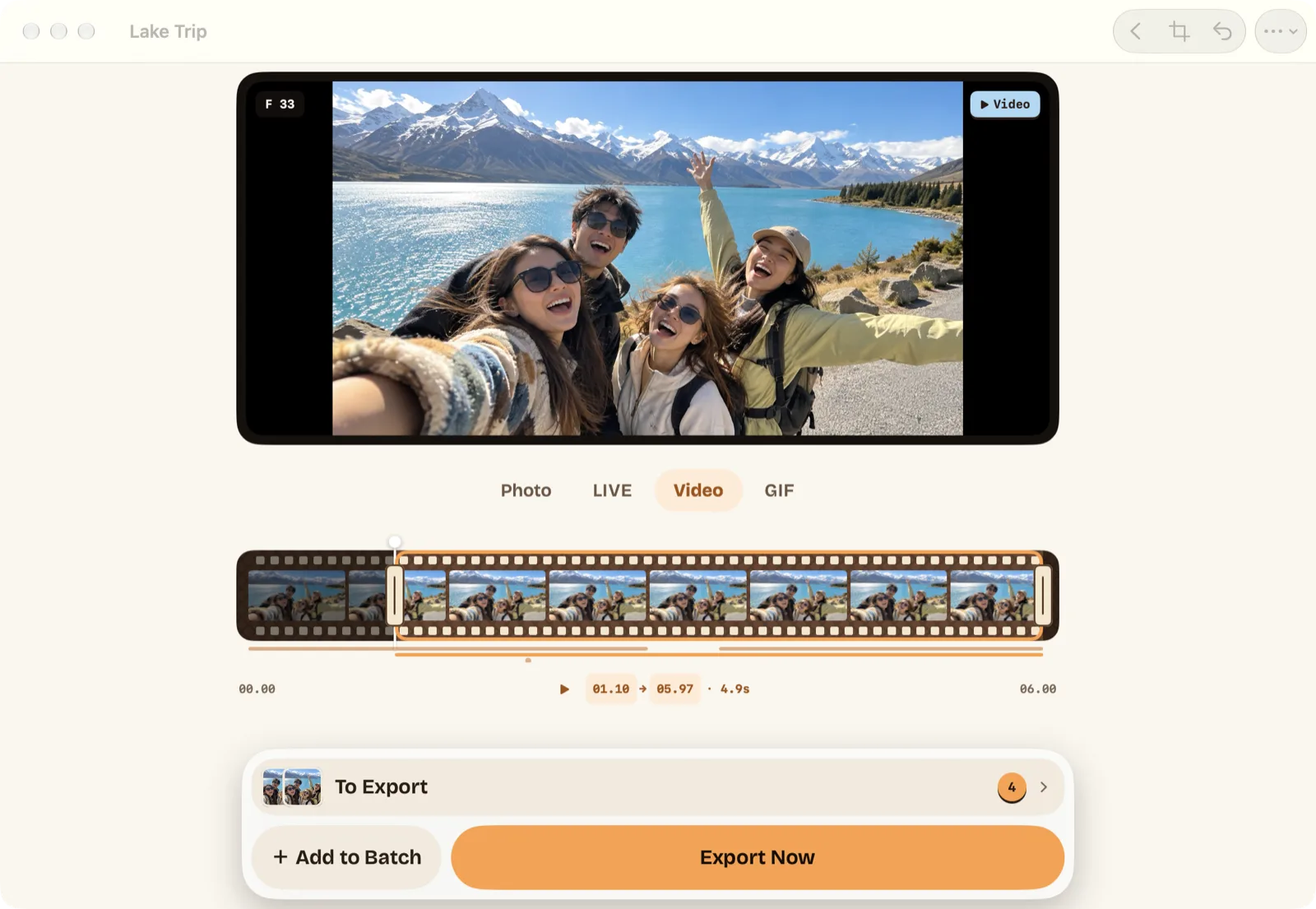
The screenshot is in Video mode; LIVE uses the same strip and handles.
Step 3: Add it and export
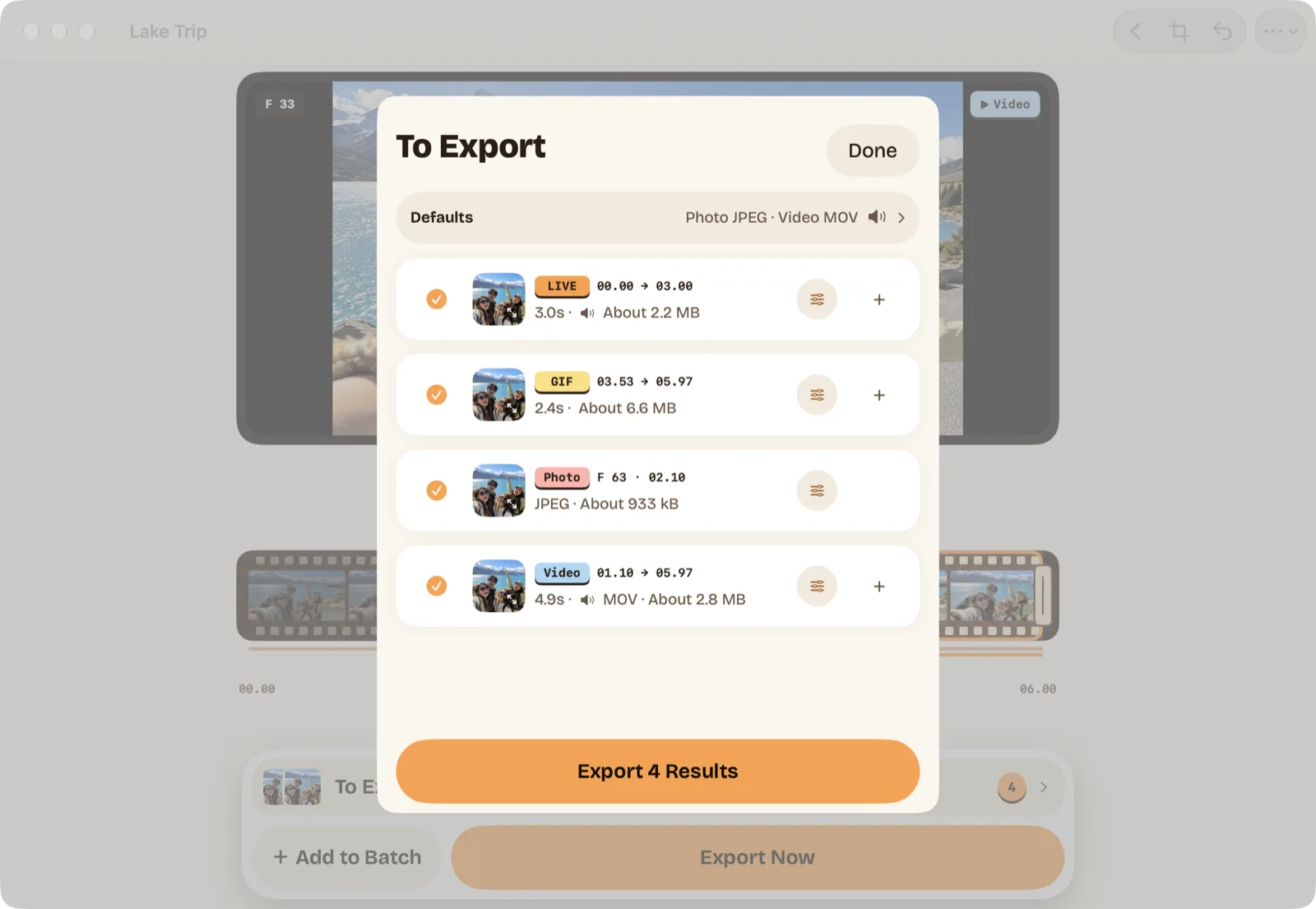
Click Add to Batch (or press ⌘-Return), then open To Export. Each result shows its label (LIVE, GIF, Photo or Video), its start and end, length and size. You can add a GIF or a still of the same moment to the list and export everything together (batch export needs Pro; your first one is free). Click Export and choose where it goes:
- Save to Photos saves the Live Photo into the Photos library on this Mac as one item, with the LIVE badge.
- Save to Files asks for a folder. A Live Photo is written there as one
.beaverylivepackage (the still, the movie and a small manifest), which Beavery can open again. It is not two loose files, so use Save to Photos when you want a Live Photo you can play and share.
Send to Friends stays unavailable for Live Photos on the Mac too; send them from Photos. Why a Live Photo stops moving after you send it explains what each route does to them.
Photos on the Mac vs Beavery on the Mac
| Photos on Mac | Beavery on Mac | |
|---|---|---|
| Make a Live Photo from a video | Not described in Apple’s guide | Yes, any stretch of the video |
| Change the key photo | Make Key Photo, on the Live Photo itself | Cover on any frame, saved as a new Live Photo |
| Frame-by-frame control | Playhead and slider | Arrow keys, plus keys for start, end and selection |
| Export as GIF | After choosing Bounce | GIF of up to 20 seconds, 10/15/24 fps |
| Folder export of a Live Photo | Two files with Export Unmodified Original | One .beaverylive package |
| Extra app needed | No | Yes |
What has not been checked yet
The screenshots come from the 2026-10-26 debug build; the shortcuts and the folder format were read from the app’s source at the build named above. A Live Photo saved on the Mac has not yet been followed through iCloud Photos to an iPhone, so this guide does not say how it arrives there. On iPhone, the same steps were run end to end in the simulator. Beavery processes videos on your Mac and does not upload them; get Beavery for iPhone, iPad and Mac shows its current status.
Questions
Can Photos on the Mac turn a video into a Live Photo?
Apple's Photos guide for the Mac covers changing a Live Photo you already have (trim, key photo, sound, Loop, Bounce, Long Exposure, Off) and exporting one, but describes no way to make a Live Photo from a video.
Can I make several Live Photos from one video on the Mac?
Yes. Add each stretch to the To Export list with Add to Batch (⌘-Return); you can mix Live Photos, GIFs, clips and stills from the same video and export them in one step.
What does Save to Files give me on the Mac?
For a Live Photo, a single .beaverylive package holding the still, the movie and a small manifest. Beavery can open it again. To get a Live Photo into Photos, choose Save to Photos instead.
Is the Mac version a separate app?
No. Beavery is one App Store app for iPhone, iPad and Mac. The Mac version is a native macOS app and needs macOS 15 or later.
Test setup
- Devices and systems
- MacBook Pro (M4 Pro), macOS 27.0
- Beavery version
- 1.0 (1), debug build of 2026-10-26 (screens); shortcuts and folder export checked in source at da0d377
- Tested
Sources. Apple Support: Change a Live Photo in Photos on Mac; Apple Support: Export a Live Photo as an animated GIF in Photos on Mac; Apple Support: Export photos, videos, slideshows, and memories on Mac; Apple Support: Take and edit Live Photos
Written and tested by the maker of Beavery. We sell the app described here; the limits above are the same ones you will hit.