
Short answer
A Live Photo only keeps moving when every step of the trip supports Live Photos. Messages and AirDrop between Apple devices do; Mail and services without Live Photo support send just the still. For anyone else, send the moment as a video or GIF.
A Live Photo stops moving after you send it when some step of the trip carries only the still image: Mail, an app or device without Live Photo support, or a share with the LIVE button switched off. Between Apple devices, Messages and AirDrop keep the motion. For everyone else, send the moment as a video or GIF.
A Live Photo is a still plus a short movie that Photos keeps together, and Apple’s iPhone User Guide says it plainly: “For devices or services that don’t support Live Photos, a Live Photo is shared as a still photo.” Below: how to tell whether it really arrived as a still, the three causes, and what to send instead.
First, check whether it really arrived as a still
Sometimes the Live Photo arrived fine and just isn’t playing on its own. According to Apple Support:
- Messages on iPhone or iPad: tap the photo to open it, then press and hold to see it move.
- Messages on a Mac: double-click the Live Photo. It plays once; click the LIVE button in its bottom-left corner to play it again.
- Photos: a Live Photo shows a LIVE badge. Press and hold it to play.
If there is no LIVE badge and pressing does nothing, only the still made it across. Work through the causes below.
Cause 1: the LIVE button was off when you shared
In the Photos share sheet on iPhone, tapping LIVE in the upper-left corner of the photo switches to sharing the still only, as Apple describes. If you shared quickly and the button was off, the recipient got a photo. Open the Live Photo again, tap Share, make sure LIVE is on, and resend.
Cause 2: the route doesn’t carry Live Photos
Each channel decides for itself what to do with the pair. Here is what is documented as of October 2026:
| How you send it | What arrives | Source |
|---|---|---|
| Messages (iMessage) to an iPhone, iPad or Mac | A Live Photo; press and hold, or double-click on a Mac | Apple Support |
| AirDrop to an iPhone or iPad | Saved in Photos on the receiving device (photos sent from Photos are saved in Photos) | Apple iPhone User Guide |
| AirDrop to a Mac | May be saved to Downloads instead of opened in Photos, depending on the choice offered | Apple iPhone User Guide |
| A still image | Apple Support | |
| Live Photos supported on iOS since a rollout announced on September 29, 2025; was still rolling out at the time | Meta Newsroom, 9to5Mac | |
| Android phones and other non-Apple devices | Apple’s guidance is to turn the Live Photo into a video first | Apple iPhone User Guide |
| Any app or service without Live Photo support | The still | Apple iPhone User Guide |
A few notes on the rows that cause the most confusion.
WhatsApp. Meta’s newsroom post of September 29, 2025 says “you can now share Live Photos (iOS) and Motion Photos (Android) that add sound and movement.” 9to5Mac reported on the same day that support was “still rolling out,” and that some iPhone users could receive Live Photos before they could send them. No WhatsApp Help Center article on Live Photos turned up when this guide was checked, so whether yours sends motion depends on your WhatsApp version. To check: update WhatsApp, send a Live Photo to a friend (or a chat with yourself) and look for the Live Photo indicator in the corner of the received photo. The reports don’t say how an iPhone Live Photo looks to an Android user on WhatsApp, so if the recipient is on Android, send a video to be sure.
AirDrop to a Mac. Apple’s AirDrop guide says that on a Mac “some items are automatically saved in the Downloads folder,” and you may be offered a choice between Downloads and opening the item in Photos. If the Mac offers Downloads, the pair may not open as a Live Photo until you import both files into Photos together.
Android. Apple’s iPhone User Guide describes turning a Live Photo into a short video “to share with people not on Apple devices.” That is the documented route; anything else depends on the receiving app.
Cause 3: the Live Photo was changed on the way
Apple warns that if you edit a Live Photo in a third-party app, “you might lose any Live Photo effects that you’ve applied.” Saving a copy out of an editing app, a messaging app or a downloaded file can leave you with only the still. Exporting the original files to a computer also splits the pair: on a Mac, Export Unmodified Original writes “a still-image file and a video file,” which only become a Live Photo again when Photos imports them together.
What to send instead
When the person you’re sending to can’t see Live Photos, send the same moment in a format every app can play.
A video, with Photos. Open the Live Photo in Photos, tap the More button (•••) and choose Save as Video, as Apple’s iPhone User Guide describes. The new video appears in your library and can be sent anywhere. The step-by-step, and what to do when the option is missing, is in how to save a Live Photo as a video.
A GIF. A GIF loops and has no sound; how it is shown depends on the recipient’s app, so send yourself one first. See how to turn a Live Photo into a GIF.
A video and a GIF from Beavery. If the moment came from a video, or you want a different stretch than the one in the Live Photo, Beavery can make a Live Photo, a video clip (MOV or MP4, sound kept by default) and a GIF of the same moment and export them together (batch export needs Pro; your first one is free), on iPhone, iPad or Mac.
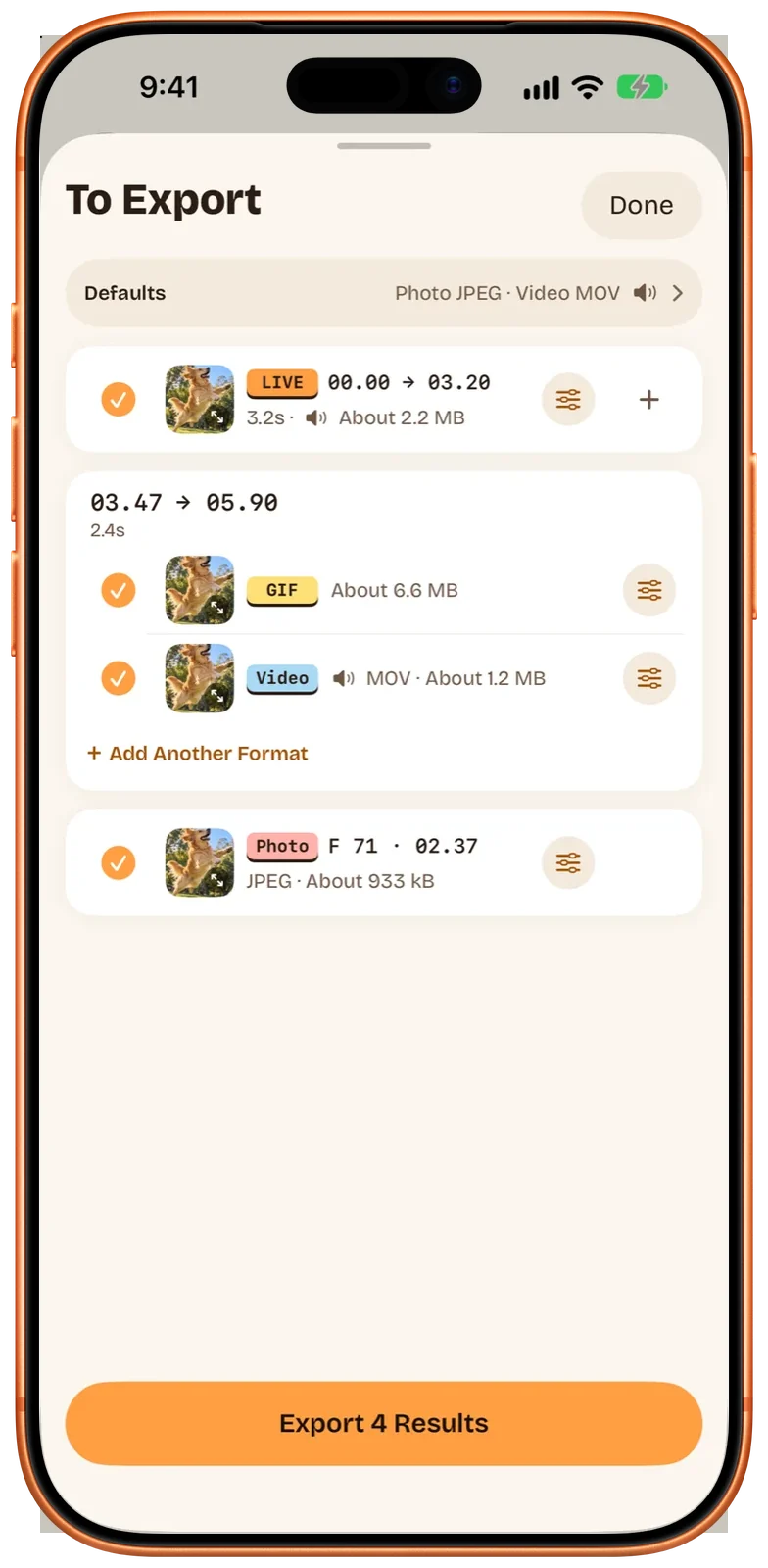
One limit to know: Beavery’s Send to Friends option isn’t available when the selection includes a Live Photo. Save the Live Photo to Photos, then share it from Photos, where the Live Photo pairing is kept for routes that support it. Videos and GIFs can go through Send to Friends directly.
Quick checklist
- On the receiving side, press and hold the photo (or click LIVE on a Mac).
- On your side, check that LIVE was on in the share sheet.
- Use Messages or AirDrop for Apple devices; avoid Mail for Live Photos.
- For WhatsApp, update the app and send yourself a test.
- For Android or anyone else, send a video or GIF instead.
Questions
Why does my Live Photo show up as a normal photo on the other phone?
Either the route only carried the still (Mail, or an app or device without Live Photo support), the LIVE button was turned off when you shared, or it did arrive as a Live Photo and just needs a press and hold to play.
Can I send a Live Photo by email?
Not as a Live Photo. Apple Support says a Live Photo shared via Mail is sent as a still image. Save it as a video first if the motion matters.
Do Live Photos work on WhatsApp?
Meta announced Live Photo sharing on iOS (and Motion Photos on Android) on September 29, 2025, and 9to5Mac reported the same day that it was still rolling out. Update WhatsApp and send one to yourself or a friend to see whether your version has it.
How do I send a Live Photo to someone with an Android phone?
Apple suggests turning the Live Photo into a video to share with people who aren't on Apple devices. In Photos, open it, tap the More button and choose Save as Video, then send that video.
Can Beavery send a Live Photo straight to a friend?
No. Beavery's Send to Friends option is unavailable for Live Photos; save the Live Photo to Photos and share it from there. Beavery can also export the same moment as a video or GIF for people who can't play Live Photos.
How this guide was checked
- Checked against
- Beavery 1.0 · Apple Support documentation · Meta and 9to5Mac reports
- Device test
- The steps in this guide have not yet been run one by one on a device.
- Checked
Sources. Apple Support: Take and edit Live Photos; Apple iPhone User Guide: Share photos and videos on iPhone; Meta Newsroom: Live and Motion Photos on WhatsApp (Sept 29, 2025); 9to5Mac: WhatsApp for iOS gets Live Photos support (Sept 29, 2025)
Written by the maker of Beavery. We sell the app described here; the limits above are the same ones you will hit.