Live Photos, finally on the Mac.
Photos on macOS can play a Live Photo but cannot make one. Beavery can: open a clip, pick the moments, export real Live Photos.
Thanks. We will email you once, the day Beavery is on the App Store.
That email address does not look right. Check it and try again.
We could not save your email just now. Please try again later.
One app for iPhone, iPad and Mac · Free · Pro from $1.99 a year · Apple silicon and Intel · media processed on your Mac
We keep only your email address, language and the time you signed up.
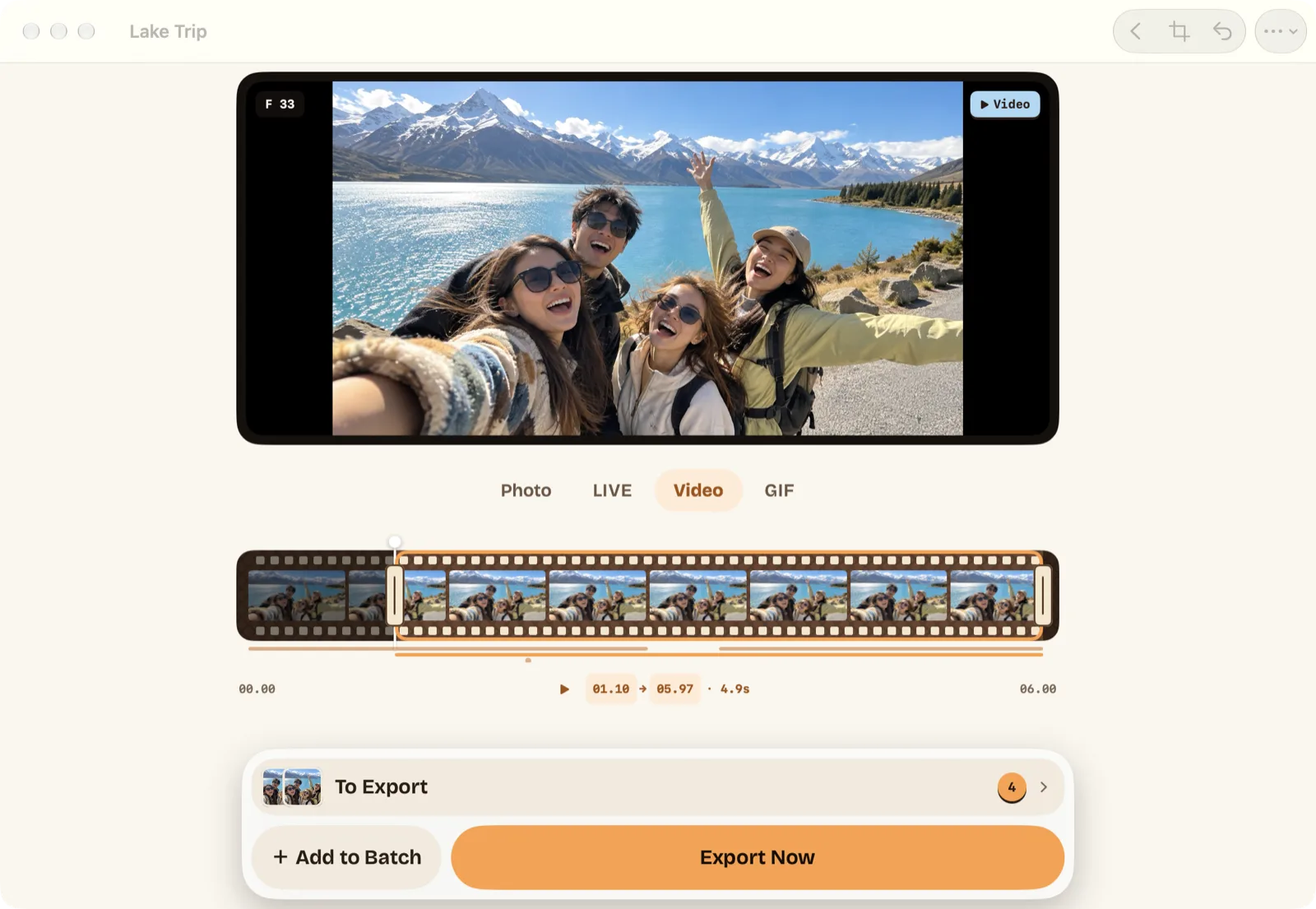

The honest table.
Checked on macOS 26 with Photos 11. If Apple changes this, we update the table and the date below.
| Task | Photos on macOS | Beavery for Mac |
|---|---|---|
| Play a Live Photo synced from iPhone | Yes | Yes |
| Make a Live Photo from a video | No | Yes, from any range, cover from any frame |
| Turn a Live Photo into a video or GIF | Video only (Export) | Video, GIF, or a full-quality still |
| Save to Photos as a real Live Photo | — | Yes, paired HEIC + MOV with one asset identifier |
Last checked 2026-10-26 · macOS 26 · Photos 11 · Beavery 1.0
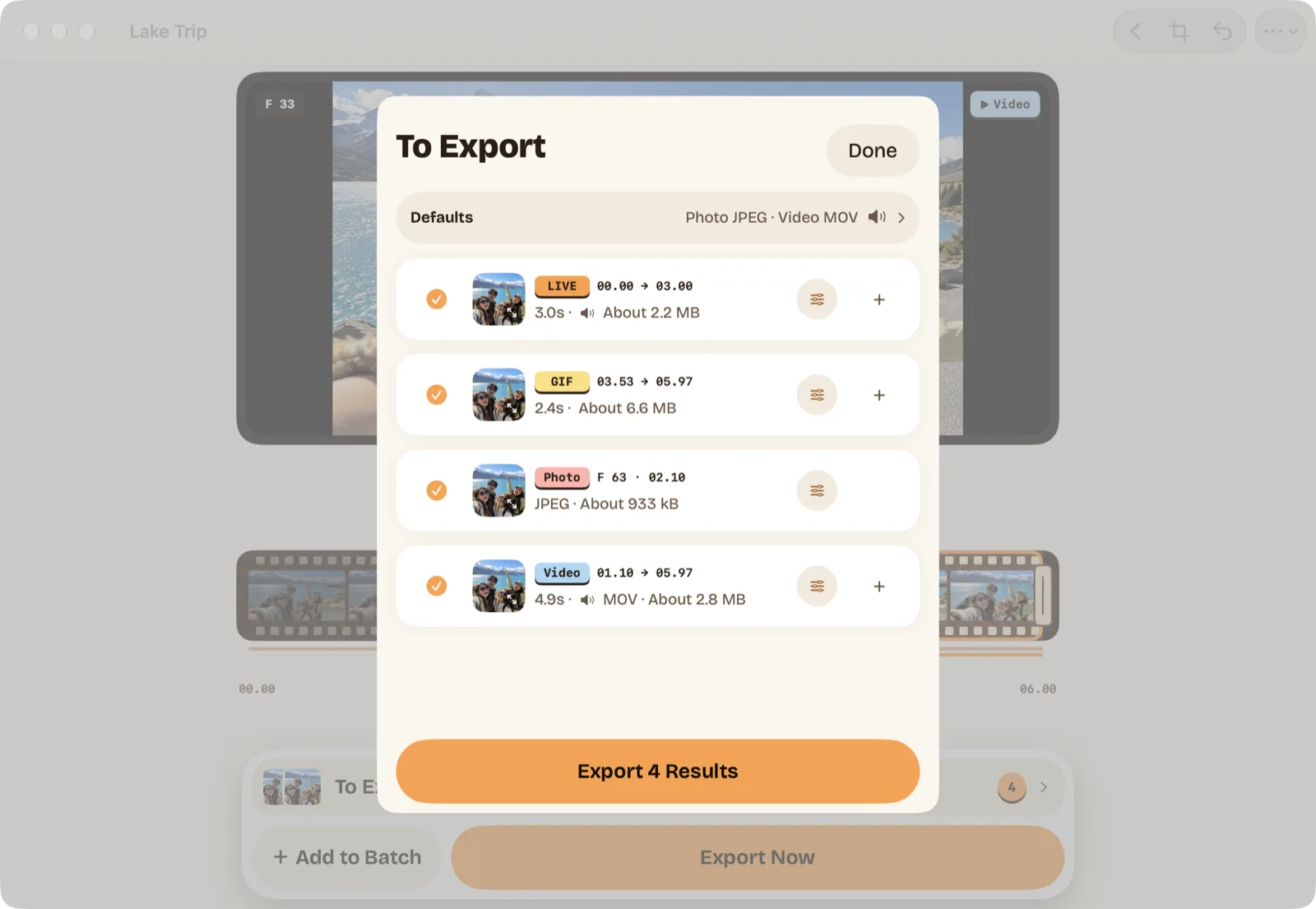
Pick on the big screen. Export them all at once.
Every result waits in the To Export list with its own format and size, the same list as on iPhone and iPad.
Hands on the keys, eyes on the frame.
These match the menu bar exactly. Nothing here is a hidden gesture.
| Previous / next frame | ← → |
| Move start / end one frame | ⌥ ← → · ⌥ ⇧ ← → |
| Add the current selection to the list | ⌘ ↩ |
| Open the export list | ⌘ E |
| Play / pause from the playhead | Space |
Beavery next to Photos and other converter apps
| Task | Photos (iPhone and Mac) | Most converter apps | Beavery |
|---|---|---|---|
| Make one on a Mac | No, Photos on Mac only plays them | No Mac app | Native Mac app, the same App Store app |
| Several results from one video | — | One result per export | As many as you want, exported in one go |
| Cover photo | — | Varies by app | Any frame in the video |
| HDR, sound, capture date and place | — | Varies by app | Kept by default |
| Where your media is processed | — | Varies by app | On your device, not uploaded |
Photos: Apple's own app, checked 2026-10-26. Most converter apps: what their App Store pages describe, 2026-10-26; individual apps differ.
Questions people ask before installing
Will the Live Photo made on the Mac show up as a Live Photo on my iPhone?
Yes, when you save to Photos with iCloud Photos on: Beavery writes the paired HEIC and MOV with a shared identifier, which is what Photos uses to recognise a Live Photo. A Live Photo saved to a folder is a .beaverylive package that Beavery can reopen; for your iPhone, save to Photos.
Does it need an Apple silicon Mac?
No. Beavery runs on Apple silicon and Intel Macs with macOS 15 or later.
Where do the files go when I export to a folder?
Into the folder you pick when you export. A Live Photo is saved as one .beaverylive package holding the still, the video and a small manifest, which Beavery can open again as a Live Photo; a GIF, a video or a still is one file. To have a Live Photo in Photos, save it to Photos instead.
Are my videos uploaded anywhere?
No. Beavery processes your videos on your Mac and does not upload them.
Does it keep HDR and sound?
Yes. Live Photos and videos keep the video's HDR and sound by default. Turn sound off for any single result. GIFs and photos have no sound.
Do results keep the capture date and place?
Yes. Each result keeps the video's capture date, time and place by default. For any export you can remove or replace the place, use the export time instead, or remove camera settings. Show as Newest in Photos is on by default: Photos then dates the result at the export time, so it appears at the top; turn it off and the result sits next to the original video. The date inside the file is the same either way.
What does Pro include, and what is free?
Downloading and making results are free, and so is exporting one result at a time. Pro lets you export two or more results in one go and export moving Lock Screen wallpapers. Your first batch export is free. Pro is $2.99 once or $1.99 a year.
Guides for the Mac
Export a still frame from a video on Mac at full quality
Four ways to save one frame of a video as a photo on a Mac: Photos, QuickTime Player with Preview, a screenshot, and Beavery. Which keep full resolution.
Keep date and location when converting video to Live Photo
Why a Live Photo made from a video can show today's date or no location in Photos, how to keep the original date and place, and how to fix it afterwards.
Live Photo sound: how to mute, keep or check it
How to mute or unmute a Live Photo in Photos on iPhone and Mac, why a Live Photo can have no sound, and how to keep or drop the audio when you convert one.
Live Photo to GIF: make a real GIF on iPhone and Mac
Loop and Bounce aren't GIF files. How to turn a Live Photo into a real .gif with Shortcuts on iPhone, Photos on Mac, or Beavery, and the limits of each.
Live Photo to video: how to save it on iPhone or Mac
Save a Live Photo as a video with Save as Video on iPhone, what to do when the option is missing, how to get the video on a Mac, and when to use Beavery.
How to make a Live Photo from a video on a Mac
Photos on a Mac can edit Live Photos but has no way to make one from a video. How to turn any video into a Live Photo on a Mac, step by step.
Your Mac has the big screen. Use it for the hard part.
Pick frames on the Mac, share from the iPhone. Or the other way round.