
Short answer
A Live Photo taken with the iPhone camera includes audio. In Photos on iPhone, tap Edit, then the Live Photo button, then the Mute button at the top; tap it again to unmute. On a Mac, click Edit and then the Speaker button. A Live Photo made from a still photo, a GIF or a silent video has no sound to unmute, and a GIF never has sound.
To mute a Live Photo on iPhone, open it in Photos, tap Edit, tap the Live Photo button, then tap Mute; tap it again to unmute. On a Mac, click Edit and the Speaker button. If a Live Photo is silent and you didn’t mute it, its movie probably never had audio.
Apple’s camera guide says a Live Photo “captures what happens just before and after you take a photo, including the audio.”
This guide covers muting and unmuting in Photos on iPhone and Mac, how to check whether a Live Photo has sound at all, and what happens to the audio when you convert a video into a Live Photo or a Live Photo into something else.
Mute or unmute a Live Photo on iPhone
Apple’s iPhone User Guide lists muting as one of the Live Photo edits in Photos:
- Open the Photos app and open a Live Photo.
- Tap the Edit button.
- Tap the Live Photo button to show the Live Photo tools.
- Tap the Mute button at the top of the screen.
- Tap Done.
To bring the sound back, follow the same steps and tap the Mute button again. In the same Live Photo tools you can trim the Live Photo, choose a new key photo, or tap Live to turn it into a still; a still has no movie, so it has no sound either.
To hear a Live Photo, touch and hold it. If you set an effect such as Loop, Bounce or Long Exposure from the Live menu, set it back to Live before you judge the sound; Apple’s guide describes these effects as turning Live Photos “into fun videos” but doesn’t say how each one treats the audio.
Mute or unmute a Live Photo on a Mac
Photos on Mac has the same control as a Speaker button. Apple’s steps:
- Open Photos and click Live Photos below Media Types in the sidebar.
- Double-click a Live Photo, then click Edit in the toolbar.
- Make sure Adjust is selected above the photo.
- Click the Speaker button to the right of the frame slider to turn the audio on or off.
Apple notes that edits to a Live Photo apply to both the still image and the video, and that Revert to Original restores the Live Photo after editing.
How to check whether a Live Photo has sound
A silent Live Photo is either muted or has no audio track. Work through these in order:
- Volume first. Turn the volume up and touch and hold the photo. Apple’s Live Photo pages don’t say whether Silent mode affects playback, so switch it off while you check.
- Look at the edit controls. Open the Live Photo in Edit and look at the Mute button (iPhone) or the Speaker button (Mac). If it shows the sound as off, tap or click it once.
- Think about where it came from. A Live Photo taken with the camera normally has sound. One made from a still photo, from a GIF, or from a video that had no sound has nothing to unmute. An app may also have muted it when it was made.
- Think about how it reached you. Apple says that “if you share a Live Photo via Mail, the Live Photo is sent as a still image.” Other apps and services may also show a Live Photo as a still, so there is no movie and no audio. Why a Live Photo stops moving after you send it goes through each channel.
- Check the movie on its own. Saving the Live Photo as a video (More (…) › Save as Video on iPhone) gives you its movie as a normal video. If that video plays with no sound and nothing is muted, the Live Photo had none. Live Photo to video has the details.
If you open the Live Photo in Beavery, there is a quicker clue: Beavery hides the sound switch when the source has no audio track, so a missing switch means there is no sound to keep.
Keep or remove the sound when you make a Live Photo in Beavery
Apple’s apps can’t turn a video into a Live Photo. Beavery, an app for iPhone, iPad and Mac, can, and it lets you decide about the sound for each result. Videos and Live Photos are processed on your device and are not uploaded.
By default the sound is kept. When you make a Live Photo or a video clip from a video, Beavery copies the selected stretch with its sound, and the audio is copied as it is rather than re-encoded. A Live Photo opened in Beavery can become a video (MOV or MP4) of its movie, with its sound.
Mute one result. Each result has its own sound setting, so you can mute a Live Photo and keep the sound on a video clip of the same moment. The editor remembers your last choice for new results.
Change the starting point. Sound is one of the defaults in Default Export Settings, next to capture information, file names and the Photo, Live Photo and Video settings. A result you’ve changed by hand keeps its own setting. For newly opened sources, Settings › Defaults for New Videos has a Keep Sound switch.
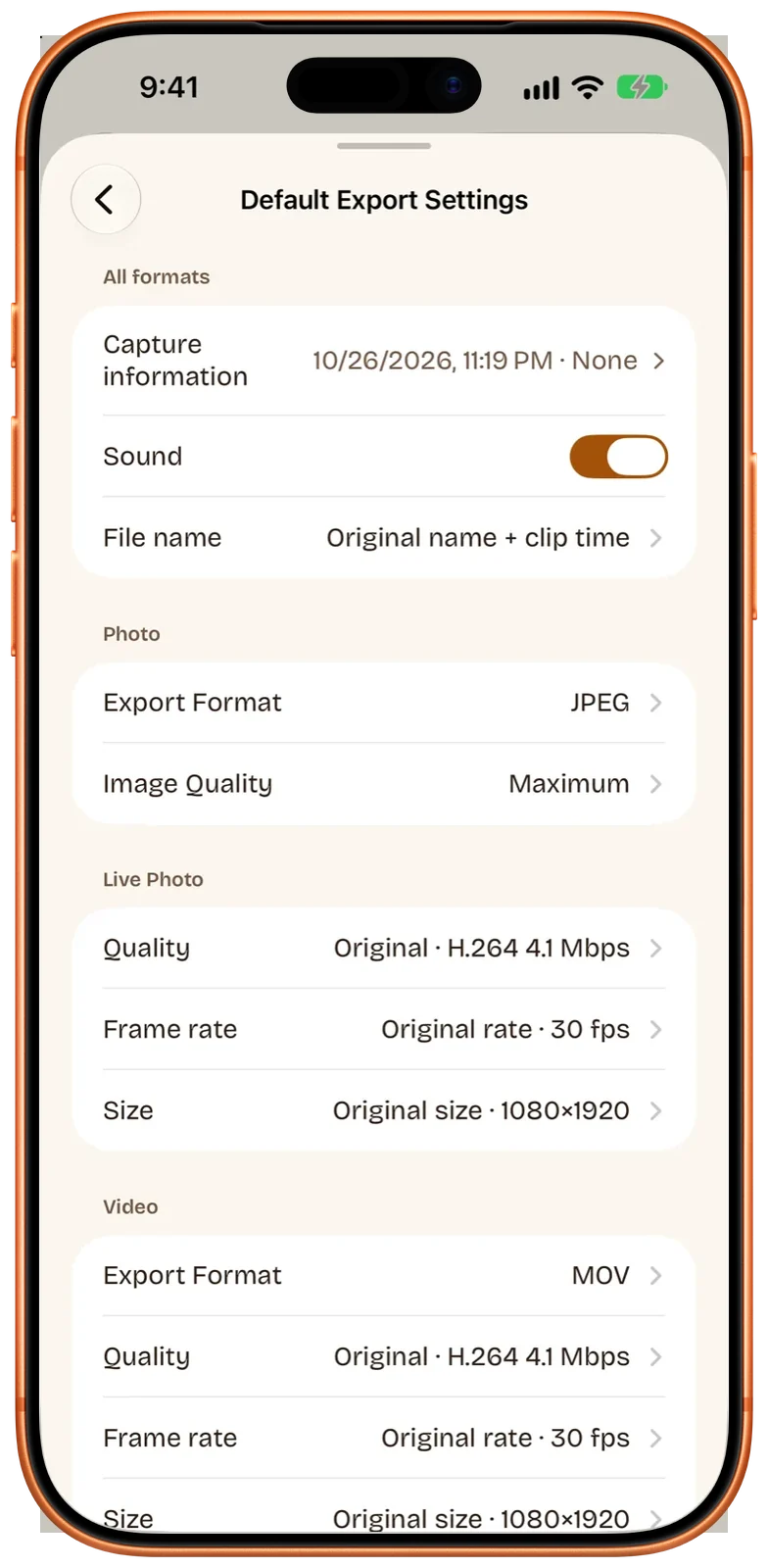
Preview volume is separate. While you scrub and play in the editor, the preview volume only changes what you hear; it doesn’t mute or unmute the result.
Some results never have sound. A Live Photo made from a still photo is a short clip (3 seconds) of a still, zoom-in or zoom-out motion and is silent, because a photo has no audio; see turn a photo into a Live Photo. GIFs and still photos have no sound in any app.
Shortcuts. Beavery’s Save as Live Photo and Convert with Beavery actions each have a Mute audio option, so a shortcut can make silent Live Photos or videos without opening the app.
On a Mac, Beavery for Mac has the same per-result sound setting. There is no keyboard shortcut for mute.
Comparison
| Photos on iPhone | Photos on Mac | Beavery | |
|---|---|---|---|
| Mute an existing Live Photo | Edit › Live Photo › Mute | Edit › Speaker button | Mute the result you export |
| Unmute later | Tap Mute again | Click Speaker again, or Revert to Original | Turn sound back on before export |
| Make a Live Photo from a video, with its sound | Not available | Not available | Yes, sound kept by default |
| Sound when converting to a video | Save as Video (Apple doesn’t describe the audio) | No Save as Video command | Kept by default, can be muted |
| Shows when a source has no audio | Not described by Apple | Not described by Apple | Sound switch is hidden |
Limits and things to know
- Muting in Photos is an edit. Apple’s pages describe it as something you can undo by tapping again (iPhone) or with Revert to Original (Mac). They don’t say whether other apps that read your library see the muted or the original sound.
- Keep or mute, nothing else. Beavery’s sound setting keeps the source’s audio or drops it. It doesn’t add music or a new track, so if the source was silent, the result is silent.
- No speed changes. Beavery’s preview can play at 0.25× to 3×, but exports always run at normal speed, with the sound as it was recorded.
- Sharing. Whether the person you send a Live Photo to hears the sound depends on whether their app shows it as a Live Photo, a still or a video. If the sound matters and you aren’t sure, send a video.
Which one should you use?
To silence or restore the sound on a Live Photo already in your library, use the Mute button in Photos on iPhone or the Speaker button on a Mac; it’s built in and reversible. Use Beavery when you’re making Live Photos from a video and want to choose, result by result, whether each one keeps the video’s sound.
Questions
Why does my Live Photo have no sound?
Usually it was muted in Photos (tap Edit, the Live Photo button and the Mute button again to unmute), the volume is down, or the Live Photo never had audio, for example because it was made from a still photo, a GIF or a silent video. Live Photos sent by Mail arrive as a still image, so there is nothing to hear.
How do I mute a Live Photo on iPhone?
Open the Live Photo in Photos, tap Edit, tap the Live Photo button, then tap the Mute button at the top of the screen. Tap it again to unmute.
Does muting a Live Photo delete the sound for good?
Not in Photos. Apple's iPhone guide says you can tap the Mute button again to unmute, and Photos on Mac has Revert to Original to restore an edited Live Photo.
Does a Live Photo made from a still photo have sound?
No. A still photo has no audio, so the Live Photo Beavery makes from it is silent. A Live Photo made from a video keeps that video's sound by default.
Can a GIF made from a Live Photo keep the sound?
No. The GIF format has no audio. Save the Live Photo as a video if you want to keep the sound.
How this guide was checked
- Checked against
- Beavery 1.0 · Apple Support documentation
- Device test
- The steps in this guide have not yet been run one by one on a device.
- Checked
Sources. Apple Support: Take Live Photos with your iPhone camera; Apple Support: Edit Live Photos on iPhone; Apple Support: Change a Live Photo in Photos on Mac; Apple Support: Bring your photos to life (Live Photos)
Written by the maker of Beavery. We sell the app described here; the limits above are the same ones you will hit.