
Short answer
Apple's Photos app has no way to turn a still photo into a Live Photo. An app has to create the motion part for it. In Beavery you open the photo, choose Still, Subtle zoom in or Subtle zoom out, and save it to Photos as a Live Photo with about three seconds of motion and the photo itself as the full-resolution cover.
To turn a still photo into a Live Photo, you need an app that creates the moving part; Apple’s Photos can’t do it on any device. In Beavery, open the photo, choose Still, Subtle zoom in or Subtle zoom out, and save: you get about three seconds of motion, with your photo as the full-resolution cover.
The app writes a short movie from the photo and pairs the two so Photos treats them as one Live Photo.
It helps to know what to expect: the motion is a slow push in or pull out over the whole picture (or no movement at all). Nothing inside the photo comes to life. If you want people or water to actually move, start from a video instead.
First, check whether it’s already a Live Photo
A photo that looks like a still is sometimes a Live Photo with Live turned off. Apple’s guide to editing Live Photos explains that tapping the Live button in Edit turns the Live feature off and leaves a still of the key photo. The motion is still there, so you don’t need an app:
- Open the photo in Photos and tap Edit.
- If a Live button appears at the top, tap it to turn Live back on, then tap Done.
If there’s no Live button, the picture was taken or saved as an ordinary still. That happens, for example, when Live is set to Off in the Camera, or when you shoot with ProRAW or HEIF Max, since Apple notes Live Photos aren’t available with those formats. Then the only way to get a Live Photo is to make one.
What Photos can and can’t do
Photos can play, trim, mute and add effects to Live Photos, and it can turn a Live Photo into a still or into a video (Apple’s overview of Live Photos covers these). It has no command that goes from a still photo to a Live Photo, on any Apple device.
Turn a photo into a Live Photo with Beavery
- Open the photo. In Beavery, tap Pick Media and choose the photo. You can also share a photo to Beavery from Photos or Files with the Share button.
- Choose the motion. For a still photo, Beavery only makes Live Photos, so there’s no format to pick. Choose one of three motions:
- Still: the picture doesn’t move; it’s a Live Photo that holds the image.
- Subtle zoom in: a slow push in, an 8% change in scale across the clip.
- Subtle zoom out: the same, pulling back.
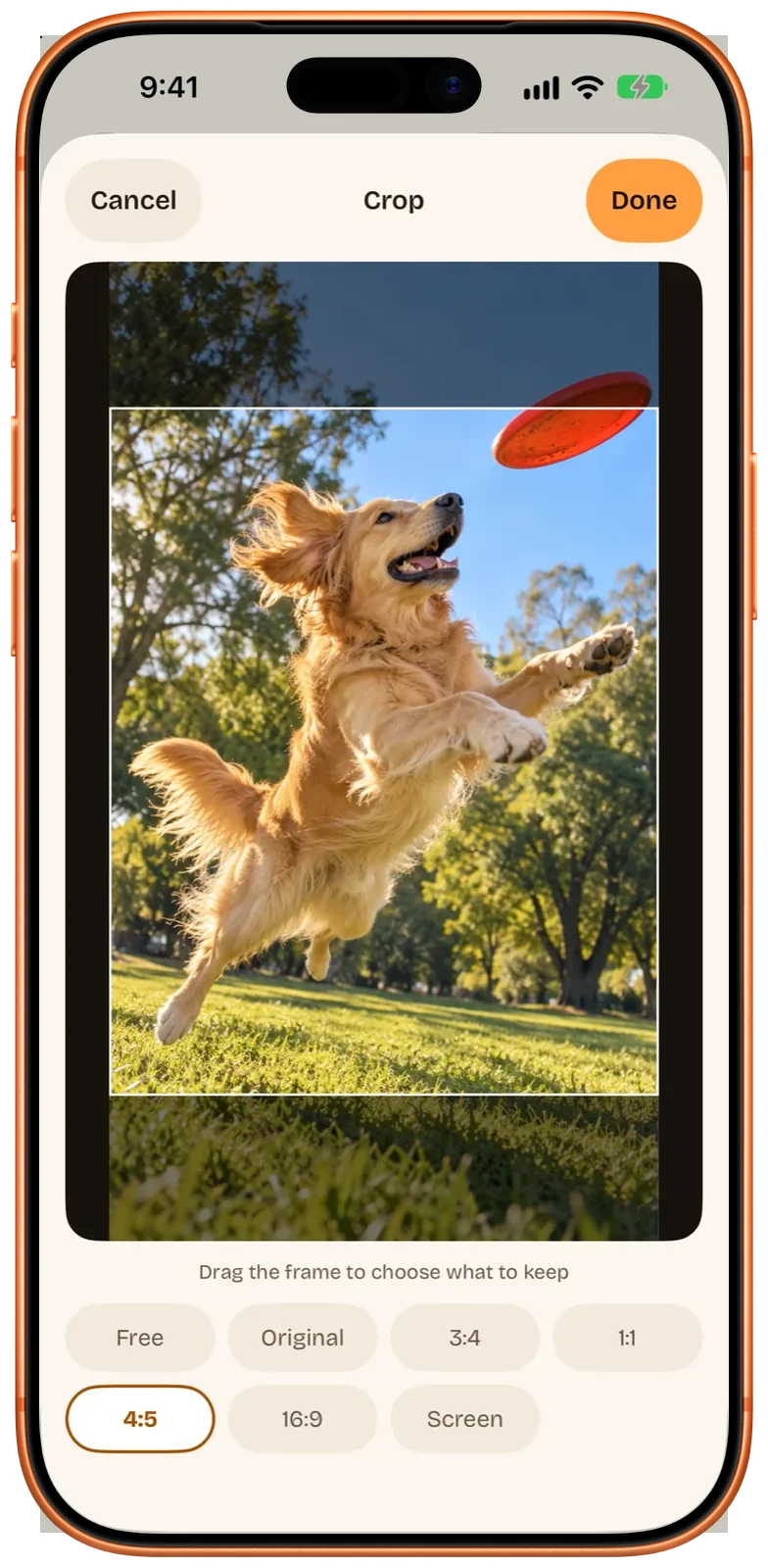
- Crop if you want. Tap the crop button to pick Free, Original, 3:4, 1:1, 4:5 or 16:9. The crop applies to both the still and the motion.
- Export. Tap Export Now and choose Save to Photos. Saving needs only Add Photos Only access.
In Photos, the result has the LIVE badge and plays when you press and hold. Apple’s Live Photo tools work on it like on any other Live Photo.
What you get
| Part | What Beavery makes |
|---|---|
| Still (the cover) | Your photo at full resolution |
| Motion | About three seconds: still, subtle zoom in or subtle zoom out |
| Motion resolution | Limited to a 4K long edge |
| Sound | None (a photo has no audio) |
| Dynamic range | SDR |
| Date and place | The photo’s capture date and location, kept by default |
Beavery processes the photo on your device; it isn’t uploaded. What’s inside a Live Photo explains how the still and the movie are linked so Photos shows them as one item.
With Shortcuts
Beavery adds actions to the Shortcuts app that accept photos as well as videos:
- Save as Live Photo turns a photo into a Live Photo and saves it to Photos after checking it. For a photo, the Duration can be 1 to 3 seconds.
- Convert with Beavery can also turn a photo into a video or GIF of the same 1 to 3 seconds of still or zoom motion, which the in-app editor doesn’t offer for photos.
That makes it easy to build a shortcut that runs from the Share button in Photos. Live Photos with Shortcuts and the Share Sheet walks through it.
On a Mac
Beavery is the same app on Mac (macOS 15 or later). Besides opening a photo in the app, you can select images in Finder and choose Create Live Photos in Beavery from the Services menu; it makes a Live Photo from each one in a queue (batch export needs Pro; your first one is free). See Beavery for Mac.
Limits and things to know
- The motion is a camera move, not animation. Still or a gentle zoom are the only choices. There are no filters, effects or speed changes.
- Length is fixed at about three seconds in the app (1 to 3 seconds through Shortcuts). If you need a longer Live Photo, make it from a video, where the length is whatever range you select. See how to turn a video into a Live Photo.
- Sharing works like any Live Photo. Save it to Photos and share from there. Apple notes that a device or service that doesn’t support Live Photos receives a still photo.
Questions
Can I turn a normal photo into a Live Photo on iPhone without an app?
No. Photos can edit Live Photos and turn them into stills, but it has no command that turns a still photo into a Live Photo. If the photo was taken as a Live Photo and you only switched Live off in Edit, you can switch it back on there.
How long is a Live Photo made from a photo?
In Beavery, about three seconds of still or gentle zoom motion. Through Beavery's Shortcuts actions you can set 1 to 3 seconds.
Does a Live Photo made from a photo have sound?
No. A still photo has no audio, so the Live Photo is silent.
Will the people in my photo move?
No. Beavery adds a still or slow zoom motion to the whole picture; it doesn't animate faces or objects. For real movement, make the Live Photo from a video of the moment.
Does the photo lose quality?
The still part keeps your photo at full resolution. Only the short motion part is limited to a 4K long edge, and it's in SDR.
How this guide was checked
- Checked against
- Beavery 1.0 · Apple Support documentation
- Device test
- The steps in this guide have not yet been run one by one on a device.
- Checked
Sources. Apple Support: Edit Live Photos on iPhone; Apple Support: Take and edit Live Photos; Apple Support: Take Live Photos with your iPhone camera; Apple Support: Share photos and videos on iPhone
Written by the maker of Beavery. We sell the app described here; the limits above are the same ones you will hit.