
Short answer
Apple's Shortcuts app can make a GIF on its own, but turning a video into a Live Photo needs an app that adds an action. Beavery adds a Save as Live Photo action and a Convert with Beavery action for GIFs, videos and stills. Its share sheet entry sends up to 20 images and 20 videos from another app into Beavery as separate projects.
To turn a video into a Live Photo from Shortcuts, use an app action such as Beavery’s Save as Live Photo: it takes a video, a start time and a duration of 1 to 60 seconds, and saves the result to Photos. The share sheet sends videos into Beavery to finish by hand.
Below are both routes on iPhone and iPad: the share sheet, which brings media into Beavery to finish by hand, and Shortcuts, which runs the whole job. If you only want a GIF and would rather not install anything, Apple’s own Make GIF action is described in video to GIF on iPhone and Mac.
Shortcuts and the share sheet in two minutes
Apple’s guide describes an action as “the building block of a shortcut”: each shortcut is a series of actions, and each action is a single step. Its own example combines photos, Make GIF and Send Message to build and send an animated GIF. Apps can add their own actions and shortcuts. Apple lists these under App Shortcuts in the Shortcuts app, which “contains all of the shortcuts available in apps”.
You can also put any shortcut in the share sheet. Apple’s steps:
- In the Shortcuts app, open the shortcut’s editor.
- Open Details and turn on Show in Share Sheet.
- Tap Done. A new action at the top of the shortcut defines what input it accepts.
To run it, select something in another app, tap the Share button, scroll down to your shortcuts and tap the one you want. If a shortcut doesn’t appear, Apple notes that the app “may not have appropriate content to pass to the input of your shortcut”.
Route 1: share a video or Live Photo to Beavery
The share sheet is the quickest way to get media from another app into Beavery when you want to pick the frames yourself.
- In Photos, Files or another app, select one or more videos, photos or Live Photos.
- Tap the Share button and choose Beavery.
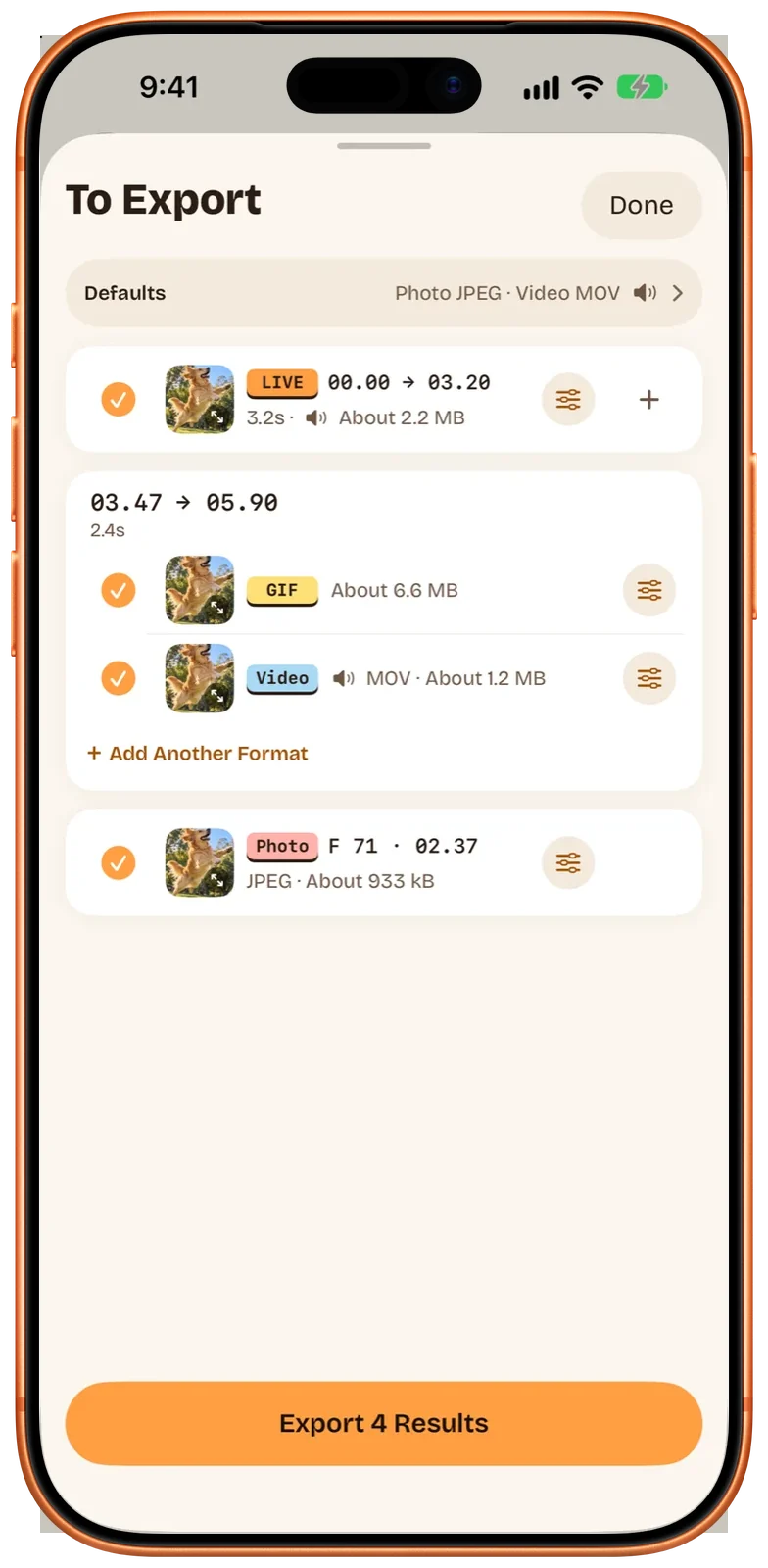
- Open Beavery. Each item you shared is now its own project, and Beavery opens the last one.
- Make your results in the editor: drag the start and end on the film strip for a Live Photo, video or GIF, or pick a single frame for a still.
You can share up to 20 images and 20 videos at once. A Live Photo shared from Photos keeps its motion, so you can turn it into a video, a GIF or a new Live Photo with a different range or cover. Several shared items become separate projects; Beavery has no export that combines results from different sources. The editor steps are in how to turn a video into a Live Photo.
Route 2: Beavery’s Shortcuts actions
Beavery adds six actions to the Shortcuts app. They take image or movie files as input.
| Action | What it does | Settings |
|---|---|---|
| Open Live Studio | Opens Beavery | None |
| Save as Live Photo | Saves a Live Photo to Photos after checking it | Media files, Start (seconds), Duration in seconds (1–60, up to 3 for a photo), Mute audio, Remove Location |
| Convert with Beavery | Returns files to the next action | Media files, Format (Live Photo, MOV, MP4, GIF, HEIC, JPEG, PNG), Start, Duration (0.1–60), Mute audio, Remove Location |
| Export Live Photo components | Returns a photo and its paired movie | Media files, Start, Duration (1–60) |
| Import into Beavery | Adds files to Beavery as projects | One or more files |
| Export Beavery Results Waiting to Export | Saves a project’s unexported results to Photos (batch export needs Pro; your first one is free) | Project |
Beavery also registers three App Shortcuts phrases: “Open Beavery studio”, “Create a Live Photo with Beavery” and “Convert with Beavery”.
Build a “video to Live Photo” shortcut
- Open Shortcuts and tap + to make a new shortcut.
- Add Apple’s Select Photos action, so the shortcut asks you to pick a video when it runs.
- Add Beavery’s Save as Live Photo action below it.
- Set Start to where the motion should begin, in seconds from the start of the video, and Duration in seconds to how long it should play, from 1 to 60.
- Optionally turn on Mute audio or Remove Location.
- Run the shortcut and pick a video.
The Live Photo is checked with Photos before it is saved. If a save may already have happened, the action tells you to check your library rather than running the shortcut again. To use it from the share sheet instead, turn on Show in Share Sheet as described above and pass the shortcut input to the action.
A still photo works too: Save as Live Photo turns it into a Live Photo of 1 to 3 seconds without sound.
Make a GIF, a video or a still with Convert with Beavery
- Start a new shortcut with Select Photos.
- Add Convert with Beavery and set Format to GIF, MOV, MP4, HEIC, JPEG or PNG.
- Set Start and Duration. Beavery’s GIFs are capped at 20 seconds, so keep a GIF’s Duration at 20 or less.
- Add Save to Photo Album to keep the result, or another action such as Send Message to pass it on.
Convert with Beavery also accepts a still photo and can turn it into a video or GIF of 1 to 3 seconds. If you pick Live Photo as the format, the action returns two files: a photo and its paired movie. Saving those two files with a general save action doesn’t put a single Live Photo in your library. Use Save as Live Photo for that. Export Live Photo components returns the same pair; it is meant for workflows that need both files, for example to keep them in a folder. Apps outside Photos decide for themselves whether to join the two parts back together.
Send a batch into the app
Import into Beavery takes one or more files and adds each one as a project, the same as sharing them. Once you have made results in a project’s To Export list, Export Beavery Results Waiting to Export saves the ones not exported yet to Photos.
Share sheet, shortcut or app: which to use
| Share to Beavery | Save as Live Photo / Convert with Beavery | Beavery app | |
|---|---|---|---|
| Choose frames by eye | Yes, after it opens | No, start and duration in seconds | Yes, frame by frame |
| Live Photo length from video | Any range you drag | 1–60 seconds | Any range you drag |
| Cover (key photo) choice | Yes | No setting | Yes |
| Several items at once | Up to 20 images and 20 videos | Depends on your shortcut | One source per project |
| Runs without opening the app | No | Yes | No |
| iPhone and iPad | Yes | Yes | Yes |
Limits and things to know
- Seconds, not frames. A shortcut only knows numbers. If the moment matters, open the video in the app, where every position is a real frame and the cover can be any frame.
- Capture details. Results keep the source’s date and location by default. Remove Location in the actions drops the location; in the app you can also replace it or use the export date.
- Sending Live Photos. Beavery’s Send to Friends is unavailable for Live Photos. Save them to Photos and share from there, and read why a Live Photo stops moving after sending if it arrives as a still.
- Privacy. Processing happens on your device, and your videos aren’t uploaded.
- On a Mac. The share extension is for iPhone and iPad. In Finder, select images or movies and choose the Services item Create Live Photos in Beavery; Beavery on Mac covers the rest.
Which one should you use?
For a quick GIF with nothing installed, Apple’s Make GIF action is enough. If you turn videos into Live Photos often and know roughly where the moment is, a shortcut with Save as Live Photo saves taps. When the exact frame or the cover matters, share the video to Beavery and finish it in the editor.
Questions
Can a shortcut turn a video into a Live Photo?
Yes, if an app adds an action for it. Beavery's Save as Live Photo action takes a video, a start point in seconds and a duration of 1 to 60 seconds. It checks the Live Photo with Photos before saving it to your library.
Why does Convert with Beavery give me two files for a Live Photo?
A Live Photo is a still and a short movie linked together. Convert with Beavery returns them as a photo file and its paired movie for the next action. To get one Live Photo in your library, use Save as Live Photo instead.
Can I share several videos to Beavery at once?
Yes. From the share sheet you can send up to 20 images and 20 videos in one go. Each one becomes its own project, and Beavery opens the last one. Results from different projects are exported separately.
How long can a Live Photo made with a shortcut be?
From a video, the Duration field accepts 1 to 60 seconds. From a still photo, the motion is 1 to 3 seconds. In the Beavery app itself there's no maximum: the Live Photo is whatever range you drag.
Is Beavery in the share sheet on a Mac?
No. The share extension is for iPhone and iPad. On a Mac, select images or movies in Finder and use the Services item Create Live Photos in Beavery, drop a file on the Beavery window, or choose File › Import File.
How this guide was checked
- Checked against
- Beavery 1.0 · Apple Support documentation
- Device test
- The steps in this guide have not yet been run one by one on a device.
- Checked
Sources. Apple Support: Intro to Shortcuts on iPhone and iPad; Apple Support: Launch a shortcut from another app on iPhone or iPad
Written by the maker of Beavery. We sell the app described here; the limits above are the same ones you will hit.