
Short answer
Photos can save one video frame at a time (iOS 27) or trimmed copies of a video, but it can't make Live Photos or GIFs from it. In Beavery you add each moment to a To Export list as a Live Photo, GIF, video clip or photo, then export the whole list in one step.
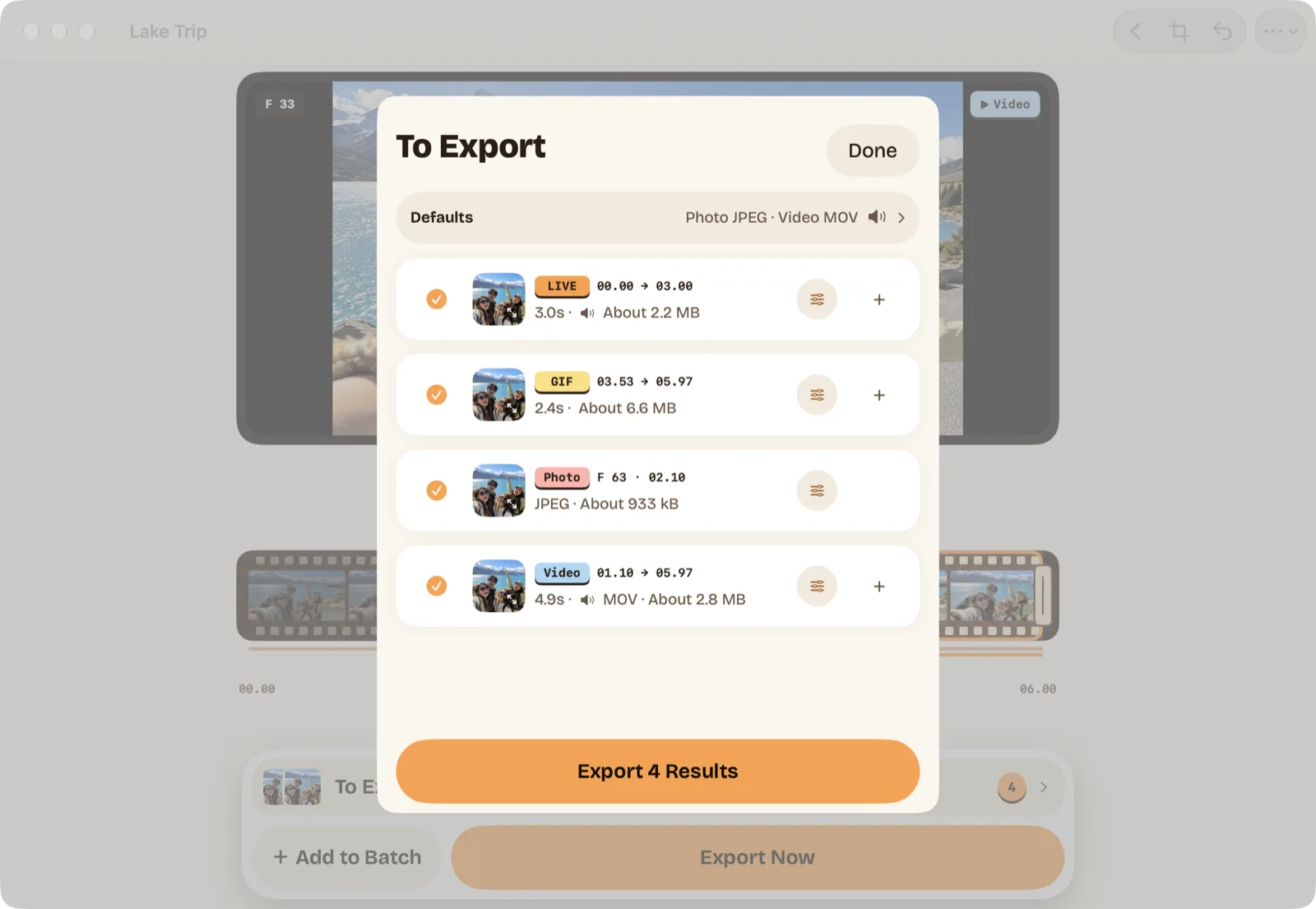
To make several Live Photos from one video, mark each moment as its own result in a list, then export the list in one go (batch export needs Pro; your first one is free). In Beavery, each Live Photo, GIF, clip or still joins that video’s To Export list with its own range, cover and settings. Photos can’t make Live Photos or GIFs from a video.
In Beavery, one tap on Export saves them all. The closest Photos gets is saving one frame at a time or trimming copies of the video, as shown below.
What Photos can do with one video
If you only need stills or shorter clips, Photos covers part of the job:
- Stills, one at a time. In iOS 27, play the video, pause on a frame, tap More and choose Save Video Frame as Photo. Repeat for each frame you want.
- Several clips. Duplicate the video, or trim it and tap Save Video as New Clip so the original stays. Do that once per clip.
There’s no way in Photos to turn those moments into Live Photos, and no GIF export from a video on iPhone. For GIFs, Apple’s Shortcuts app has a Make GIF action; making a GIF from a video covers that route.
Make several results from one video in Beavery
Open the video in Beavery, then:
- Choose LIVE and select the first moment. Drag the start and end handles around it and move the Cover marker to the frame you want as the still. The length is whatever you drag.
- Tap Add to Batch. The Live Photo goes into the To Export list, and the editor stays on the video.
- Move to the next moment and add again. Each result keeps its own range, cover, crop, sound and quality settings, so one Live Photo can be short and the next one longer.
- Add stills. Switch to Photo, step to the frame you want and add it. Stills are exported at the video’s full resolution, for example 3840×2160 from a 4K clip, as HEIF by default, or JPEG or PNG.
- Add GIFs or clips. Switch to GIF or Video and select a range. GIFs run at 10, 15 or 24 fps, up to 960 px on the long side and up to 20 seconds; if your selection is longer, the editor shortens it when you switch to GIF. Video clips are MOV by default, or MP4.
- Open To Export and tap Export. Untick anything you don’t want, then tap the Export button, which shows how many results it will save. Choose one destination: Save to Photos, Send to Friends or Save to Files.
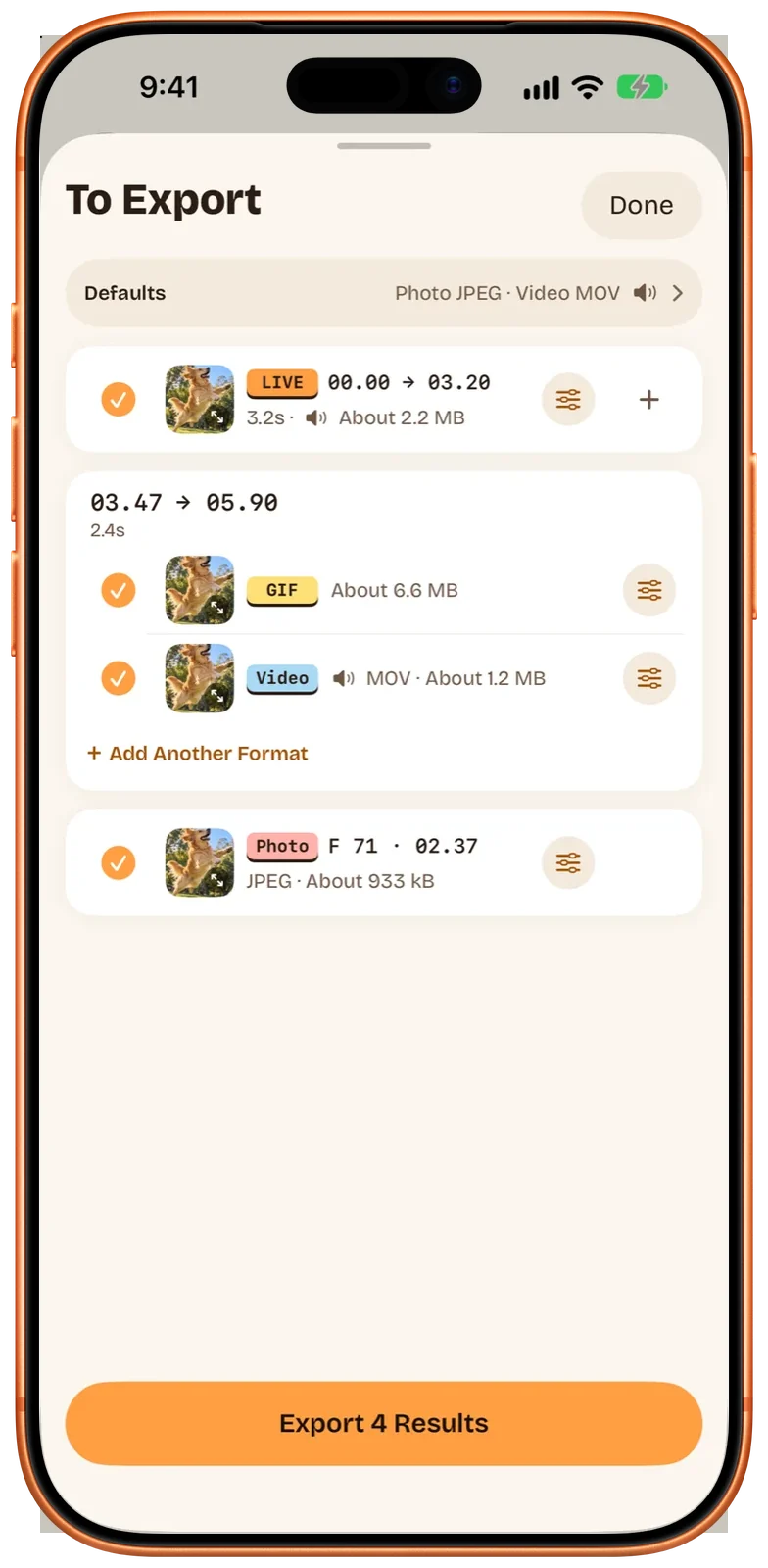
If you want the same range in another format, open that result in the list and use Add Another Format, or Make a copy to get a second version you can adjust separately. In the screenshot above, the GIF and the video clip share one range this way.
For a single result you don’t need the list at all: Export Now saves just the one you’re making.
How the To Export list behaves
- Defaults and exceptions. The Defaults row at the top sets format, quality, sound and other settings for each kind of result. Change one result and it’s marked “Adjusted individually”; changing a default later doesn’t touch it.
- Size before you export. Every result shows an estimated file size, so you can spot a heavy GIF before it lands in your library.
- File names. By default each file is named after the original plus its clip time, such as “IMG_1234 07.59-09.25”. Names never overwrite each other; a clash gets “ 2”, “ 3” and so on.
- Nothing exported twice. After an export, the results that were saved are unticked, and the list and the video stay open, so you can tap Keep Making and add more.
- When something fails. If part of an export fails, Retry the Rest tries only what’s left. If Photos refuses a Live Photo, Beavery offers to save it as a video instead.
- Live Photos and friends. Send to Friends is unavailable when the selection includes a Live Photo. Save Live Photos to Photos and send them from there.
Capture date and location carry over to every result by default. GIFs have no standard place for them inside the file, but when a GIF is saved to Photos, Beavery sets its date and place there, and it appears in the Animated album.
On iPad and Mac
On iPad, the editor and the To Export list can sit side by side in landscape. On a Mac, the list opens as a panel in the middle of the window, and the keyboard speeds things up: ⌘↩ adds the current result, ⌘E opens To Export, ⌥← and ⌥→ move the start by one frame, and ⇧← and ⇧→ move the whole selection. Beavery for Mac shows the Mac app in more detail.
What about several videos?
Beavery’s list belongs to one video. There’s no in-app export that combines results from several videos, and no “convert this whole folder” button. What you can do:
- Share several at once. On iPhone and iPad, select up to 20 videos (and 20 images) in Photos or Files and share them to Beavery. Each becomes its own project.
- Shortcuts. The Import into Beavery action adds files as projects, and Export Beavery Results Waiting to Export saves a project’s unexported results to Photos. See Live Photos with Shortcuts and the Share Sheet.
- Finder on a Mac. Select videos in Finder and choose Create Live Photos in Beavery from the Services menu. It makes a Live Photo of each file and works through them in a queue, one at a time.
Photos or Beavery?
| You want | Photos | Beavery |
|---|---|---|
| A few stills from a video | Save Video Frame as Photo, one at a time (iOS 27) | Add each frame to the list, export together |
| Several shorter clips | Duplicate or Save Video as New Clip, once per clip | Add each range as a Video result |
| Several Live Photos | Not possible | Add each moment as a LIVE result |
| GIFs | Shortcuts’ Make GIF | GIF results, 10–24 fps, up to 20 seconds |
| Everything at once | No | One export, one destination |
Beavery processes the video on your device; it isn’t uploaded. For the details of a single Live Photo, start with how to turn a video into a Live Photo.
Questions
Can I make more than one Live Photo from the same video?
Yes. In Beavery, select a moment, tap Add to Batch, move to the next moment and add again. Each Live Photo can have its own length and cover frame, and they all export together.
Can I export Live Photos, GIFs and stills from one video at the same time?
Yes. Beavery's To Export list can hold Live Photos, GIFs, video clips and photos from the same video, and one export sends everything ticked to one destination, such as Photos.
Can the Photos app make a Live Photo from a video?
No. Photos can save a video frame as a photo (iOS 27) or save a trimmed copy of a video, but it has no command that turns a video into a Live Photo or a GIF.
Can Beavery convert several videos in one go?
Each video becomes its own project with its own list; there's no in-app export that combines results from several videos. You can share up to 20 videos to Beavery at once, and on a Mac the Finder service queues several files.
Are stills taken from a video full resolution?
Yes. A photo taken from a video frame is exported at the video's full resolution, for example 3840×2160 for a 4K clip, not at preview size.
How this guide was checked
- Checked against
- Beavery 1.0 · Apple Support documentation
- Device test
- The steps in this guide have not yet been run one by one on a device.
- Checked
Sources. Apple Support: Save a video frame as a photo on iPhone; Apple Support: Trim video length, adjust speed, and edit audio on iPhone; Apple Support: Duplicate and copy photos and videos on iPhone
Written by the maker of Beavery. We sell the app described here; the limits above are the same ones you will hit.