
Short answer
Photos can't save an ordinary video as a GIF, but the Shortcuts app can: a shortcut that passes a video to the Make GIF action and then to Save to Photo Album works on iPhone, iPad and Mac. To pick the exact frames, frame rate and size, open the video in Beavery and export a GIF of up to 20 seconds.
To make a GIF from a video on iPhone, iPad or Mac, run the video through the Make GIF action in Apple’s Shortcuts app and save the result to Photos. Or open it in an app such as Beavery, select the frames you want and export a GIF. Photos has no “save as GIF” command for ordinary videos.
Apple documents GIF export only for Live Photos, and only in Photos on Mac.
A GIF is a silent, looping image file that almost every chat app, forum and website accepts. That compatibility comes at a cost in colours, smoothness and file size, so it pays to keep the clip short. Here are the two routes and what each one gives you.
Method 1: a Make GIF shortcut (iPhone, iPad and Mac)
Apple’s Shortcuts guides, for iPhone and iPad and for Mac, both use Make GIF as their example action: it builds an animated GIF from what it’s given. A shortcut that receives a video, passes it to Make GIF and saves the result is a common setup; OWC described this two-action version in 2021.
- Open the Shortcuts app and create a new shortcut.
- Add the Make GIF action and set its input to the shortcut input (the video you share to it).
- Add Save to Photo Album.
- In the shortcut’s details, turn on showing it in the share sheet, and give it a name such as “Video to GIF”.
- In Photos, open a video, tap the share button and choose your shortcut.
The GIF is saved to your library. On a Mac you can build the same shortcut in Shortcuts for Mac. If you’d rather not use the share sheet, put a Select Photos action first and run the shortcut from the Shortcuts app.
What you give up: you can’t see frames before converting, and you control only what the Make GIF action offers in your iOS or macOS version (expand the action to see its options). For a long video, trim it in Photos first so the GIF covers only the moment you want.
Method 2: Beavery on iPhone, iPad and Mac
Beavery opens a video (or a Live Photo or a GIF) and turns any stretch of it into a GIF, a Live Photo, a video clip or a full-quality still. Processing happens on your device and videos aren’t uploaded.
- Open the video. On iPhone and iPad, pick it from the photo picker or Beavery’s Home grid (Videos filter), or share it to Beavery from Photos or Files. On Mac, pick it from Photos, choose File › Import File… (⌘O), or drop the file onto the window.
- Switch the result type to GIF.
- Drag the start and end handles on the film strip. Move slowly, or hold for a moment, and the strip zooms in to single frames, so you can start and stop exactly where you want. A GIF can be up to 20 seconds; a longer selection is shortened when you switch to GIF.
- Set the frame rate (10, 15 or 24 fps; 15 by default) and the long side (480, 720 or 960 px; 960 by default). Only rates and sizes up to the video’s own are offered.
- Crop if you like: Free, Original, 3:4, 1:1, 4:5 or 16:9.
- Tap Export Now, or Add to Batch and keep going: another GIF from a different part, a Live Photo, a clip with sound, or a still. Everything in the To Export list exports in one go (batch export needs Pro; your first one is free).
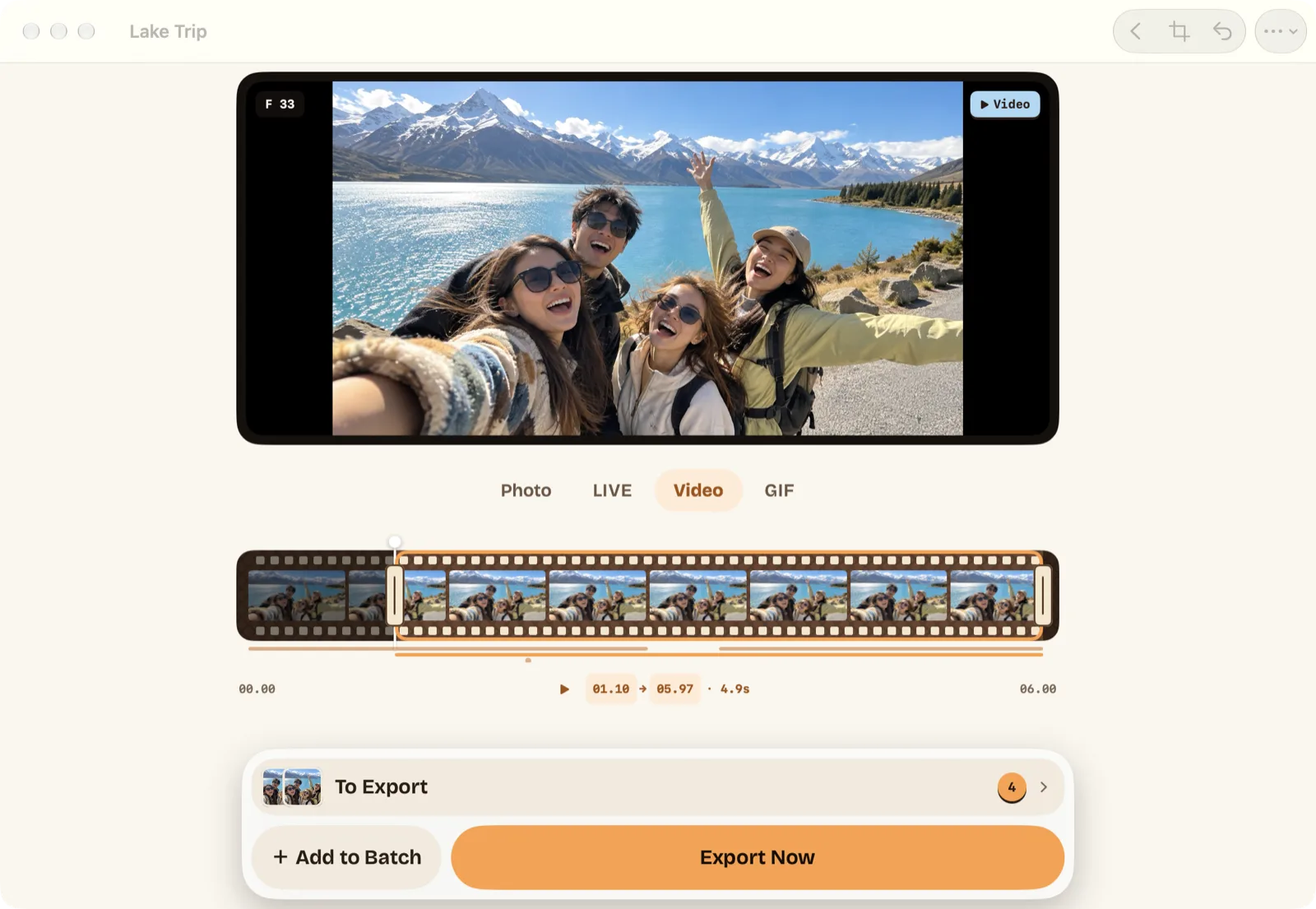
On a Mac keyboard, ← and → step one frame, ⌥← / ⌥→ move the start by one frame, ⌥⇧← / ⌥⇧→ move the end, ⌘↩ adds the result and ⌘E opens the To Export list. More on the Mac app: Beavery for Mac.
Results go to Photos (GIFs appear in the Animated album), to a folder in Files, or straight to Messages, AirDrop and other apps with Send to Friends.
Comparison
| Make GIF shortcut | Beavery | |
|---|---|---|
| Works on | iPhone, iPad, Mac | iPhone, iPad, Mac |
| Install anything | No | Yes |
| See frames before converting | No | Yes, frame by frame |
| Frame rate and size | Whatever the action offers in your OS version | 10/15/24 fps; 480/720/960 px |
| Maximum length | Not documented by Apple | 20 seconds |
| Crop | No | Free, Original, 3:4, 1:1, 4:5, 16:9 |
| Several GIFs from one video | Run it again for each | All in one To Export list |
| Estimated size before export | No | Yes (“About …”) |
Limits and things to know
- No sound, ever. GIF has no audio. Export a short video clip if the sound matters; Beavery keeps a clip’s sound by default.
- Frames are resampled. Beavery samples the video at the frame rate you pick, and the GIF lasts exactly as long as the selection. Original frame timing is kept only when the source is itself a GIF.
- It loops forever. Beavery writes GIFs that repeat endlessly.
- No capture details in the file. A GIF has no standard place for the date, location or camera details. When Beavery saves to Photos, the library item still gets the video’s date and location, but with Show as Newest in Photos on (the default) Photos shows the export time instead; see keeping the original date and location.
- Smaller is better for chat. A 480 px, 10 fps GIF is far lighter than a 960 px, 24 fps one. Check the estimate before you export.
Which one should you use?
For an occasional GIF from a short clip, a Make GIF shortcut does the job with nothing to install. Choose Beavery when the exact start and end frame matter, when you want to control frame rate, size and crop, or when you’re making several GIFs, or a GIF plus a Live Photo, from the same video; the several results from one video guide shows that workflow. Starting from a Live Photo rather than a video? See Live Photo to GIF.
Questions
Can the Photos app turn a video into a GIF?
Apple's Photos guides describe GIF export only for Live Photos, on a Mac. For an ordinary video, use a shortcut with the Make GIF action, or a GIF app.
Does a GIF made from a video keep the sound?
No. GIF has no audio track. If the sound matters, export a short video clip instead.
How long can a GIF from a video be in Beavery?
Up to 20 seconds. If your selection is longer when you switch to GIF, the editor shortens it to 20 seconds.
Which frame rate and size should I pick for a GIF?
Beavery offers 10, 15 or 24 fps and a long side of 480, 720 or 960 px, defaulting to 15 fps and 960 px. Lower settings give a smaller file; Beavery shows the estimated size before you export.
Can I make several GIFs from one video at once?
In Beavery, yes. Add each range to the To Export list, then export them all together; the same list can also hold Live Photos, clips and stills from that video.
How this guide was checked
- Checked against
- Beavery 1.0 · Apple Support documentation
- Device test
- The steps in this guide have not yet been run one by one on a device.
- Checked
Sources. Apple Support: Intro to Shortcuts on iPhone and iPad; Apple Support: Intro to Shortcuts on Mac; Apple Support: Export a Live Photo as an animated GIF in Photos on Mac; OWC Rocket Yard: Convert iPhone videos into GIFs (June 2021)
Written by the maker of Beavery. We sell the app described here; the limits above are the same ones you will hit.