
Short answer
A Live Photo made from a video keeps the original date and place only if the app copies them over. In Beavery they're kept by default; turn off Show as Newest in Photos when you save so Photos also files it under the original date. To fix an item that already has the wrong date or place, open it in Photos, tap More › Adjust Info, then Adjust Date & Time or Adjust Location.
To keep the original date and location when you turn a video into a Live Photo, use a converter that copies the video’s capture details, and save it to Photos under the original date, not as the newest item. In Beavery the details are kept by default; turn off Show as Newest in Photos when you save.
Both halves matter: the details inside the files, and the date and place Photos gives the new item. Miss either and the Live Photo turns up dated today, or without a place on the map.
This guide explains where those details live, how to keep them in Beavery, and how to fix an item that already came out wrong using only the Photos app.
Why a converted Live Photo ends up with the wrong date
Swipe up on any photo or video in Photos and you’ll see what Apple’s iPhone guide lists: the device that captured it, the date and time it was taken, camera details such as lens and shutter speed, and where it was taken. A video recorded on your iPhone has all of that.
A Live Photo made from that video is a new item: a still image plus a short movie, paired together (see what’s inside a Live Photo). The details it carries, and the date Photos sorts it by, depend on the app that writes and saves it. Two things commonly go wrong:
- The date shows as today. The new item gets the moment it was saved, so it sits at the top of your library instead of next to the original video.
- The place is missing. The location wasn’t copied, so the Live Photo doesn’t appear on the map or in place searches.
The same can happen in the other direction. Apple’s own Save as Video for Live Photos puts the new video in the Recently Saved album; Apple’s page doesn’t say which date the video gets, so swipe up on it to check.
Keep the date and location in Beavery
Beavery makes Live Photos, video clips, GIFs and stills from your videos and Live Photos on iPhone, iPad and Mac, on the device; your videos aren’t uploaded. By default every result keeps the source’s capture date and time (with its time zone), GPS location and altitude, device make and model, and lens and exposure details, as far as the output format can hold them.
- Open the video from Beavery’s Home grid or the system photo picker.
- Make the Live Photo: drag the start and end of the selection to any length you like and pick the cover frame. The full walkthrough is in how to turn a video into a Live Photo.
- Open Default Export Settings and check Capture information. For the date and place to carry over, leave the settings as they come:
- Capture location: Keep source location (the other choices are Remove location and Use a specified location).
- Use the export date as capture time: off.
- Remove camera, lens and exposure information: off, unless you want those gone.
- Export and choose Save to Photos.
- Turn off Show as Newest in Photos. With it off, results are filed by the original’s capture date, right next to the original. The switch remembers your last choice, so you only need to do this once.
- In Photos, open the new Live Photo and swipe up. The date, time and place should match the video.
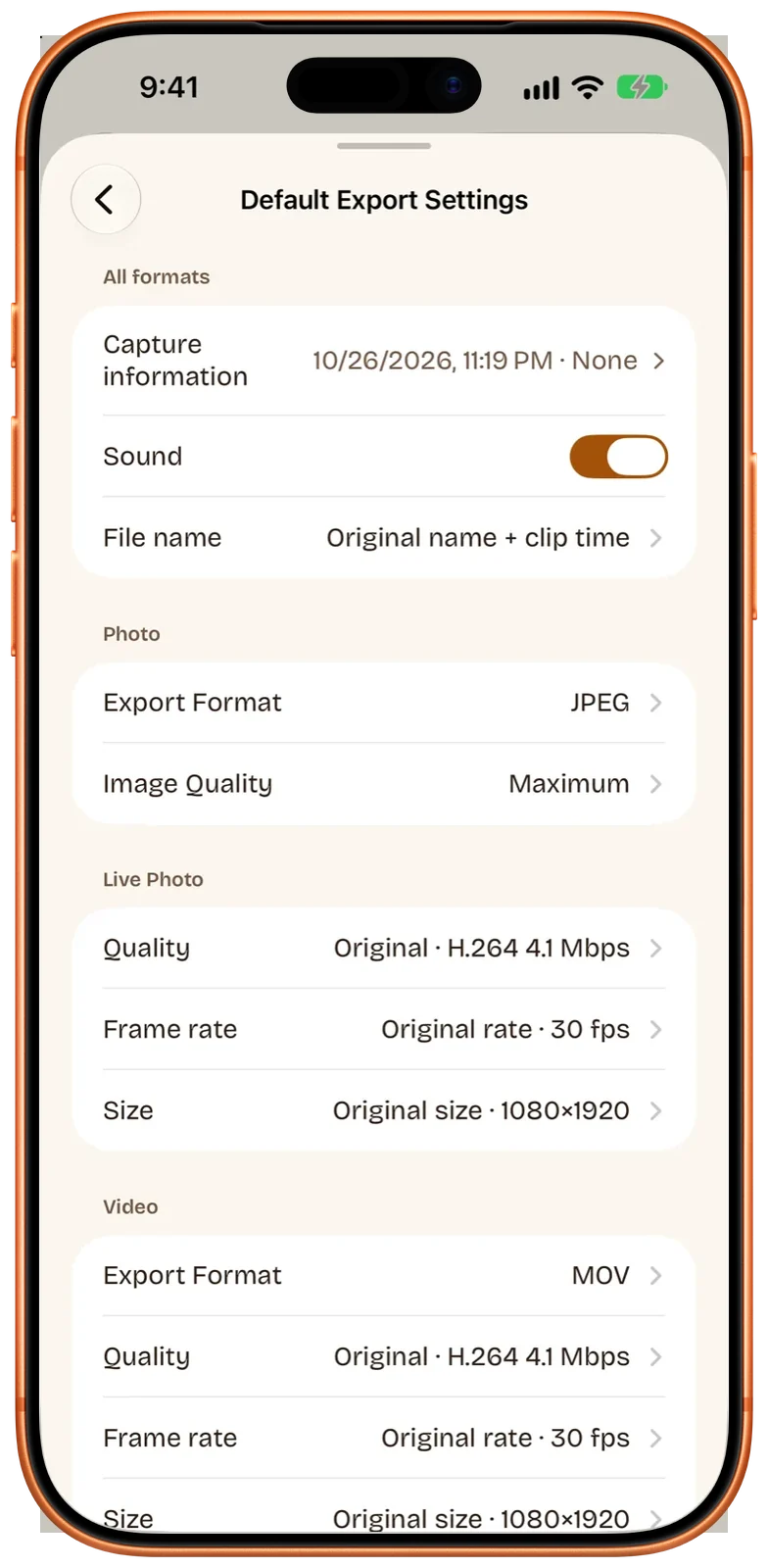
Settings made in Default Export Settings apply to every result you make from that source. A single result can have its own capture settings instead; it’s then marked “Adjusted individually”. For videos you open later, Settings › Defaults for New Videos has Keep Location and Keep Camera Details switches that set the starting point.
The Mac app has the same options; see Beavery on Mac.
What “Show as Newest in Photos” does
This switch is on by default. When it’s on, Beavery sets the item’s date in Photos to the export time, so your new results appear at the top of the library where you’ll see them straight away. Photos then shows that export time as the item’s date. The capture date written inside the files is not changed.
When it’s off, Photos gets the result’s capture date and location, so the Live Photo sorts next to the video it came from. If you’d rather have the newest-first behaviour once in a while, turn it back on for that export.
Fix the date or place in Photos afterwards
If a Live Photo, from any app, already has the wrong date or no location, Photos can correct the library item. On iPhone (Apple’s iPhone User Guide):
- Open the photo or video in the Photos app and tap the More button.
- Tap Adjust Info, then Adjust Date & Time or Adjust Location.
- For the date, use the calendar and clock, then tap Adjust. For the place, type where it was taken and tap the result under Map Locations.
To change several at once, tap Select, choose the thumbnails, then follow the same steps. To undo, follow the same steps and tap Revert to go back to the original date, time or location.
On a Mac, in Photos:
- Select the items, then choose Image › Adjust Date and Time.
- Enter the date and time in the Adjusted field, pick a time zone on the map if needed, and click Adjust.
- For the place, open the Info window (Command-I) and type a location, or search and drag the pin. Image › Location › Copy Location and Assign Location copy a place from the original video to the Live Photo.
The quickest way to get both right is to open the original video, note its date and place, and copy them across.
What each format keeps
Beavery writes the capture details into each file in the form that format supports:
| Result | Inside the file | Photos item (Save to Photos) |
|---|---|---|
| Live Photo | Still: EXIF and GPS date, place, device, lens and exposure. Movie: QuickTime date, place, make and model | Source date and place (or export time with Show as Newest on) |
| Video clip | QuickTime date, place, make and model; lens and exposure only on iOS 26 / macOS 26 or later | Same as above |
| Still photo | EXIF and GPS date, place, device, lens and exposure | Same as above |
| GIF | Nothing: GIF has no standard place for these fields | Same as above; it appears in the Animated album |
Limits and things to know
- Missing details stay missing. If the video had no location, for example because Camera didn’t have access to Location Services when it was recorded, the Live Photo won’t have one either. Beavery never fills in a date or place from your device, where you are now or the file’s dates. Add one with Use a specified location (search for a place or drop a pin on an Apple Maps map) or with Adjust Location in Photos afterwards.
- The cover frame doesn’t change anything. Whichever frame you choose as the cover, the Live Photo’s still carries the source video’s capture details.
- Your original isn’t touched. These choices only affect the new files. The video in your library keeps its own date and place.
- Saving to Files. A Live Photo saved to Files is one Beavery
.beaverylivepackage with the still and movie inside, and Show as Newest in Photos doesn’t apply there. Beavery’s Send to Friends isn’t available for Live Photos; save them to Photos and share from there. - When you want them gone instead. The same Capture information settings remove the location or camera details; removing location before sharing covers that side.
Which one should you use?
If the Live Photo is already in your library with the wrong date or no place, fix it in Photos with Adjust Info; it takes a few taps and Revert undoes it. If you’re about to make Live Photos from your videos, set Beavery to keep the source location, leave the export-date option off and turn off Show as Newest in Photos, so each result lands next to its video with the right date and place. Beavery isn’t on the App Store yet; get Beavery for iPhone, iPad and Mac shows its current status.
Questions
Why does my new Live Photo show today's date in Photos?
Either the app that made it didn't copy the video's date to the new item, or it was saved as the newest item on purpose. In Beavery, Show as Newest in Photos is on by default; turn it off when you save and the Live Photo is filed under the video's capture date instead.
Does Show as Newest in Photos change the date inside the file?
No. It only sets the date of the item in your Photos library to the export time so the result appears at the top. The capture date written into the Live Photo's still and movie stays the video's original date.
My video had no location. Why doesn't the Live Photo have one?
Beavery never fills in missing details from your current place, your device or file dates, so a field the video didn't have stays empty. You can add a place in Photos with Adjust Info › Adjust Location, or choose Use a specified location in Beavery before you export.
Does a GIF keep the date and location?
The GIF file itself can't: the format has no standard place for capture date, GPS or camera details. When Beavery saves a GIF to Photos, the library item still gets the source's date and location.
Can I fix the date of many photos at once on iPhone?
Yes. In Photos, tap Select, tap the thumbnails you want to change, then tap More › Adjust Info › Adjust Date & Time. The same menu has Revert to go back to the original date.
How this guide was checked
- Checked against
- Beavery 1.0 · Apple Support documentation
- Device test
- The steps in this guide have not yet been run one by one on a device.
- Checked
Sources. Apple Support: See photo and video information on iPhone; Apple Support: Add titles, captions, and more to photos and videos on Mac; Apple Support: How to turn a Live Photo into a video on your iPhone
Written by the maker of Beavery. We sell the app described here; the limits above are the same ones you will hit.