
Short answer
In Photos, tap Share, tap Options and turn off Location; Location Not Included appears above Options. To remove it from the photo itself, use More › Adjust Info › Adjust Location › No Location. Photos has no documented switch for device and camera details; Beavery can remove them, and the location, from Live Photos, clips, GIFs and stills it exports.
To share a photo from your iPhone without its location, tap Share, tap Options and turn off Location before you send it. To remove the location from the photo itself, use Adjust Info › Adjust Location › No Location. Photos has no documented switch for device and camera details; that’s where an app such as Beavery comes in.
Apple’s guide is explicit that sharing a photo or video “includes sharing its associated metadata, such as date and time, location, device, and captions.”
Share without location: the share sheet switch
Apple’s steps, from its Personal Safety guide:
- Open the photo, or select several, in the Photos app (or from Camera’s photo roll).
- Tap the Share button.
- Tap Options at the top of the share sheet.
- Turn off Location. Location Not Included now shows above the Options button.
- Share with any of the methods in the share sheet.
This only affects that one share; the photo in your library keeps its location. While you’re in Options, leave All Photos Data off unless you mean to send it: Apple describes it as sharing “the original file with edit history and metadata” (AirDrop only).
If you don’t see a Location switch under Options, remove the location from the photo itself, as described next.
Remove location from the photo itself
When you’d rather the photo didn’t carry a location at all:
- Open the photo in Photos and tap the More button (…).
- Tap Adjust Info, then Adjust Location.
- Tap No Location.
Apple’s iPhone guide notes you can do this for several photos at once (tap Select, choose the thumbnails, then follow the same steps), and that Revert in the same place restores the original location. If you want to keep the location in your library but send a copy without it, duplicate the photo first (More › Duplicate) and remove the location from the copy.
On a Mac, select the photos in Photos and choose Image › Location › Hide Location.
Stop recording location for new photos
Apple’s guide points out that location can be recorded only if Camera has access to Location Services. To stop it: Settings › Privacy & Security › Location Services › Camera, then Never. Photos taken from then on have no location. This doesn’t touch photos you already have.
Device, lens and date: what Photos doesn’t remove
Swipe up on any photo and you’ll see what else travels with it: the device that took it, the date and time, and camera details such as lens and shutter speed. Apple’s guides describe changing the date and time (Adjust Info › Adjust Date & Time) but no Photos option that removes the device, lens or exposure details before sharing.
For most people that’s harmless. If it isn’t for you, for example when posting publicly or sending to someone you don’t know well, you need to make a copy without those fields.
Remove them with Beavery when you make a copy
Beavery makes Live Photos, video clips, GIFs and stills from your videos and Live Photos on iPhone, iPad and Mac. Every result it exports carries capture information you control, with exactly three options:
- Location: keep it (the default), Remove location, or Use a specified location you search for or pin on a map.
- Use the export date as capture time: off by default. When on, the original date and time are replaced with the moment you export.
- Remove camera, lens and exposure information: off by default.
You can set these once in Default Export Settings under Capture information, so they apply to everything you make from that source, or change them for one result in its own settings.
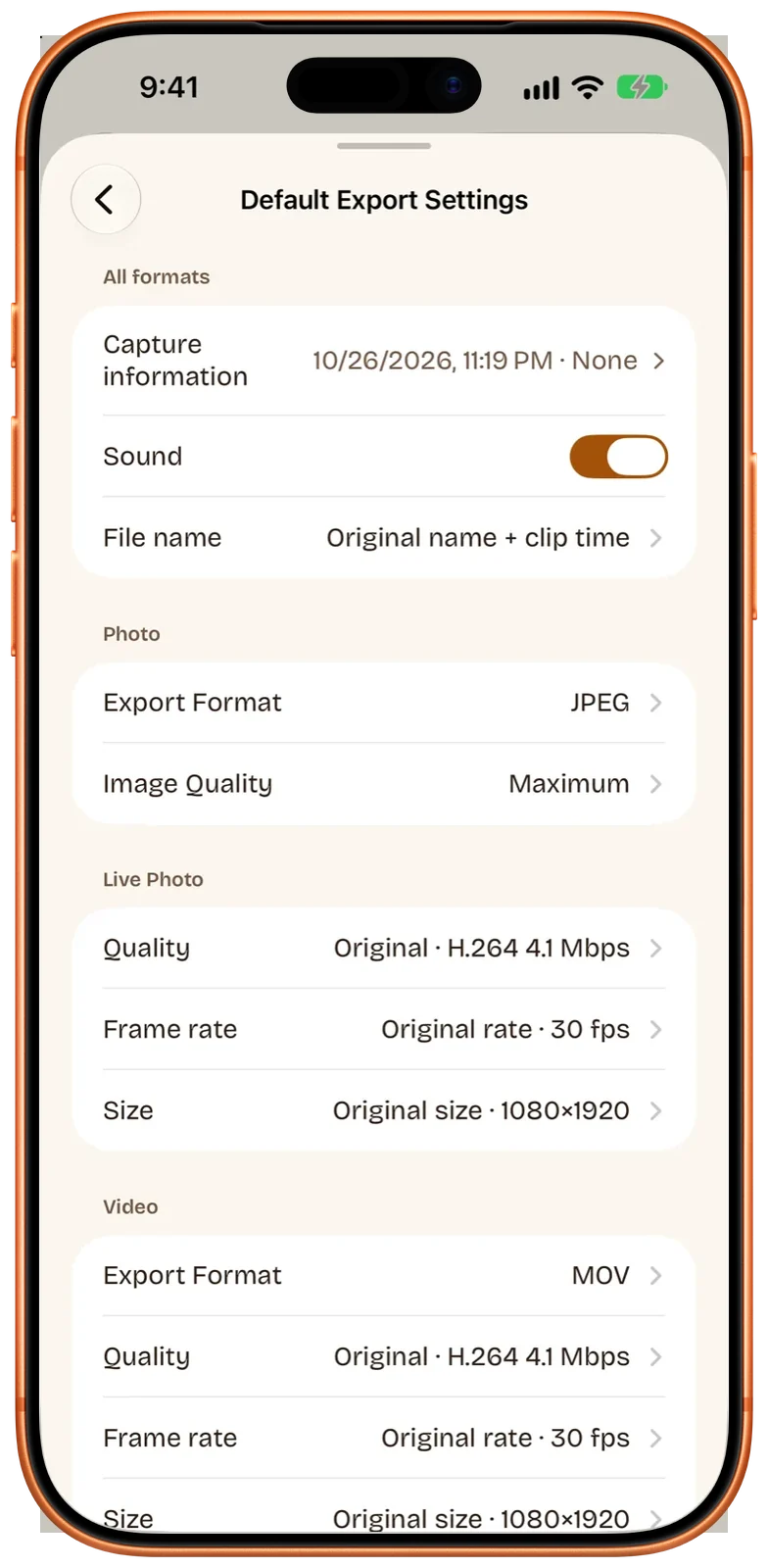
A few things follow from how this works:
- Your original isn’t touched. The choices are written into the new file Beavery exports. The video or Live Photo in your library keeps its date, place and camera details.
- It covers each part of a result. Photos and Live Photo stills carry these details as EXIF and GPS fields; videos and the movie inside a Live Photo carry them as QuickTime fields. A GIF has no standard place for capture date, GPS or camera fields at all.
- Live Photos are sent from Photos. Beavery’s Send to Friends isn’t available for Live Photos. Save them to Photos, then share from there; with the location already removed, there’s nothing for the share sheet to include.
- Watch the Photos date. Show as Newest in Photos is on by default, which sets the item’s date in Photos to the export time so it appears at the top. That doesn’t change the capture date inside the file; use the export-date option above for that.
What Beavery doesn’t do: it doesn’t re-export an ordinary photo as an ordinary photo. A still photo opened in Beavery can only become a Live Photo. For plain photos, Apple’s methods above are the way. For keeping the date and place on purpose, see keep the original date and location when converting.
Which method removes what
| Share sheet: Location off | Adjust Location: No Location | Camera: Location Never | Beavery capture information | |
|---|---|---|---|---|
| Location | Removed from that share | Removed from the photo (Revert restores it) | Not recorded for new photos | Removed or replaced in the exported copy |
| Device, lens, exposure | Still included | Still included | Still recorded | Can be removed from the copy |
| Capture date | Still included | Can be changed with Adjust Date & Time | Still recorded | Can be replaced with the export date |
| Works on | Photos, Live Photos and videos you share | Items in your library | New photos and videos | Live Photos, clips, GIFs, stills from video |
| Original changed | No | Yes | — | No |
Which one should you use?
For everyday sharing, the share sheet’s Location switch is enough and takes a second. To clean a photo for good, use No Location. When you’re turning a video or Live Photo into something new to post and want the location, the date or the camera details gone from the file itself, Beavery does it while it exports. Sending to someone and wondering why a Live Photo arrives still? That’s covered in why a Live Photo stops moving after you send it.
Beavery processes your photos and videos on the device; they aren’t uploaded. It isn’t on the App Store yet: get Beavery for iPhone, iPad and Mac shows its status, and the Mac page covers the desktop version.
Questions
Does turning off Location in the share sheet change my photo?
No. The Location switch under Options only affects that share. The photo in your library keeps its location.
How do I remove location from a photo permanently on iPhone?
Open the photo, tap the More button, tap Adjust Info, tap Adjust Location, then tap No Location. To get it back later, follow the same steps and tap Revert.
Can I remove the camera and lens details from a photo on iPhone?
Apple's guides don't describe a Photos option for that. Beavery can remove camera, lens and exposure information from the results it exports, but it doesn't re-export a plain photo as a plain photo.
Do GIFs carry location?
A GIF file has no standard place for capture date, GPS or camera fields, so a GIF made from your video doesn't carry them in the file.
How do I stop my iPhone adding location to new photos?
Go to Settings › Privacy & Security › Location Services › Camera and choose Never.
How this guide was checked
- Checked against
- Beavery 1.0 · Apple Support documentation
- Device test
- The steps in this guide have not yet been run one by one on a device.
- Checked
Sources. Apple Support: Manage location metadata in Photos (Personal Safety User Guide); Apple Support: Share photos and videos on iPhone; Apple Support: See photo and video information on iPhone
Written by the maker of Beavery. We sell the app described here; the limits above are the same ones you will hit.