
Short answer
Turn Live off in Photos' editor, or use Duplicate › Duplicate as Still Photo to keep the Live Photo too. Both use the key photo, which is full resolution only if it's still the original frame. Other moments come from the Live Photo's movie and are smaller.
To turn a Live Photo into a still photo, open it in Photos and turn Live off, or use Duplicate › Duplicate as Still Photo to keep both. Either way you get the key photo. It is full resolution only if it is still the camera’s original frame; every other moment comes from the Live Photo’s lower-resolution movie.
Below are both Photos methods on iPhone and Mac, why some stills come out smaller, and when an app such as Beavery helps.
Method 1: turn Live off (changes the Live Photo itself)
Apple’s steps on iPhone or iPad:
- Open the Live Photo in Photos and tap Edit.
- Tap the Live Photo button.
- Tap Live at the top of the screen to turn the Live feature off.
- Tap Done.
Apple says the Live Photo “becomes a still of its key photo”. You can also do it from the viewer: tap Live in the top-left corner and choose Live Off.
On a Mac, open the Live Photo, click Edit, click the pop-up menu at the bottom right of the photo and choose Off.
This is an edit, so nothing is thrown away. Turn Live back on, or revert the edit, and the motion returns. The downside is that you don’t get two items: if you want to keep the Live Photo playing and also have a still, use method 2.
Method 2: Duplicate as Still Photo (keeps the Live Photo)
Photos can make a still copy next to the original:
- Open the Live Photo and tap the More button (…).
- Tap Duplicate, then Duplicate as Still Photo.
To do many at once, iPhone Life (January 2025) describes this route: in Photos, open Live Photos under Media Types, tap Select, choose the photos (or Select All), tap More, tap Duplicate, then Duplicate as Still Photos. The same article notes two side effects: the Live Photos stay in your library, so you’ll need to delete them yourself if you’re after storage space, and the new stills appear in your photo stream on the day you made them, not on the day the photos were taken.
This is the best route for clearing a whole album of Live Photos down to stills.
Why some stills come out smaller
A Live Photo is a full-resolution still plus a short movie of the moments around it (what’s inside a Live Photo has the details). How-To Geek puts the consequence plainly: “Apple devices record video frames at a lower resolution than still photos.”
Both methods above give you the key photo. If anyone, including you, used Make Key Photo on that Live Photo, the key photo is now a movie frame, and your still will be the smaller movie frame too. To get the camera’s original back first, open the photo, tap Edit, and tap Revert. Changing a Live Photo’s key photo covers this in more detail.
The same applies if you want a moment other than the key photo. It can only come from the movie, so it will be smaller whichever app you use.
With Beavery: choose the frame, format and quality
Beavery turns videos and Live Photos into stills, Live Photos, GIFs and video clips on iPhone, iPad and Mac. For Live Photo stills it’s useful when you want to:
- save the still as JPEG, PNG or HEIF, with Maximum, High or Medium quality;
- take several moments from one Live Photo, plus the original, in one export (batch export needs Pro; your first one is free);
- know which frame is the full-resolution original before you pick it;
- crop the still, or also make a GIF or video of the same Live Photo.
The steps:
- Open Beavery and pick the Live Photo from the Home grid or the Photos picker. It arrives with both the still and its movie.
- Choose Photo in the mode switcher.
- On the film strip, the original still is marked ★ Original. That frame is exported from the original still at full resolution. When you pick another frame, the editor notes that it comes from the Live Photo’s movie, which is usually smaller than the still.
- Tap + Add to Batch for each frame you want, or Export Now for just one.
- In To Export, set each photo’s format and quality, then export and choose Save to Photos or Save to Files.
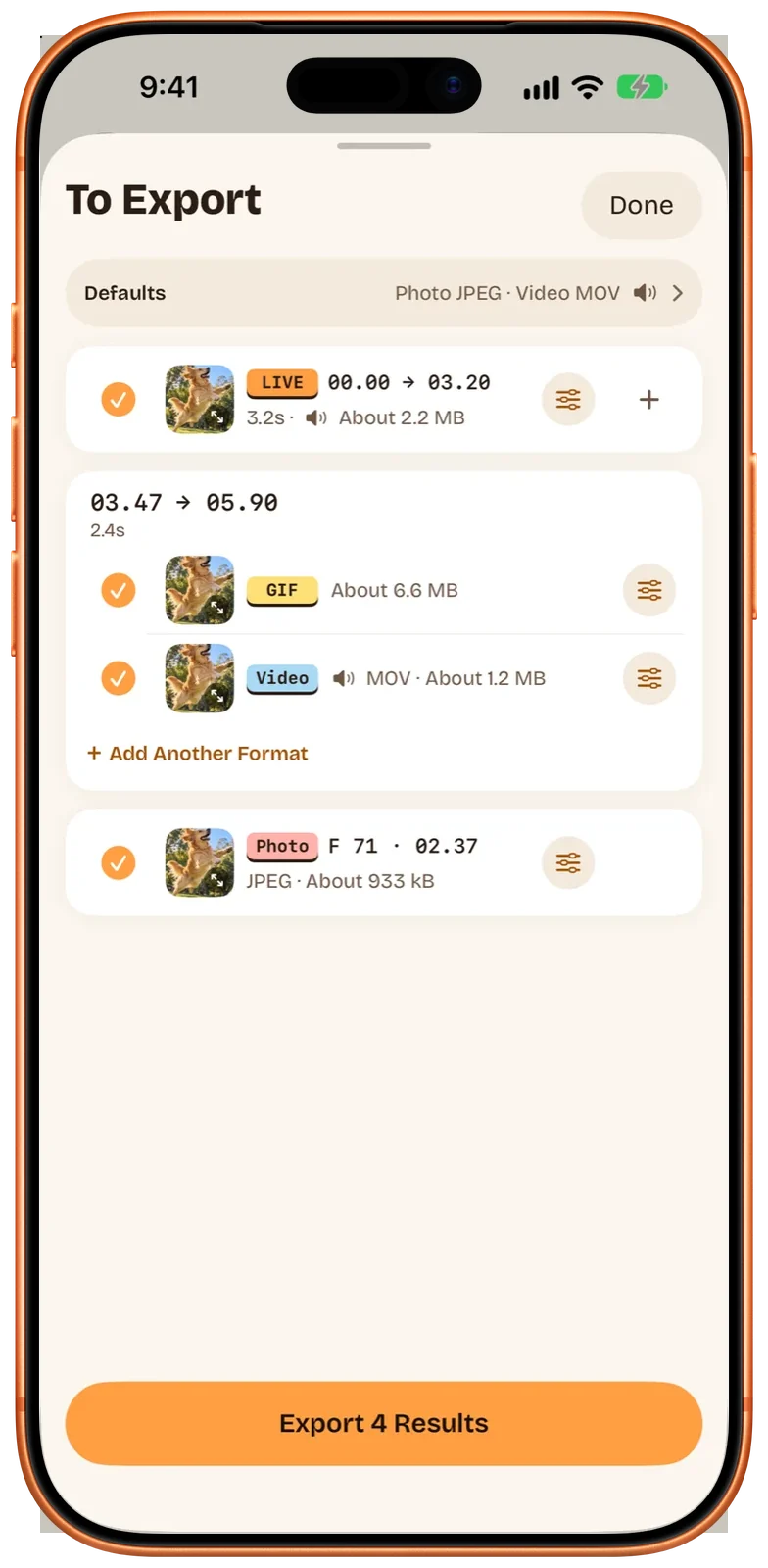
The stills keep the Live Photo’s capture date and time, location and camera details by default, and you can remove the location or the camera details per result. Show as Newest in Photos is on by default, so new stills appear at the top of your library with the export time as their date in Photos; turn it off to keep them next to the original.
Beavery works on one source at a time. Several Live Photos become separate projects, so for converting an album, Photos’ Duplicate as Still Photos is faster.
Comparing the methods
| Turn Live off | Duplicate as Still Photo | Beavery | |
|---|---|---|---|
| Keeps the Live Photo | No (reversible edit) | Yes | Yes |
| Frame you get | Key photo | Key photo | Any frame; ★ Original at full resolution |
| Format | Unchanged | Not documented | HEIF, JPEG or PNG |
| Many Live Photos at once | One at a time | Yes, select several | One Live Photo per project |
| Several moments from one Live Photo | No | No | Yes, exported together |
| Date shown in Photos | Unchanged | The day you duplicate (per iPhone Life) | Export time by default, or the original date |
Things to know
- HDR. If your Live Photo’s still is an HDR photo, a still exported from Beavery is a standard image without the HDR information. Keep the Live Photo, or use Photos’ own methods, if HDR matters.
- Want motion instead? If you’d rather keep the motion as a file anyone can play, see how to save a Live Photo as a video.
- From a video, not a Live Photo? That is a different case: frames from a video can be saved at the video’s full resolution. See how to save a full-quality photo from a video.
Which one should you use?
For one or many Live Photos where the key photo is the shot you want, use Photos: turn Live off, or Duplicate as Still Photo to keep both. Use Beavery when you need a specific format, several moments from the same Live Photo, or want to be told when a frame comes from the smaller movie. Beavery isn’t on the App Store yet; get Beavery for iPhone, iPad and Mac shows its status, and the Mac page covers the desktop version.
Questions
Does turning off Live delete the video part?
No. Turning Live off is an edit in Photos. You can turn Live back on later in the editor, or revert the edit.
Why is my still photo smaller than my other photos?
It was most likely taken from a frame of the Live Photo's movie, either because you picked another moment or because the key photo had been changed before. Only the original key photo has the full photo resolution.
Can I convert many Live Photos to stills at once?
Yes, in Photos: select them, tap the More button, tap Duplicate, then Duplicate as Still Photos. Beavery works on one source at a time, so for a whole album Photos is quicker.
Which frame of a Live Photo is the sharpest?
The original key photo the camera took. It has the full photo resolution; every other frame comes from the Live Photo's movie, which is usually smaller. In Beavery that frame is marked ★ Original on the film strip.
Can I save a Live Photo as a JPEG or PNG?
In Beavery you choose HEIF, JPEG or PNG for each still. Apple's guides don't describe a format choice when you duplicate in Photos.
How this guide was checked
- Checked against
- Beavery 1.0 · Apple Support documentation
- Device test
- The steps in this guide have not yet been run one by one on a device.
- Checked
Sources. Apple Support: Edit Live Photos on iPhone; Apple Support: Change a Live Photo in Photos on Mac; iPhone Life: How to change multiple Live Photos to still (January 2025); How-To Geek: How to extract a still photo from a Live Photo on iPhone (updated November 2023)
Written by the maker of Beavery. We sell the app described here; the limits above are the same ones you will hit.