
Short answer
In Photos, open the Live Photo, tap Edit, tap the Live Photo button, move the white frame, tap Make Key Photo, then Done. Any frame other than the original comes from the Live Photo's movie, which is smaller than the still, so the new key photo can look softer. Keeping the original frame keeps full resolution.
To change a Live Photo’s key photo, open it in Photos, tap Edit, tap the Live Photo button, move to another frame and tap Make Key Photo. It works on iPhone, iPad and Mac. The new key photo often looks blurry because it comes from the Live Photo’s movie, which has a lower resolution than the original still.
Below are Apple’s steps on each device, why the quality drops, how to undo it, and what to do when you want a different cover without losing the original.
Change the key photo in Photos on iPhone or iPad
Apple’s steps for iPhone (iPad works the same way):
- Open the Photos app and open the Live Photo.
- Tap Edit.
- Tap the Live Photo button in the editing tools. A frame viewer appears under the photo.
- Move the white frame along the frame viewer to the moment you want.
- Tap Make Key Photo, then tap Done.
The change is an edit, not a new file. If you don’t like the result, open the photo, tap Edit, then tap Revert to go back to the original.
Apple adds one warning: Live Photos taken on an iPhone 15 model or later with a portrait effect lose the portrait effect if you change the key photo.
Change the key photo in Photos on a Mac
On a Mac the control is a playhead instead of a white frame:
- In Photos, click Live Photos under Media Types in the sidebar.
- Double-click the Live Photo, then click Edit in the toolbar.
- Drag the playhead under the photo to the frame you want.
- Click Make Key Photo.
Revert to Original undoes it, just as on iPhone.
Why the new key photo looks softer
A Live Photo is two things saved together: a full-resolution still and a short movie of the moments around it. Photos keeps the pair as one item.
When the camera takes a Live Photo, the still is captured at photo resolution. The movie is recorded at video resolution, which is lower. As How-To Geek puts it, “Apple devices record video frames at a lower resolution than still photos.” The original key photo is the only frame that comes from the still. Every other position on the frame viewer is a frame of the movie.
So Make Key Photo trades pixels for timing. On a phone screen or in a chat, a movie frame often looks fine. Problems show up when you zoom in, crop, or print: fine detail such as hair, text or distant faces is where a movie frame falls behind.
Some practical rules follow from this:
- If the original moment is acceptable, keep it. It is the sharpest frame you have.
- If you need a different moment, expect a smaller picture and avoid cropping into it afterwards.
- Changing the key photo back with Revert gives you the full-resolution original again, because the original still was never thrown away.
Apple’s documentation doesn’t say how large the Live Photo movie is on each iPhone model, so it’s worth checking on your own photos before you rely on a movie frame for a print.
Choose a cover with Beavery
Beavery turns videos and Live Photos into new Live Photos, GIFs, video clips and stills on iPhone, iPad and Mac. For key photos it does two things Photos doesn’t: it tells you on screen when the frame you pick comes from the smaller movie, and it saves the result as a new Live Photo, so the one in your library stays as it was.
It is useful when you want to:
- keep the original Live Photo and add a second version with a different cover;
- put the cover on a moment outside the part that moves (the cover is chosen separately from the moving stretch);
- make the cover from a video you recorded, in which case the cover comes from the video itself. See how to turn a video into a Live Photo.
The steps:
- Open Beavery and pick the Live Photo from the Home grid or the Photos picker. It arrives with both parts, the still and its movie.
- Choose LIVE in the mode switcher (Photo, LIVE, Video, GIF).
- Drag the Cover marker on the film strip to the frame you want. The original photo is marked ★ Original; it is the sharpest frame. When you pick another frame, the editor notes that it comes from the Live Photo’s movie, which is usually smaller than the still.
- If you also want to change what moves, drag the start and end of the selection. Any range works.
- Tap Export Now, or + Add to Batch to export it with other results (batch export needs Pro; your first one is free), and choose Save to Photos.
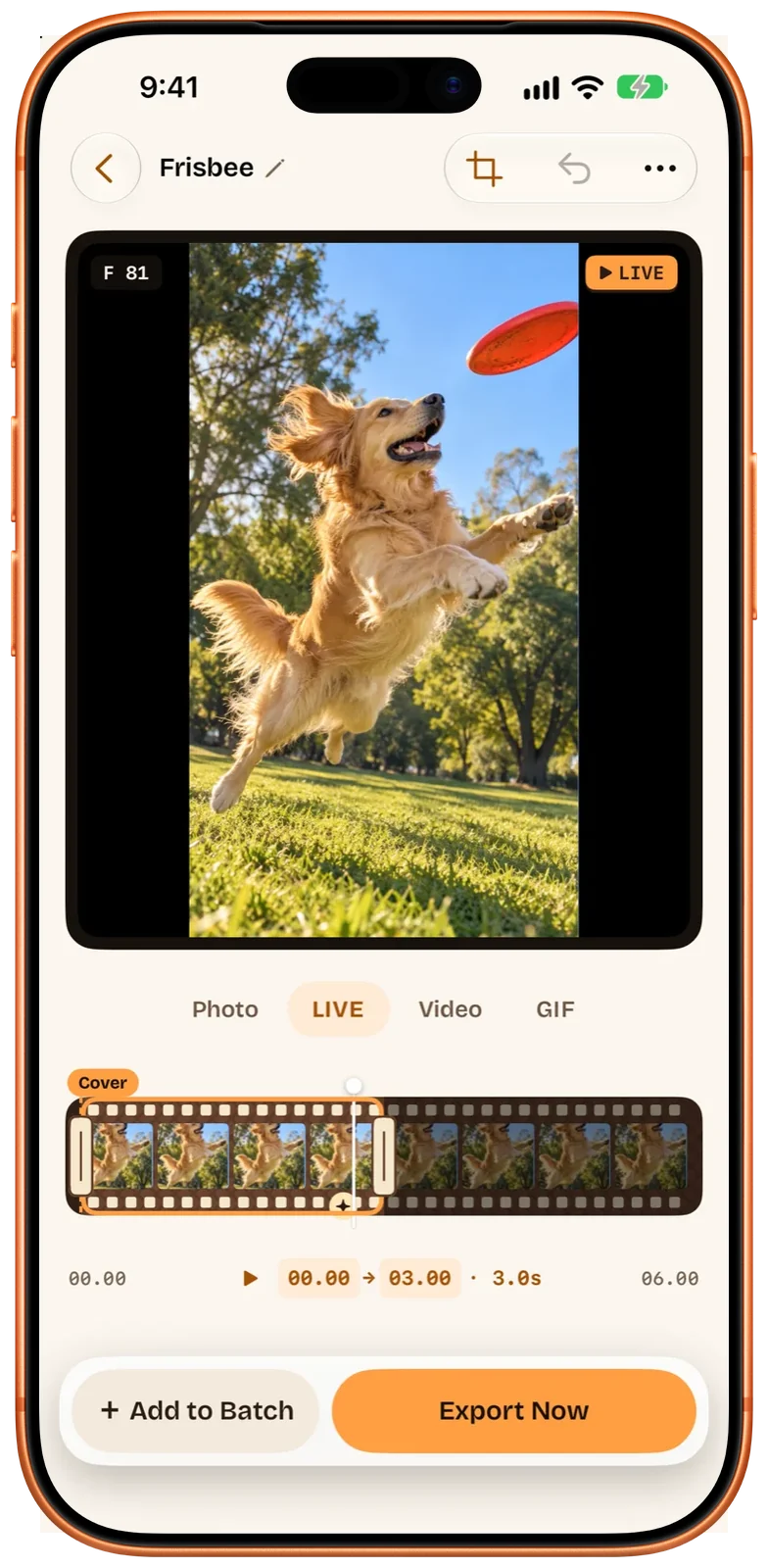
If the cover frame is inside the moving stretch, the movie’s “still moment” marker sits on it. If it is outside, the marker goes to the middle of the movie.
By default, Show as Newest in Photos is on, so the new Live Photo appears at the top of your library with the export time as its date in Photos. The capture date inside the file stays the original one. Turn the switch off to have it sorted next to the original instead.
Limits worth knowing
Beavery can’t make a movie frame sharper than it is. It reads the same movie Photos reads, so a cover taken from any frame other than ★ Original has the movie’s resolution there too. What it changes is that you’re told before you commit, and the original stays in your library.
HDR works the same way. If your original still is an HDR photo, only keeping the ★ Original as the cover keeps that HDR. A cover taken from the movie is saved as a standard still.
| Photos: Make Key Photo | Beavery | |
|---|---|---|
| Where it works | iPhone, iPad and Mac | iPhone, iPad and Mac |
| What it changes | Edits the Live Photo in your library; Revert undoes it | Saves a new Live Photo; the original is untouched |
| Original key photo | Full resolution | Full resolution, marked ★ Original |
| Any other frame | Taken from the movie, smaller | Taken from the movie, smaller; the editor says so |
| Cover outside the moving part | Not described in Apple’s guides | Yes |
| Starting from a video | Not possible: Photos can’t make a Live Photo from a video | Yes, cover from the video itself |
| Also exports | — | GIFs, video clips and stills from the same source |
Which one should you use?
For a quick fix to one Live Photo, Photos is the right tool: it’s already on your iPhone and Mac, and Revert makes it risk-free. Use Beavery when you want to keep the original as well, want to be told when a cover comes from the smaller movie, or are making Live Photos from your own videos in the first place. If what you really want is one sharp frame from a video, see how to save a video frame as a photo. To share the moment as a video file instead, see Live Photo to video.
Beavery isn’t on the App Store yet; get Beavery for iPhone, iPad and Mac shows its current status. It is one App Store app for all three; on the Mac version the ← and → keys step through frames one at a time.
Questions
Why does my Live Photo look blurry after I changed the key photo?
The new key photo is a frame from the Live Photo's short movie, and the movie is recorded at a lower resolution than the still the camera captured. Only the original key photo has the full photo resolution.
Can I undo Make Key Photo?
Yes. It is an edit, so on iPhone you open the photo, tap Edit and tap Revert, and on a Mac you click Revert to Original. The original key photo comes back.
Can I pick a key photo outside the part that plays?
In Beavery, yes: the cover can be any frame of the source, chosen separately from the moving stretch. If it sits outside that stretch, the still moment in the movie is placed in the middle of the clip.
Does changing the cover in Beavery change my original Live Photo?
No. Beavery saves a new Live Photo and leaves the one in your library as it was, so you can keep both versions.
How this guide was checked
- Checked against
- Beavery 1.0 · Apple Support documentation
- Device test
- The steps in this guide have not yet been run one by one on a device.
- Checked
Sources. Apple Support: Edit Live Photos on iPhone; Apple Support: Change a Live Photo in Photos on Mac; Apple Support: Crop, rotate, flip, or straighten photos and videos on iPhone (Revert tip); How-To Geek: How to extract a still photo from a Live Photo on iPhone (updated November 2023)
Written by the maker of Beavery. We sell the app described here; the limits above are the same ones you will hit.