
Short answer
On iOS 27, open the video in Photos, pause on the frame, tap the More button and choose Save Video Frame as Photo. On iOS 18 to 26 there's no such option, and a screenshot only keeps the screen's pixels. Beavery saves any frame, or several, at the video's full resolution as HEIF, JPEG or PNG.
To save a full-quality photo from a video on iPhone, write the frame out at the video’s own resolution instead of taking a screenshot. On iOS 27, open the video in Photos, pause on the frame, tap More (…) and choose Save Video Frame as Photo. Older iOS versions have no such command, so a screenshot only keeps your screen’s pixels.
This guide covers the built-in method first, then why screenshots look soft on iOS 18 to iOS 26, and the cases where an app such as Beavery is still the better tool: several frames at once (batch export needs Pro; your first one is free), a format of your choice, or a Live Photo and GIF from the same clip.
On iOS 27: Save Video Frame as Photo
Apple’s steps:
- Open the Photos app and open the video.
- Play it, then pause on the frame you want.
- Tap the More button (…).
- Tap Save Video Frame as Photo.
The new photo goes into your library. Where it appears depends on how your library is sorted: Apple says that if the library is sorted by Added, the photo is at the bottom; if it’s sorted by Captured, the photo appears next to the original video.
Macworld’s walkthrough of iOS 27 (August 2026) adds the details Apple’s page leaves out:
- The photo is saved in a normal photo format, HEIF or JPEG depending on your settings, not as a PNG like a screenshot.
- It has the full resolution of the video.
- It inherits the video’s date and location, which is why it’s filed next to the video rather than with today’s photos.
- The same command is in the More menu of the edit view, while you trim or crop (Macworld; Apple’s page describes only the steps above).
If you’re on iOS 27 and you need one good frame, this is the method to use. It’s built in and free.
On iOS 18 to iOS 26: why a screenshot isn’t the same
Before iOS 27, the usual trick was to pause the video and take a screenshot. That works, but it isn’t the video frame:
- A screenshot holds the pixels of your screen. A 4K video is 3840 × 2160 pixels; shown on a phone, it’s scaled down to fit, and the screenshot keeps only what was displayed.
- Anything else on screen, such as playback controls or the edges of the display, ends up in the picture unless you crop it out.
- It’s a PNG dated when you took it, not when the video was recorded.
For a quick share in a chat, a screenshot is fine. For printing, cropping in, or keeping a clean copy of a moment, you want the frame itself.
On a Mac, Photos has had a built-in route for a long time: open the video, drag the playhead to the frame and choose File › Export › Export Frame to Pictures. Apple says this saves a TIFF named “Frame [date]” in your Pictures folder. Beavery on a Mac uses the same film strip when you want more than that one frame.
With Beavery: several frames, your choice of format
Beavery is an app for iPhone, iPad and Mac that turns videos into Live Photos, GIFs, video clips and full-quality stills. For saving frames, it is worth it when:
- your iPhone runs iOS 18 to iOS 26, where Photos has no frame command;
- you want several frames from the same video, exported together;
- you want to choose the format: HEIF, JPEG or PNG;
- you want to crop the still, or also make a Live Photo or GIF from the same clip.
Here’s how it works:
- Open Beavery and pick the video from the Home grid or the Photos picker.
- Choose Photo in the mode switcher (Photo, LIVE, Video, GIF).
- Find the frame on the film strip. Drag quickly to cross the whole clip; move slowly, or hold for about 0.4 seconds, and the strip stretches out to one tick per frame, with the frame number shown on the preview. On an iPad or Mac keyboard, ← and → step one frame at a time.
- Tap + Add to Batch. Repeat for every frame you want. If you only need one, Export Now skips the list.
- Open To Export. Each photo shows its frame number, format and an estimated size. Tap a photo’s settings to choose HEIF (the default), JPEG or PNG, and Maximum, High or Medium quality. PNG is lossless.
- Tap the Export button at the bottom of the list (it shows how many results) and choose Save to Photos, or Save to Files for a folder.
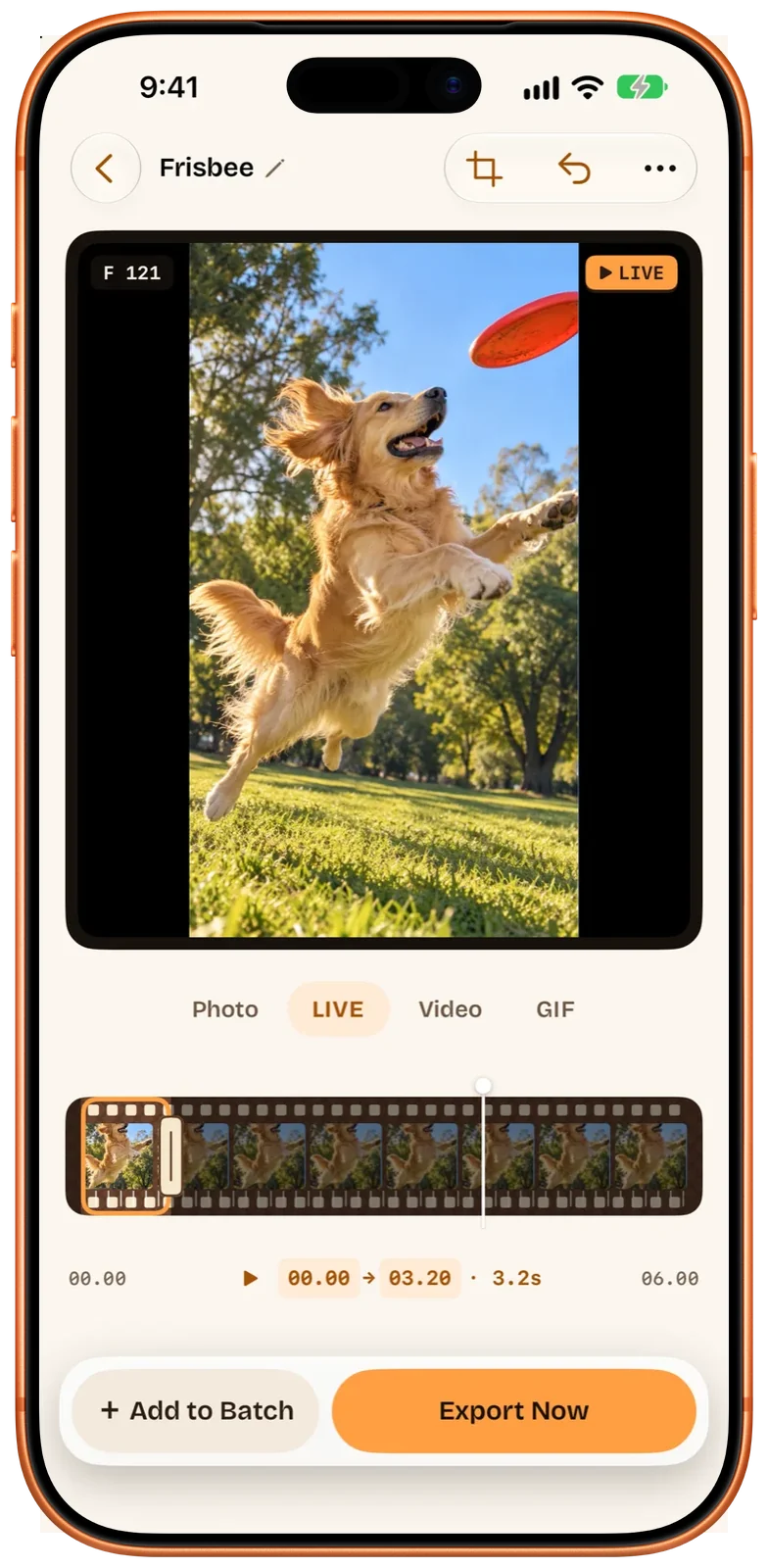
Every still is exported at the video’s full resolution, for example 3840 × 2160 for a 4K clip, not at the size of the preview. Each frame is decoded at its exact time, so the picture you export is the one you stopped on.
By default the stills keep the video’s capture date and time, location, and camera details, as far as the format can hold them. You can remove or replace the location, or remove camera and lens details, before exporting. One thing to know about Photos: Show as Newest in Photos is on by default, so new stills appear at the top of your library with the export time as their date in Photos (the capture date inside the file is unchanged). Turn it off and they’re sorted next to the video instead.
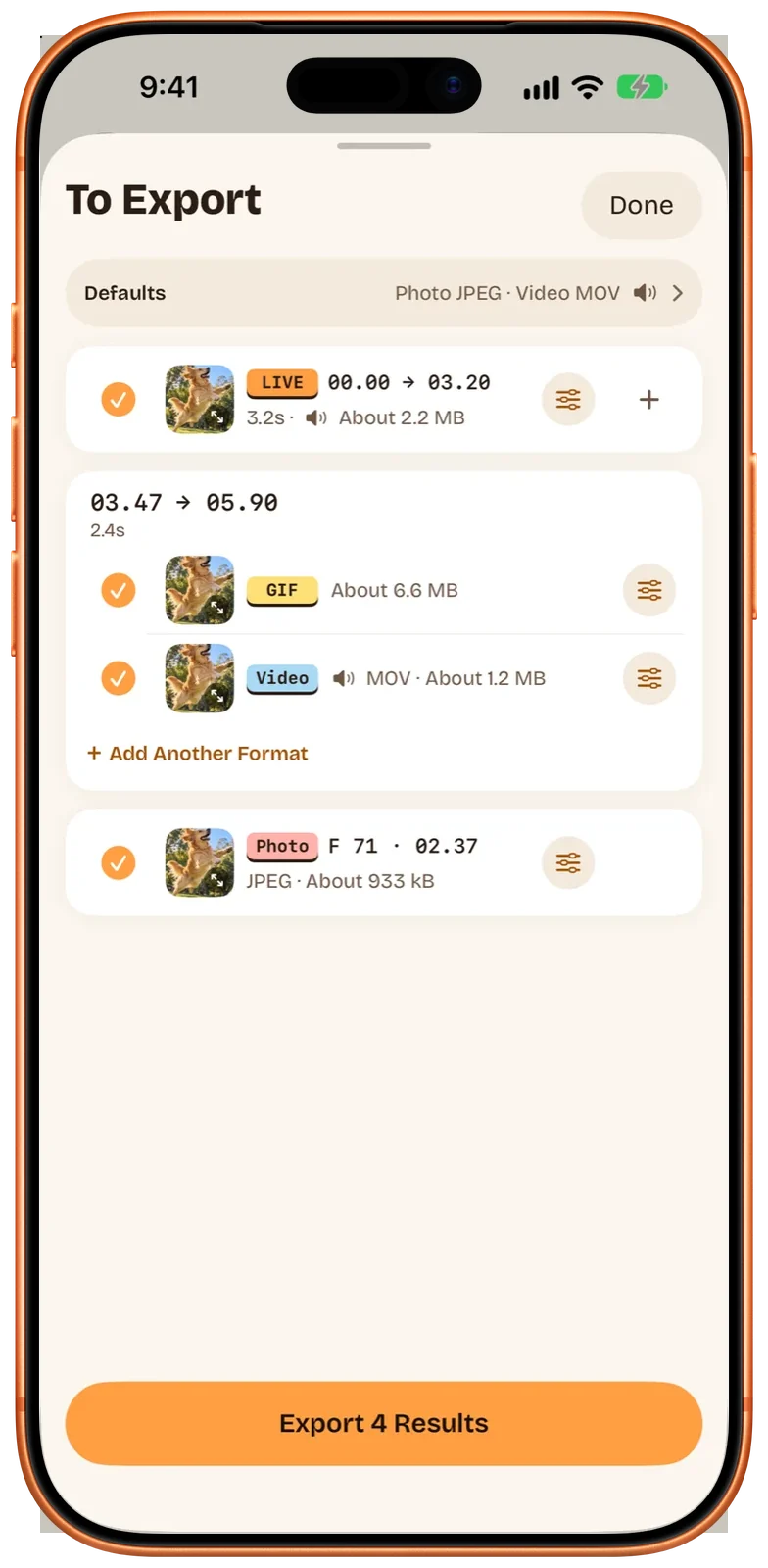
If you want more than stills from one clip, add a Live Photo or a GIF to the same To Export list before you export. Turning the video into a Live Photo is the same editor with LIVE selected.
Comparing the three ways
| Photos, iOS 27 | Screenshot | Beavery | |
|---|---|---|---|
| Systems | iOS 27 | Any | iOS 18 or later, iPadOS, macOS 15 or later |
| Resolution | The video’s full resolution (per Macworld) | Your screen’s | The video’s full resolution |
| Format | HEIF or JPEG, from your settings (per Macworld) | PNG | HEIF, JPEG or PNG, your choice |
| Frames per go | One | One | As many as you add, exported together |
| Date and location | Taken from the video (per Macworld) | The moment of the screenshot | Kept by default; location can be removed or replaced |
| HDR | Not documented | Not applicable | Standard still, not HDR |
| Also makes | — | — | Live Photos, GIFs and clips from the same video |
Things to know
- No HDR stills. If your video is HDR, a still from Beavery is a standard image. Apple and Macworld don’t say how iOS 27’s command treats HDR.
- The frame is only as sharp as the video. A frame from a 1080p clip is about 2 megapixels whatever tool you use. Motion blur in the video is in the frame too.
- Live Photos are different. A Live Photo’s own key photo is usually larger than the frames of its movie. Changing the key photo explains why any other frame looks softer. If you also want the moment to move, turn the video into a Live Photo instead.
Which one should you use?
On iOS 27, for one frame: Photos’ Save Video Frame as Photo. On an older iOS, or when you want several frames, a particular format, or Live Photos and GIFs from the same clip, Beavery does it in one export. Beavery isn’t on the App Store yet; get Beavery for iPhone, iPad and Mac shows its current status, and the Mac page covers the desktop version.
Questions
Is iOS 27's Save Video Frame as Photo full resolution?
Macworld reports that the saved photo has the full resolution of the video and is saved as HEIF or JPEG depending on your camera settings. Apple's guide confirms the steps but doesn't list the resolution.
Why is a screenshot of a paused video blurry?
A screenshot records the pixels on your screen, not the pixels in the video. When the video is larger than the screen, as a 4K clip is, detail is lost before the screenshot is taken.
Can I save several frames from one video at once?
Photos saves one frame each time you use the command. In Beavery you add as many frames as you like to the To Export list and export them together.
Do stills saved with Beavery keep HDR?
No. A still made from a video frame is saved as a standard image, even when the video is HDR.
How do I do this on a Mac?
Photos on Mac can export a frame with File › Export › Export Frame to Pictures, which saves a TIFF to your Pictures folder. Beavery on Mac works like the iPhone version.
How this guide was checked
- Checked against
- Beavery 1.0 · Apple Support documentation · iOS 27 coverage in Macworld
- Device test
- The steps in this guide have not yet been run one by one on a device.
- Checked
Sources. Apple Support: Save a video frame as a photo on iPhone; Macworld: How to save a video frame as a high-res image in iOS 27 (August 14, 2026); Apple Support: Export a still photo from a video on Mac
Written by the maker of Beavery. We sell the app described here; the limits above are the same ones you will hit.