
Short answer
Loop and Bounce only change how a Live Photo plays; they don't make a .gif file. For a real GIF, use the Make GIF action in Shortcuts on iPhone or iPad, set Bounce and choose File › Export › Export GIF in Photos on a Mac, or open the Live Photo in Beavery and export it as a GIF.
To turn a Live Photo into a real GIF, export or convert it: on iPhone and iPad, run the Make GIF action in Shortcuts; on a Mac, set the Live Photo to Bounce in Photos and choose File › Export › Export GIF; or export a GIF from an app such as Beavery. Loop and Bounce alone don’t create a .gif file.
That difference matters when a chat app, forum or website asks for a GIF file. Below are the three ways to get a real one, starting with the tools Apple already gives you, then a comparison and the limits every GIF shares.
Loop and Bounce look like GIFs, but they aren’t GIF files
In the Photos app on iPhone (Apple’s iOS 27 guide), open a Live Photo, tap Live in the top-left corner and choose an effect:
- Loop repeats the action in a continuous loop.
- Bounce plays the action forward and then backward.
- Long Exposure blurs motion like a slow shutter.
- Live puts normal playback back.
Apple describes these effects as a way to “turn them into fun videos”. They change how the Live Photo plays in your library. Nothing in Photos on iPhone gives you a GIF file from them, so for an actual .gif you need one of the methods below.
Method 1: the Make GIF action in Shortcuts (iPhone and iPad)
Apple’s Shortcuts guide uses Make GIF as its example action: it “uses those photos to build an animated GIF”. You can build a small shortcut around it:
- Open the Shortcuts app and tap + to create a new shortcut.
- Add the Select Photos action, so the shortcut asks you to pick something when it runs.
- Add Make GIF below it.
- Add Save to Photo Album to put the result in your library.
- Run the shortcut and pick your Live Photo.
The GIF appears in Photos. The options inside Make GIF differ between iOS versions, so expand the action to see what you can set. Shortcuts is free and built in, but you choose the moment only by what the Live Photo already contains, and you can’t see the frames before you run it.
Method 2: Export GIF in Photos on Mac
Photos on Mac can write a GIF file directly. Apple’s steps are:
- Open the Photos app on your Mac.
- Double-click a Live Photo, then click Edit in the toolbar.
- Click the pop-up menu at the bottom right of the Live Photo and choose Bounce.
- Click Done.
- Choose File › Export › Export GIF, pick a folder and click Export.
Apple’s page only describes Bounce here. If Export GIF isn’t available, Apple suggests Export Unmodified Original, which gives you a short video rather than a GIF. The page doesn’t describe any size or frame-rate settings for the GIF.
Method 3: export a GIF from the Live Photo in Beavery
Beavery is an app for iPhone, iPad and Mac that opens a Live Photo with both of its parts, the still and its movie, and can export that movie as a GIF, a video clip, a still or a new Live Photo. Processing happens on your device and your photos aren’t uploaded.
- Open the Live Photo from the system photo picker, or from Beavery’s Home grid with the Live Photos filter.
- In the editor, switch the result type to GIF.
- Drag the start and end on the film strip to choose the part you want. Slow down to step frame by frame; a GIF can be up to 20 seconds, which covers a whole camera Live Photo.
- Optionally set the frame rate (10, 15 or 24 fps, 15 by default) and the long side (480, 720 or 960 px, 960 by default). Rates above the movie’s own and sizes larger than the movie aren’t offered.
- Optionally crop: Free, Original, 3:4, 1:1, 4:5 or 16:9.
- Tap Export Now, or Add to Batch if you also want a video or still from the same Live Photo, then export them together (batch export needs Pro; your first one is free).
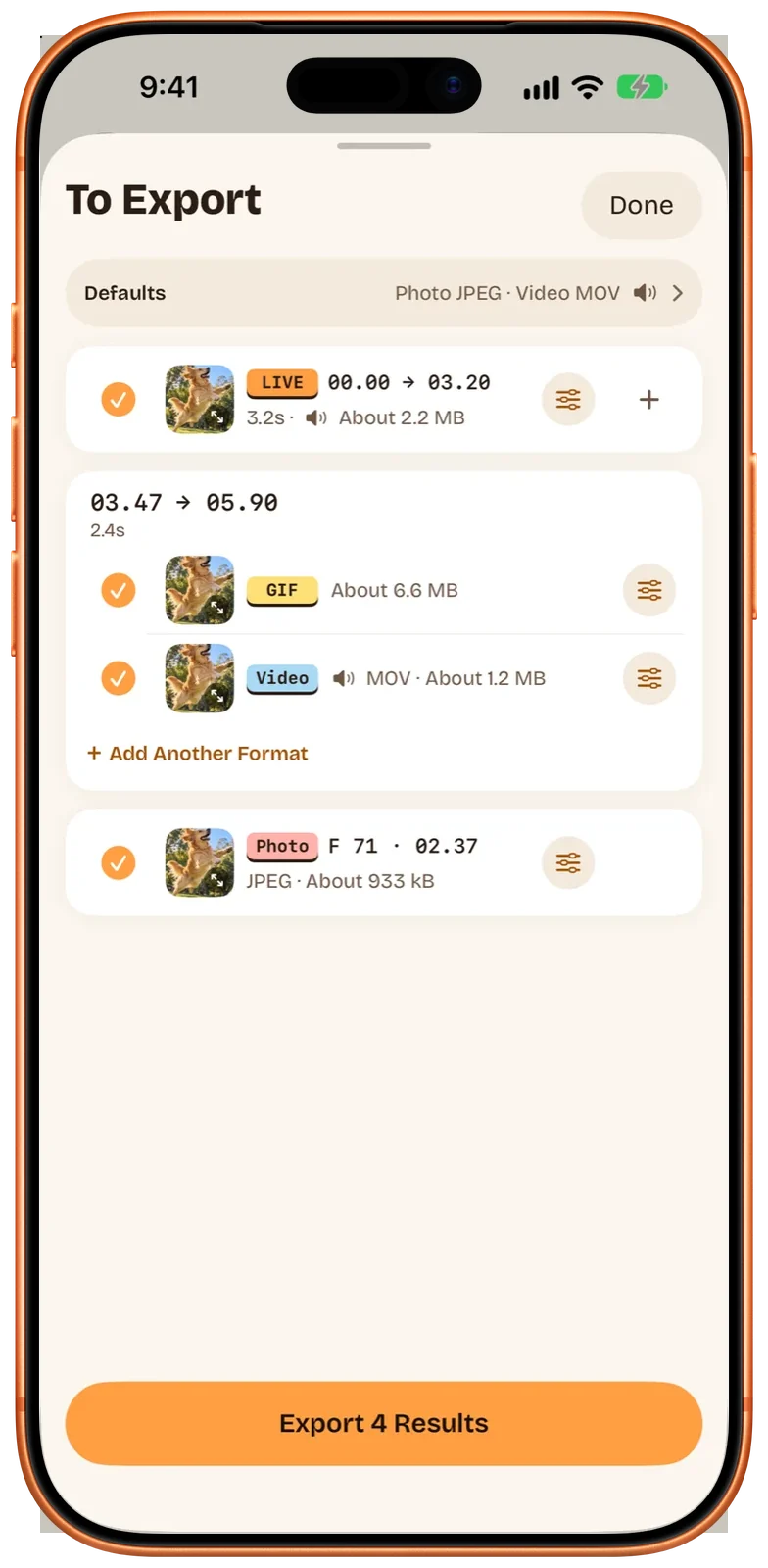
You can save the GIF to Photos, to a folder in Files, or send it with Send to Friends (Messages, AirDrop and other apps). Saved to Photos, it appears in the Animated album. The Mac app works the same way and adds keyboard frame stepping; see Beavery on Mac.
Comparison
| Photos Loop / Bounce | Shortcuts Make GIF | Photos on Mac Export GIF | Beavery | |
|---|---|---|---|---|
Makes a .gif file |
No | Yes | Yes | Yes |
| Device | iPhone, iPad, Mac | iPhone, iPad, Mac | Mac | iPhone, iPad, Mac |
| Choose the exact frames | Trim in Edit | No preview | Trim in Edit | Frame-by-frame strip |
| Frame rate / size choice | — | Depends on the action’s options | Not described by Apple | 10/15/24 fps; 480/720/960 px |
| GIF and video of the same moment together | — | No | No | Yes, in one To Export list |
| Extra app needed | No | No | No | Yes |
Limits and things to know
- No sound. No GIF has sound, whatever made it. Keep the audio by saving the Live Photo as a video instead; see how to turn a Live Photo into a video.
- Timing. Beavery resamples a Live Photo’s movie at the frame rate you pick, and the GIF lasts as long as your selection. Only a GIF source keeps its original frame timing.
- It loops forever. Beavery’s GIFs are set to repeat endlessly.
- Date and place. A GIF file has no standard place for the capture date, location or camera details. When Beavery saves it to Photos, the library item still gets the source’s date and location. By default Show as Newest in Photos is on, which shows the export time as the date in Photos instead, so the GIF appears at the top; turn it off to keep it next to the original.
- Size. Beavery shows an estimated file size (“About …”) before you export. A smaller long side or a lower frame rate makes a lighter GIF for chat apps.
- Sending it. A GIF plays in more places than a Live Photo, which is why it’s a good thing to send to people who can’t see Live Photos; see why a Live Photo stops moving after you send it.
Which one should you use?
If you only want the Live Photo to play on a loop in your own library, Loop or Bounce is enough. For a quick .gif on a Mac, use Export GIF in Photos. On iPhone, a Make GIF shortcut works without installing anything. Use Beavery when you want to pick the exact frames, set the frame rate and size, crop, or make a GIF and a video of the same moment in one go.
Questions
Is a Live Photo with the Loop or Bounce effect a GIF?
No. Loop and Bounce are playback effects on the Live Photo, which Apple describes as turning it into a fun video. Apps and websites that ask for a GIF file won't see one until you export or convert it.
Can I turn a Live Photo into a GIF on a Mac without another app?
Yes. In Photos on Mac, open the Live Photo, click Edit, choose Bounce from the pop-up menu at the bottom right, click Done, then choose File › Export › Export GIF. Apple's guide only describes this for Bounce.
Does a GIF keep the sound of the Live Photo?
No. The GIF format has no sound. If you need the audio, save the Live Photo as a video instead.
Where do GIFs show up in the Photos app?
GIFs saved to the library appear under Media Types in the Animated album. In Photos on iPhone, tap Collections, scroll down and tap Media Types.
How long can a GIF made in Beavery be?
Up to 20 seconds. A Live Photo taken with the camera is much shorter than that, so the whole movie fits; you can also pick any shorter part of it frame by frame.
How this guide was checked
- Checked against
- Beavery 1.0 · Apple Support documentation
- Device test
- The steps in this guide have not yet been run one by one on a device.
- Checked
Sources. Apple Support: Edit Live Photos on iPhone; Apple Support: Export a Live Photo as an animated GIF in Photos on Mac; Apple Support: Intro to Shortcuts on iPhone and iPad
Written by the maker of Beavery. We sell the app described here; the limits above are the same ones you will hit.