
Short answer
In Photos on the Mac, open the video, drag the playhead to the frame and choose File › Export › Export Frame to Pictures; you get a TIFF in your Pictures folder. QuickTime Player can copy the current frame for Preview to save. For several exact frames at full resolution in HEIF, JPEG or PNG, with the date and place kept, use an app like Beavery.
To export a still frame from a video on a Mac at full quality, take it from the video file, not a screenshot. In Photos, open the video, drag the playhead to the frame and choose File › Export › Export Frame to Pictures: you get a TIFF at the video’s resolution in your Pictures folder.
QuickTime Player with Preview lets you pick the format instead. For several exact frames from one clip, as HEIF, JPEG or PNG files that keep the video’s date and location, use an app such as Beavery. All four ways are compared below.
Method 1: Photos, Export Frame to Pictures (macOS 15 to 27)
Apple documents this in Export a still photo from a video on Mac, and the steps are the same in macOS 15, macOS 26 and macOS 27:
- Open the Photos app and open the video.
- Drag the playhead to the frame you want.
- Choose File › Export › Export Frame to Pictures.
A TIFF file named “Frame [date]” appears in the Pictures folder in your home folder. It isn’t added to your library. MacMost notes that the TIFF has the same pixel dimensions as the video and is large; to get a smaller file, open it in Preview, choose File › Export and pick HEIC or JPEG, then drag the result into Photos if you want it there.
The weak spot is finding the frame. You drag a playhead, so landing on one exact frame in fast motion takes some patience.
What about macOS 27?
iOS 27 added Save Video Frame as Photo to Photos on iPhone, and Apple documents it in the iPhone User Guide. For the Mac, iDownloadBlog has reported the same command in Photos on macOS 27, reached by Control-clicking the paused video or from the Image menu. Apple hasn’t documented it for the Mac: as of October 27, 2026, Apple’s Photos guide for Mac still describes only Export Frame to Pictures. Look in the Image menu on your own Mac; if the command is there, iDownloadBlog says the frame goes straight into your library instead of a TIFF in a folder.
Method 2: QuickTime Player and Preview
This route lets you choose the file format right away. As described by MacMost:
- Open the video in QuickTime Player and pause on the frame. The arrow keys step one frame at a time.
- Choose Edit › Copy (⌘C). This copies the current frame as an image.
- In Preview, choose File › New from Clipboard.
- Choose File › Save or File › Export and pick HEIC, JPEG or PNG.
The copy is a new image, so it doesn’t carry the video’s capture date or location. You can also open a video from Photos in QuickTime Player with Image › Edit With › QuickTime Player.
Method 3: a screenshot
Pressing ⇧⌘4 and dragging around the paused video, or using ⇧⌘5, is the fastest option; Apple’s screenshot guide covers the keys, and the file goes to your desktop. But a screenshot records what’s on your screen, scaled to the window size, not the video’s own pixels. A 4K frame shown in a small window comes out at the window’s size. Fine for a quick reference, not for a print or a cover image.
Method 4: several exact frames with Beavery for Mac
Beavery is useful when you want more than one frame from the same clip, need a specific frame in fast motion, or want the files to keep the original capture details.
- Open the video: from your Photos library with Pick Media, with File › Import File… (⌘O), or by dropping the file on the window.
- Choose Photo in the switcher under the preview.
- Find the frame. Press ← or → to step one frame at a time; each position on the film strip is a real frame of the video, decoded at that exact time.
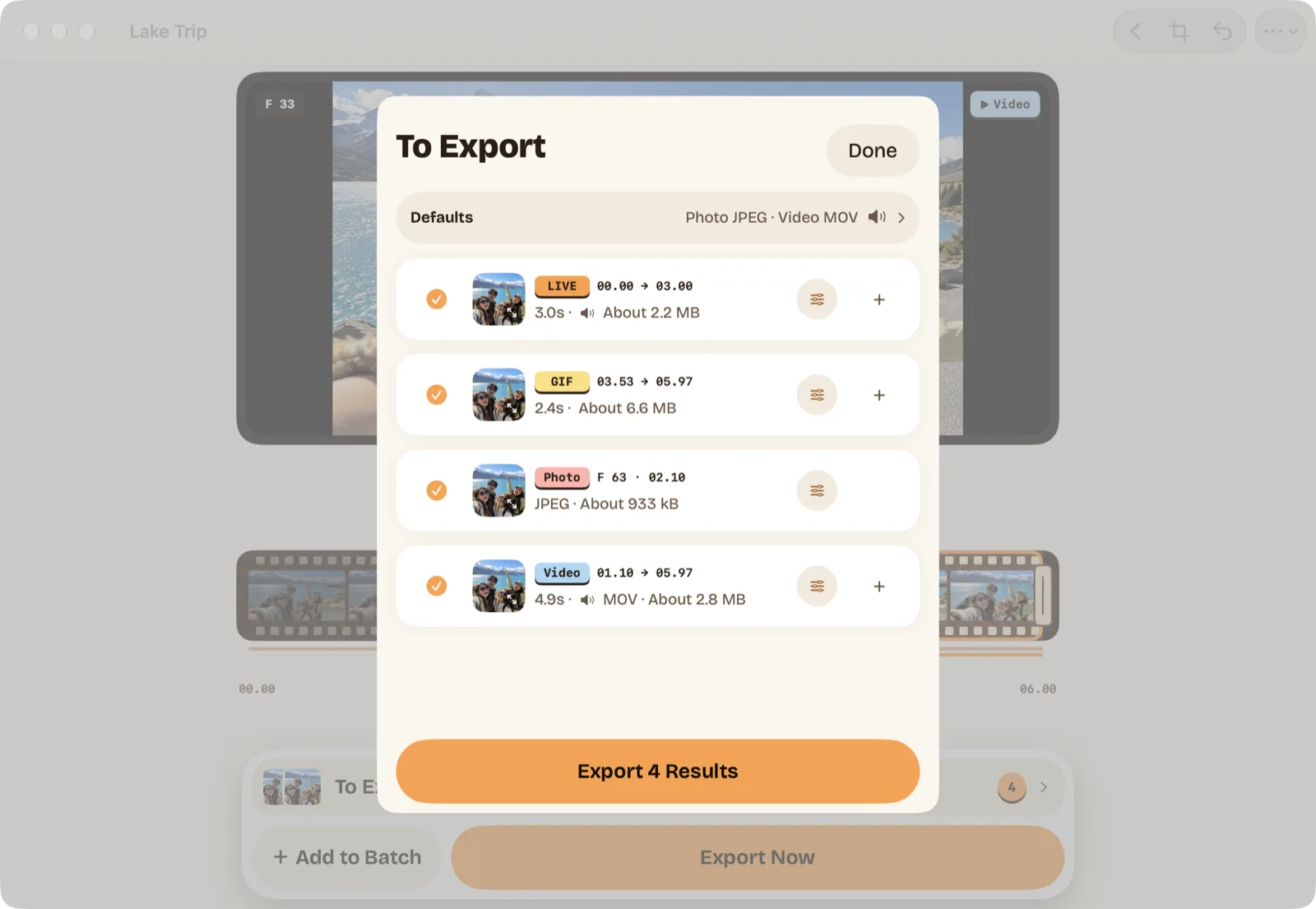
- Press ⌘↩ (Add to Batch) to add that frame to the To Export list (batch export needs Pro; your first one is free). Move to the next frame and repeat.
- Press ⌘E, click Export [number] Results, and choose Save to Photos or Save to Files.
Each photo is exported at the video’s full resolution, for example 3840×2160 from a 4K clip, not at preview size. The format is HEIF by default, with JPEG and PNG available; quality is Maximum by default, and PNG is lossless. By default each still keeps the video’s capture date, time zone and location, and you can crop each result on its own. The same list can also hold a Live Photo, a GIF or a video clip from that clip, so one export covers everything you picked. Videos are processed on your Mac and not uploaded.
One limit: a still taken from an HDR video is saved as a standard image, so it doesn’t keep HDR. If the source is a Live Photo rather than a video, frames other than its original key photo come from its smaller movie; getting a full-resolution still out of a Live Photo explains the difference.
Comparison
| Method | File | Resolution | Goes to | Several frames | Date and location |
|---|---|---|---|---|---|
| Photos: Export Frame to Pictures | TIFF | The video’s | Pictures folder | One at a time | Not documented |
| Photos on macOS 27: Save Video Frame as Photo (reported) | Not documented for Mac | Not documented for Mac | Photos library | One at a time | Not documented for Mac |
| QuickTime Player + Preview | HEIC, JPEG, PNG and more | The video’s | Wherever you save | One at a time | No, it’s a new image |
| Screenshot | Image file | Your screen’s | Desktop | One at a time | No |
| Beavery for Mac | HEIF, JPEG or PNG | The video’s | Photos or a folder | Many in one export | Kept by default |
Which one should you use?
For one frame now and then, Photos’ Export Frame to Pictures is built in and keeps the video’s resolution; convert the TIFF in Preview if size matters. If you’re on macOS 27 and see Save Video Frame as Photo in the Image menu, that’s even simpler. Use QuickTime Player and Preview when you want to pick the format straight away. Reach for Beavery when you need several frames from one clip, a specific frame in fast action, or files that keep the original date and place. On iPhone, the steps are in saving a full-quality photo from a video on iPhone.
More about the Mac version is on the Beavery for Mac page, and you can get Beavery for iPhone, iPad and Mac from there.
Questions
How do I save a frame from a video as a picture on a Mac?
Open the video in Photos, drag the playhead to the frame, then choose File › Export › Export Frame to Pictures. Apple says a TIFF file named “Frame [date]” appears in your Pictures folder.
Is a screenshot of a paused video good enough?
It's the quickest way, but a screenshot records the picture as it's drawn on your screen, scaled to the window, not the video's own pixels. Exporting the frame keeps the video's resolution.
Does macOS 27 have Save Video Frame as Photo like iOS 27?
iDownloadBlog has reported a Save Video Frame as Photo command in Photos on macOS 27. Apple's Photos guide for Mac still documents only Export Frame to Pictures, so check the Image menu on your own Mac.
Why is the exported TIFF so large?
TIFF stores the frame without lossy compression. Open it in Preview and use File › Export to save a HEIC or JPEG copy, then drag that into Photos if you want it in your library.
Can I keep HDR when I export a frame from an HDR video?
Not with Beavery: a still exported from a video frame is saved as a standard image, at the video's full resolution. The video and Live Photo results keep HDR by default.
How this guide was checked
- Checked against
- Beavery 1.0 · Apple Support documentation (macOS 15–27)
- Device test
- The steps in this guide have not yet been run one by one on a device.
- Checked
Sources. Apple Support: Export a still photo from a video on Mac; iDownloadBlog: How to save video frame as photo on iOS 27 and macOS 27 (updated September 18, 2026); MacMost: 5 Ways To Export a Video Frame On a Mac (December 22, 2025); Apple Support: Take a screenshot on Mac
Written by the maker of Beavery. We sell the app described here; the limits above are the same ones you will hit.