
Short answer
Open the Live Photo in Photos, tap Edit, tap Crop, choose a ratio and tap Done. Apple says edits to a Live Photo apply to both the still and the video, so it keeps moving. To keep the original and make cropped copies in fixed ratios such as 4:5, 1:1 or 16:9, Beavery crops both parts of a new Live Photo.
To crop a Live Photo on iPhone, open it in Photos, tap Edit, tap Crop, choose a ratio or drag the corners, and tap Done. It keeps moving: Photos crops the still and the movie together, so the Live Photo plays inside the new frame.
The less obvious questions are which ratios you can pick and how to keep both the original and cropped versions. That’s where the methods below, in Photos and in Beavery, differ.
Crop a Live Photo in Photos on iPhone or iPad
Apple’s steps for cropping a photo or video on iPhone apply to Live Photos:
- Open the Live Photo in the Photos app and tap Edit.
- Tap the Crop button.
- Do one of the following:
- Crop by hand: drag the corners of the rectangle, or pinch. Apple notes that dragging a corner keeps the photo’s original aspect ratio; tap the lock at the top right to unlock it.
- Use a preset ratio: tap the Aspect Ratio button and choose an option. Apple’s guide gives Square, 9:16 and 5:7 as examples; the full list is on your screen.
- Tap Done.
Does it stay live? Apple’s Mac guide states it directly: “Edits you make to a Live Photo apply to both the still image and the video in the Live Photo.” iPhone Life’s crop walkthrough (updated January 2024) says the same for iPhone: after cropping, the Live Photo “should play as normal in its new, cropped frame.”
A crop in Photos is non-destructive. To undo it later, open the photo, tap Edit, then Revert.
Crop a Live Photo in Photos on a Mac
On a Mac, click Live Photos under Media Types, double-click the photo, click Edit, and use the Crop tool as you would for any photo. Apple notes that a few tools, namely retouch, red-eye and markup, change only the still image; crop is not one of them. Revert to Original removes the crop.
Where Photos runs out
Photos is the right tool for straightening up one Live Photo. It gets awkward in three situations:
- You want the original too. The crop changes the item in your library. To keep an uncropped version you have to duplicate it first.
- You want more than one crop. A square version for one place and a 16:9 version for another means two duplicates, each cropped separately.
- You want a ratio that isn’t in the list. Photos’ presets depend on your iOS version, and Apple’s guide only lists examples. Free cropping to an exact ratio by eye is fiddly.
Crop with Beavery: fixed ratios, several versions
Beavery makes new Live Photos, GIFs, clips and stills from Live Photos and videos on iPhone, iPad and Mac. Cropping is part of making each result, so the original in your library is never changed.
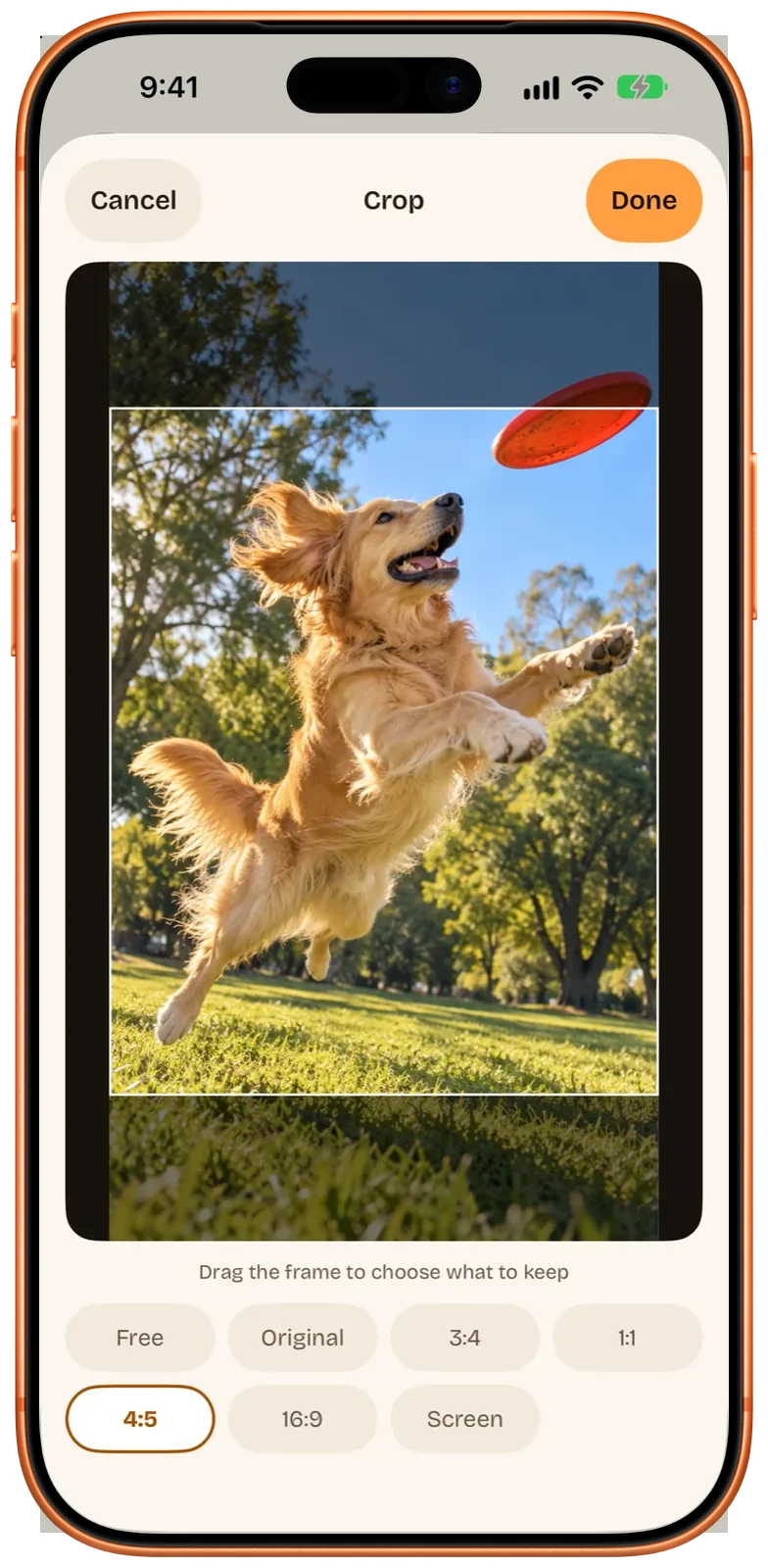
Its crop ratios are Free, Original, 3:4, 1:1, 4:5, 16:9 and Screen, a phone-screen shape. The crop applies to everything in that result: the still and the movie of a Live Photo, the cover, a GIF, a video clip or a photo, even the list thumbnail.
- Open Beavery and pick the Live Photo (or a video) from the Home grid or the Photos picker.
- Choose LIVE in the mode switcher, and adjust the moving range and cover if you like.
- Tap the crop button at the top of the editor.
- Pick a ratio, drag the frame to choose what to keep, and tap Done.
- Tap + Add to Batch (batch export needs Pro; your first one is free).
- For a second version, change the crop to another ratio and tap + Add to Batch again. Each result in the To Export list keeps its own crop.
- Export the list and choose Save to Photos.
If you’re starting from a video rather than a Live Photo, the same crop applies to the Live Photo you make from it. See how to turn a video into a Live Photo.
What cropping changes in the file
Some trade-offs come with any crop, and some are specific to how Beavery writes the result:
- Fewer pixels. A crop throws away the edges. A 1:1 crop of a 4:3 photo keeps three quarters of its pixels, and cropping deep into a movie frame magnifies its softness. If you also changed the key photo, read why a new key photo looks softer first.
- The movie is re-encoded. Without a crop, Beavery copies the selected part of the movie as it is, keeping its resolution, frame rate, sound and HDR. A crop changes the pixels, so the movie has to be encoded again.
- HDR after a crop isn’t guaranteed. Beavery keeps HDR when it copies the movie unchanged; whether HDR survives the re-encoding that a crop needs hasn’t been confirmed. Quality, HDR and HEIF explains the background.
- A cropped cover is a JPEG. Beavery normally writes a Live Photo’s still as HEIC; when the cover is cropped, it’s saved as JPEG.
| Photos | Beavery | |
|---|---|---|
| Keeps the Live Photo moving | Yes, still and video are both cropped | Yes, still and movie are both cropped |
| Original in your library | Changed (Revert undoes it) | Unchanged; you get a new Live Photo |
| Ratios | Freeform plus presets, varies by iOS version | Free, Original, 3:4, 1:1, 4:5, 16:9, Screen |
| Several crops of one Live Photo | Duplicate, then crop each copy | Add each crop to the To Export list, export together |
| A cropped clip of the same moment | Separate steps: Save as Video, then crop the video | Yes, each result has its own crop |
| Undo | Revert | Change or remove the crop before export |
Which one should you use?
For one Live Photo you just want tidier, crop it in Photos: it stays live and Revert is always there. Use Beavery when you want the original kept, several fixed ratios from the same moment, or a GIF and a video cut to the same frame. Beavery isn’t on the App Store yet; get Beavery for iPhone, iPad and Mac shows its status. Cropping works the same way in the Mac version.
Questions
Does cropping a Live Photo stop it from moving?
No. In Photos, a crop is applied to both the still image and the video in the Live Photo, so it still plays, just in the new frame.
Can I undo a crop on a Live Photo?
Yes. In Photos, open the photo, tap Edit, then tap Revert. On a Mac, click Revert to Original.
Can I crop a Live Photo to 4:5?
In Beavery, 4:5 is one of the fixed ratios, alongside Free, Original, 3:4, 1:1, 16:9 and a phone-screen shape. In Photos, look through the aspect-ratio list on your device or use the freeform crop.
Does cropping lower the quality of a Live Photo?
A crop keeps fewer pixels, so the picture is smaller. In Beavery a cropped movie is also re-encoded rather than copied as it is, and a cropped cover is saved as JPEG.
How this guide was checked
- Checked against
- Beavery 1.0 · Apple Support documentation
- Device test
- The steps in this guide have not yet been run one by one on a device.
- Checked
Sources. Apple Support: Crop, rotate, flip, or straighten photos and videos on iPhone; Apple Support: Change a Live Photo in Photos on Mac; iPhone Life: How to crop a Live Photo on iPhone (updated January 2024)
Written by the maker of Beavery. We sell the app described here; the limits above are the same ones you will hit.