
Short answer
The moving part of a Live Photo made from a video can keep the video exactly as it was, including resolution, frame rate, HDR and sound, if the app copies it without re-encoding. The still can never have more pixels than one frame of the video, and in Beavery it is a standard (non-HDR) image.
Turning a video into a Live Photo loses no motion quality if the app copies the chosen stretch without re-encoding: the movie keeps the source’s resolution, frame rate, HDR and sound. The still has a ceiling: it is one video frame, so it can’t exceed the video’s pixels, and in Beavery it is a standard, non-HDR image.
The rest comes down to the settings you choose and how the result is shared.
A Live Photo is two parts, a still image and a short movie (what’s inside a Live Photo covers the format), so it helps to look at each separately.
The moving part: copied or re-encoded
There are two ways an app can build the movie:
- Copy (passthrough). The compressed video data for the selected frames is copied into the new movie. Nothing is decoded and compressed again, so there is no generation loss. Resolution, frame rate, HDR and sound stay exactly as they were.
- Re-encode. The frames are decoded and compressed again. This allows changes (smaller size, lower frame rate, a crop) but always costs some quality and time.
Beavery copies by default. Each Live Photo result can be changed if you want a smaller file:
- Quality: Original, High or Compact.
- Frame rate: Original or 30 fps.
- Size: Original or 1080p.
- Dynamic range: HDR or SDR.
When the movie has to be re-encoded, an H.264 source stays H.264 and anything else becomes HEVC. Cropping a Live Photo always re-encodes the movie, because the crop changes the pixels. Sound is copied as it is, never re-encoded, and you can mute any result.
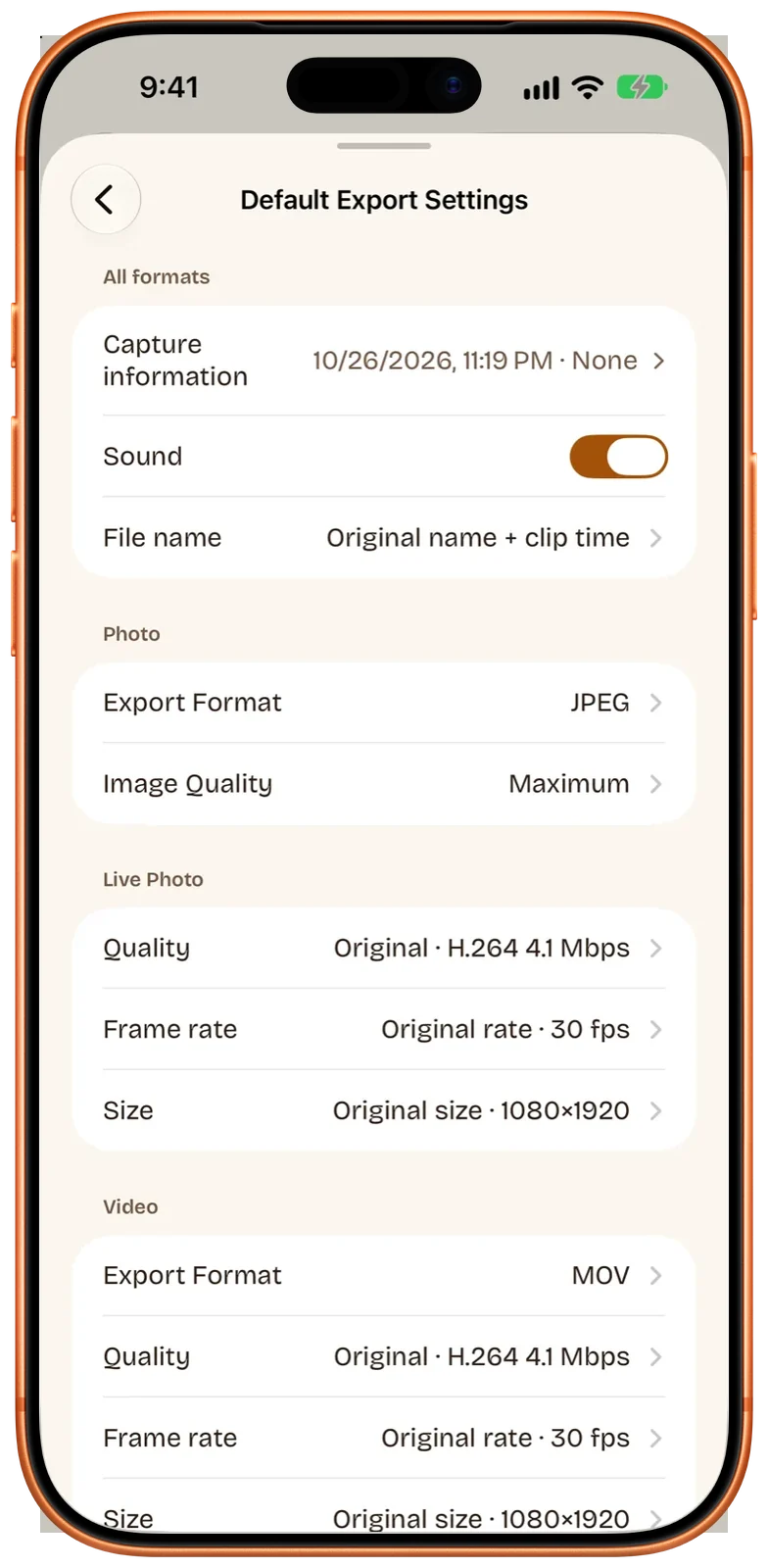
Beavery shows an estimated file size (“About …”) for each result before you export, so you can see what a change to Quality or Size does before committing.
The still: capped by the video’s resolution
The key photo is a frame of the video, so its resolution is the video’s resolution. A frame from a 4K video is 3840×2160, about 8.3 million pixels; a 1080p frame is about 2.1 million. A photo taken with the camera usually has more pixels than either. Two other things make a video frame look different from a photo:
- Motion blur. A fast-moving subject can be blurred in any single video frame, even when the video looks sharp in motion. Pick a frame where the subject is momentarily still.
- Compression. Video frames are usually compressed more heavily than a photo, which can show up as softness in fine detail.
Beavery decodes the cover frame at its exact timestamp, with zero tolerance, rather than grabbing the nearest preview image, then writes it as HEIC (or JPEG if HEIC fails or the cover was cropped, so a cropped cover is always a JPEG). If you need the sharpest still from a video on its own, rather than as part of a Live Photo, see how to save a full-quality photo from a video on iPhone.
When the source is already a Live Photo, the situation is different. Its original still is a full camera photo, larger than its movie. Beavery reuses that original still at full resolution if you keep the original key frame (marked ★ Original); any other frame comes from the movie and is only as large as the movie.
HDR: kept in the motion, not in the still
Many iPhones record HDR video. Apple’s iPhone User Guide says supported models record video in Dolby Vision HDR, controlled in Settings > Camera > Record Video > HDR Video.
In Beavery:
- HDR video (HLG or PQ) stays HDR in the Live Photo’s movie by default.
- Any result can be switched to SDR, which helps when a player or app shows HDR video too bright or washed out.
- The still is written as a standard image. Beavery does not make HDR stills from video frames.
- Live Photos made from a still photo or a GIF are SDR.
How bright the HDR motion looks depends on the screen and the app showing it.
HEIF, HEVC and compatibility
HEIF (for photos) and HEVC, also called H.265 (for video), are Apple’s space-saving formats. In a Live Photo made by Beavery, the still is HEIC by default and the movie keeps the source’s codec when copied.
Quality can change later, when you share. According to Apple Support:
- Sharing via AirDrop, Messages or email to a device that doesn’t support the newer formats may convert the media to JPEG or H.264.
- iCloud Photos keeps media “in its original format, resolution, and frame rate.”
- Importing over USB into Photos, Image Capture or a PC may convert to JPEG or H.264 unless you choose Settings > Apps > Photos > Keep Originals.
The iPhone share sheet also has Options for photos and videos: Automatic (best format for the destination), Current (no conversion) or Most Compatible (may convert to JPEG or MOV), according to Apple’s iPhone User Guide.
What is kept and what can change
| Copied (default in Beavery) | Re-encoded (you changed a setting or cropped) | |
|---|---|---|
| Movie resolution | Same as the source | Original or 1080p |
| Frame rate | Same as the source | Original or 30 fps |
| HDR in the movie | Kept | Your choice of HDR or SDR |
| Sound | Kept (or muted if you choose) | Kept (or muted) |
| Codec | Same as the source | H.264 stays H.264, others become HEVC |
| Still image | One frame of the video, at most the video’s resolution, standard dynamic range | Same; a cropped cover is saved as JPEG |
Which settings to use
- Keeping it for yourself or sending to Apple devices: leave everything on Original.
- The file is too large: try High or Compact quality first, then 1080p, then 30 fps, and check the size estimate.
- HDR looks wrong somewhere: switch that one result to SDR.
- You need a sharper still: choose a frame with no motion, and shoot in 4K if you plan to pull stills from your videos.
The full workflow is in how to turn a video into a Live Photo, and you can get Beavery for iPhone, iPad and Mac when you’re ready to try your own clips. The same settings apply in Beavery for Mac.
Questions
Does turning a video into a Live Photo reduce quality?
Not for the motion, if the selected stretch is copied without re-encoding; Beavery does this by default. The still is a single video frame, so it has the video's resolution, which is usually lower than a camera photo.
Does a Live Photo keep HDR?
The movie part can. Beavery keeps HLG or PQ HDR video as HDR in the Live Photo movie by default, and you can switch a result to SDR. The still frame is written as a standard image, not HDR.
Why is the key photo less sharp than a normal photo?
Because it is one frame of a video: a 4K frame is 3840×2160 pixels, fewer than most camera photos, and a fast-moving subject can show motion blur in a single video frame.
Will sending the Live Photo reduce its quality?
It can. Apple says sharing via AirDrop, Messages or email may convert HEIF and HEVC to JPEG or H.264 if the receiving device doesn't support them, while iCloud Photos keeps the original format, resolution and frame rate.
Why is my Live Photo file so large?
A Live Photo copied at original quality carries the video's full bitrate for the length you chose. Lower the Quality, frame rate or size for that result if file size matters; Beavery shows an estimated size before export.
How this guide was checked
- Checked against
- Beavery 1.0 · Apple Support documentation
- Device test
- The steps in this guide have not yet been run one by one on a device.
- Checked
Sources. Apple Support: Using HEIF or HEVC media on Apple devices; Apple iPhone User Guide: Adjust HDR camera settings; Apple iPhone User Guide: Share photos and videos on iPhone
Written by the maker of Beavery. We sell the app described here; the limits above are the same ones you will hit.