
Short answer
Apple Photos can play, trim, mute, re-key, add Loop, Bounce or Long Exposure to, share and export Live Photos you already have, and on iPhone it can save one as a video. Apple's guides describe no way to make a Live Photo from a video or a still photo in Photos on iPhone, iPad or Mac, so that takes a third-party app.
Apple Photos plays and edits Live Photos but doesn’t make them. On iPhone, iPad and Mac it can change the key photo, trim, mute, add effects, share and export one. Apple documents no way to create one from a video or a still photo; you get a Live Photo only by taking one with the Camera.
The Camera records about 1.5 seconds before and after you take the picture, and Photos works only with what was captured.
So can an iPhone convert a video to a Live Photo without an app? No. Below is what Photos does, with Apple’s steps, and where you need something else.
What Photos can do on iPhone and iPad
These are the Live Photo features Apple documents for the Photos app on iPhone and iPad.
Find and play Live Photos. Open Photos, tap Collections, scroll to Media Types and tap Live Photos. Press and hold a photo to play it.
Change the key photo. The key photo is the still the Live Photo shows when it isn’t playing:
- Open the Live Photo and tap Edit.
- Tap the Live Photo button.
- Drag the white frame to a different thumbnail.
- Tap Make Key Photo, then Done.
The thumbnails come from the Live Photo’s short movie, which is usually smaller than the original still, so a new key photo can look softer.
Trim, mute or turn Live off. In the same Live Photo editor you can drag the ends of the frame viewer to shorten what plays, mute the sound, or turn Live off so the photo becomes a still of its key photo. All of these are edits you can revert.
Add an effect. Open the Live Photo, tap the Live Photo button near the top of the screen and choose Loop, Bounce or Long Exposure. These change how the Live Photo plays in your library; none of them gives you a GIF file.
Save it as a video. Apple’s steps:
- In Photos, find Media Types and tap Live Photos.
- Open a Live Photo.
- Tap the More button (…) in the upper-right corner, then Save as Video.
The video appears in the Recently Saved album, and the Live Photo stays where it was.
Share it. Tap Share. To send only the still, tap LIVE in the upper-left corner of the photo before choosing how to share.
What Photos can do on a Mac
These are the steps in Apple’s Photos guide for the Mac. Click Live Photos under Media Types in the sidebar, double-click a Live Photo, click Edit and make sure Adjust is selected. Then you can:
- drag the ends of the slider to trim where it starts and ends;
- click the speaker button to turn the sound on or off;
- drag the playhead to a frame and click Make Key Photo;
- use the pop-up menu at the bottom right to choose Loop, Bounce, Long Exposure or Off (Off turns it into a still image);
- click Revert to Original to undo everything.
Apple notes that “edits you make to a Live Photo apply to both the still image and the video”, with one exception: the retouch, red-eye and markup tools change only the still.
Exporting is where the Mac does more than the iPhone:
- Export GIF. Set the Live Photo to Bounce, click Done, then choose File › Export › Export GIF. The Live Photo to GIF guide covers this and the iPhone alternatives.
- Export as a still. The normal export command can write a Live Photo as a still image.
- Export Unmodified Original. Apple says “a Live Photo is exported as two separate files: a still-image file and a video file”. That’s the closest the Mac has to Save as Video; Apple’s Mac guide lists no command by that name.
What Photos can’t do
Here is what Apple’s Photos guides don’t offer, on any device:
| You want to… | Photos on iPhone / iPad | Photos on Mac |
|---|---|---|
| Turn a video into a Live Photo | No | No |
| Turn a still photo into a Live Photo | No | No |
| Make a Live Photo longer than the Camera recorded | No, trim only shortens | No, trim only shortens |
| Use a frame from outside the Live Photo’s movie as the key photo | No | No |
Get a .gif file from a Live Photo |
Not in Photos | Yes, Export GIF after Bounce |
| Get the movie as a separate video | Yes, Save as Video | Yes, Export Unmodified Original |
| Make several Live Photos from different parts of one video | No | No |
A few related limits from Apple’s own pages:
- Mail sends a still. Apple: “If you share a Live Photo via Mail, the Live Photo is sent as a still image.” Other apps and devices decide for themselves; see why a Live Photo stops moving after you send it.
- Third-party editors can drop effects. Apple warns that editing a Live Photo in a third-party app might lose any Live Photo effects you applied.
- A video frame is not a Live Photo. In iOS 27, Photos can save a single frame of a video as a photo. That gives you a still, with no motion.
Can an iPhone make a Live Photo from a video without an app?
Not with anything Apple documents. Photos edits Live Photos; it doesn’t assemble them. A Live Photo is two files, a still image and a short movie, tied together so Photos treats them as one item. Making one from a video means choosing the stretch that moves, picking the still, writing both files and saving them to Photos together. Apple leaves that to apps.
That’s the gap Beavery fills, on iPhone, iPad and Mac. It is one App Store app for all three, and it processes your videos on the device; they aren’t uploaded. To make a Live Photo from a video:
- Open the video from Beavery’s Home grid or the system photo picker.
- Tap LIVE above the film strip.
- Drag the start and end of the selection to the stretch you want. There’s no length limit in the app: the Live Photo is as long as the range you drag. Slow down and the strip spreads out to one frame at a time.
- Drag the Cover marker to any frame of the video. It doesn’t have to sit inside the selection.
- Tap Export Now, or + Add to Batch to pick more stretches, Live Photos, GIFs, videos or stills, from the same video and export them together (batch export needs Pro; your first one is free).
- Keep Save to Photos selected and export. Beavery checks each Live Photo with Photos before saving it.
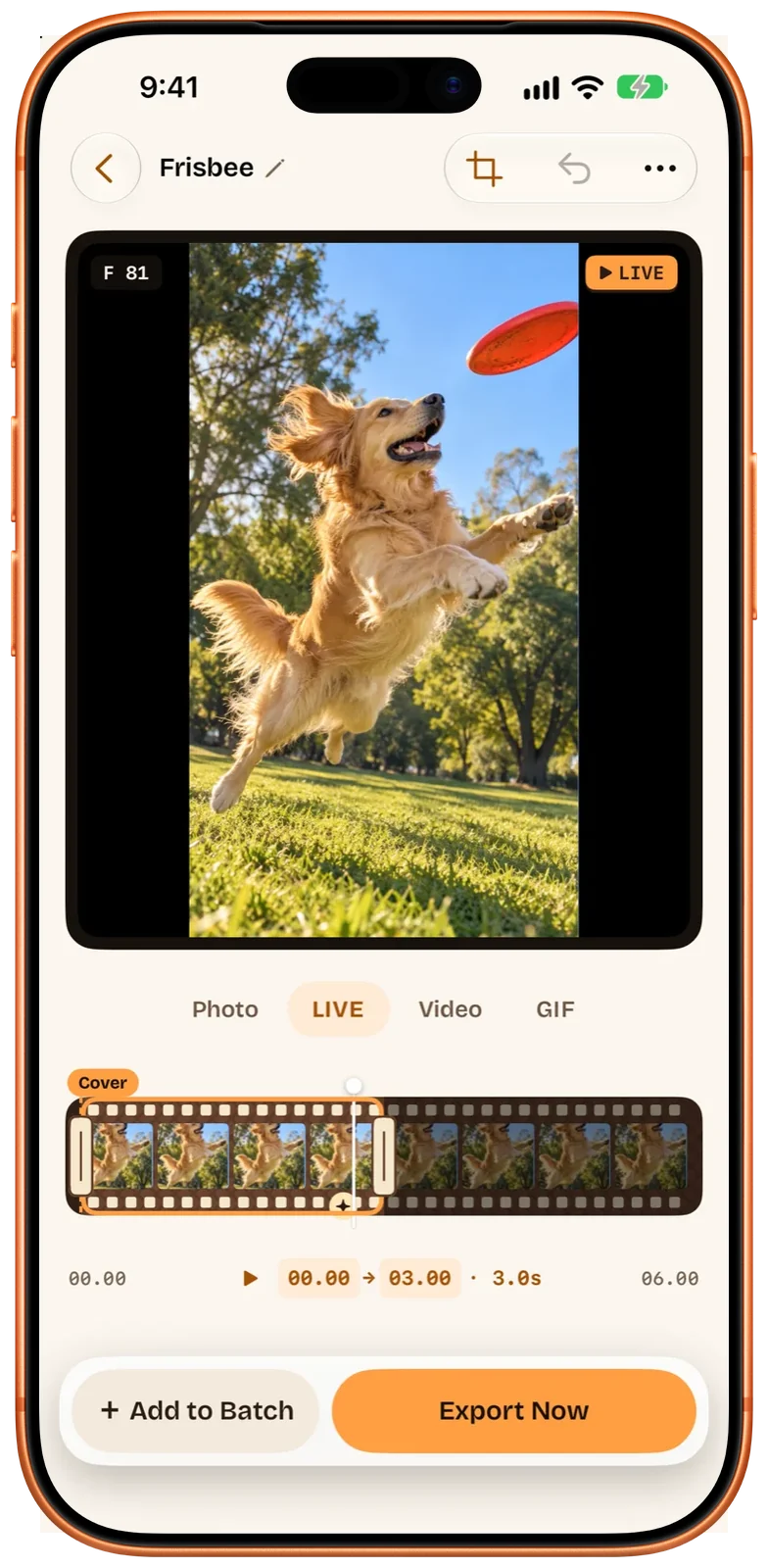
The full video-to-Live-Photo walkthrough shows each step with screenshots. Beavery keeps the video’s sound, HDR, resolution and frame rate in the Live Photo’s movie by default, and the source’s capture date and location.
Beavery covers the other gaps in the table too. A still photo can become a Live Photo with 3 seconds of motion: still, a subtle zoom in or a subtle zoom out. A Live Photo you already have opens with both of its parts, so you can export a new Live Photo with a different stretch or key photo, a video, a GIF or a still from any frame of its movie. It can’t add moments the Camera didn’t record, any more than Photos can.
On a Mac, drag a video onto the Beavery window and step frame by frame with the arrow keys; see Beavery for Mac.
A few things Beavery doesn’t do: it doesn’t take Live Photos with the camera, it doesn’t repair broken ones, and it doesn’t send Live Photos straight to friends, because iOS gives apps no public way to share files as one Live Photo. Save it to Photos and send it from there.
Which one should you use?
If the Live Photo already exists, start with Photos. Changing the key photo, trimming, muting, adding Loop or Bounce, saving it as a video on iPhone, or exporting a GIF on a Mac are all built in and free. You need another app only when the Live Photo doesn’t exist yet, because your starting point is a video or a still photo, or when you want something Photos can’t give you: a key photo from any frame of a video, several Live Photos from one clip, or a Live Photo, GIF and video of the same moment in one export.
Questions
Can an iPhone turn a video into a Live Photo without an app?
No. Apple's Photos and Camera documentation for iOS 27 describes no command that turns an existing video into a Live Photo. In Apple's apps you get a Live Photo by taking one with the Camera; to make one from a video you need a third-party app.
Can I make a Live Photo longer in the Photos app?
No. Trimming in Photos only shortens the part that plays. A Live Photo taken with the Camera holds about 1.5 seconds before and after the moment you took it, according to Apple, and Photos can't add more.
Can Photos on a Mac save a Live Photo as a video?
Apple's Mac guide has no Save as Video command, but File › Export › Export Unmodified Original writes a Live Photo as two separate files, a still image and a video. Photos on Mac can also export it as an animated GIF after you set it to Bounce.
Why did my Live Photo arrive as a still photo?
Some routes only carry the still. Apple says a Live Photo shared via Mail is sent as a still image, and the LIVE button in the share sheet switches to sending only the still when it's turned off.
Can Photos pick any frame of a video as a Live Photo's key photo?
Photos can only make a key photo from frames inside the Live Photo's own short movie. It can't take a frame from a separate video, because it can't make a Live Photo from a video in the first place.
How this guide was checked
- Checked against
- Beavery 1.0 · Apple Support documentation
- Device test
- The steps in this guide have not yet been run one by one on a device.
- Checked
Sources. Apple Support: Take and edit Live Photos; Apple Support: How to turn a Live Photo into a video on your iPhone; Apple Support: Change a Live Photo in Photos on Mac; Apple Support: Export photos, videos, slideshows, and memories on Mac
Written by the maker of Beavery. We sell the app described here; the limits above are the same ones you will hit.